Fee Report

January 02, 2026
If your store attaches fees to certain products, like CRV fees for plastic packaging, you can view the Fee Report to see how much you’ve collected for your fees. Using this report is easy; see for yourself in this article!
Fee Report
Here is how to work with the Fee Report:
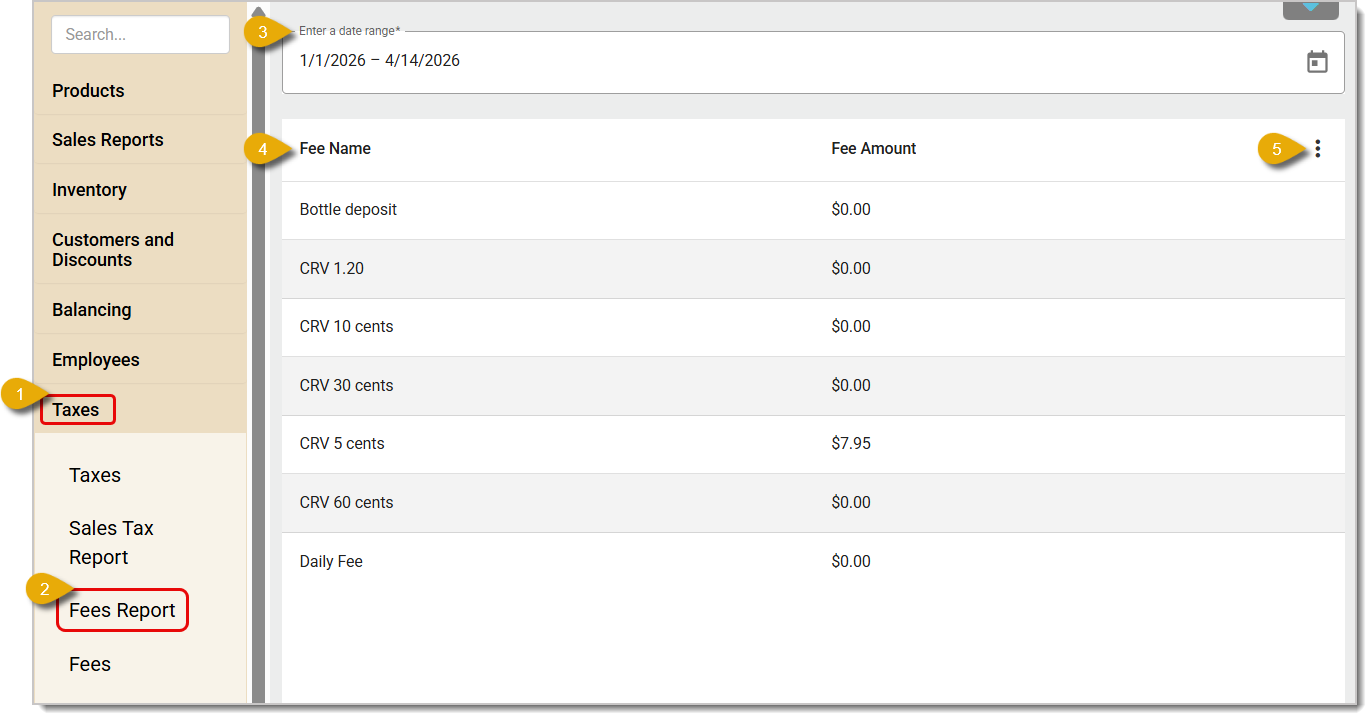
- In the Back End main menu, click on Taxes.
- In the Taxes menu, click on Fees Report.
- Now that you've opened the Fee Report, select your report's Date Range. By default, the report will show data for the current month. Click on the Calendar Icon on the upper right to change the date range.
- The Data Table will display the Fee Name for each of your Fees and the total Fee Amount charged for each, if any.
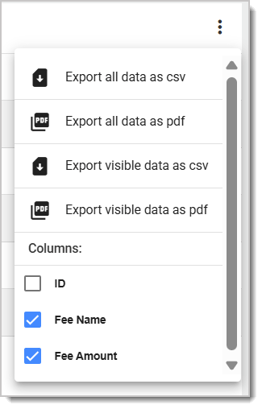
- Click on the Three-Dot Stack icon to open the Action Menu pictured below. You can export your data as a CSV file or a PDF file. You can also select columns you want to hide or display.
Related Articles
Fees
Fees for Products
Frequently Asked Questions
Q: I have a question, but I can't find my answer here. How do I get more assistance?
A: If you need immediate assistance, the IT Retail team is available 24/7. Feel free to contact our support team at 877-752-0625. You can also email us at support@marktpos.com, and we will respond within 24 hours.
The IT Retail system makes it easy to add or update your products in the Back End. This article deta
The IT Retail Sales Tax Report shows your store's data on everything tax-related. You can view infor
Depending on your state laws, certain products may have required fees. For example, items with plast








Is this page helpful?
×Help us improve our articles