







Cashier Training
Welcome to IT Retail, we’re so glad you’ve chosen our POS for your store! This article will guide yo
 October 01, 2024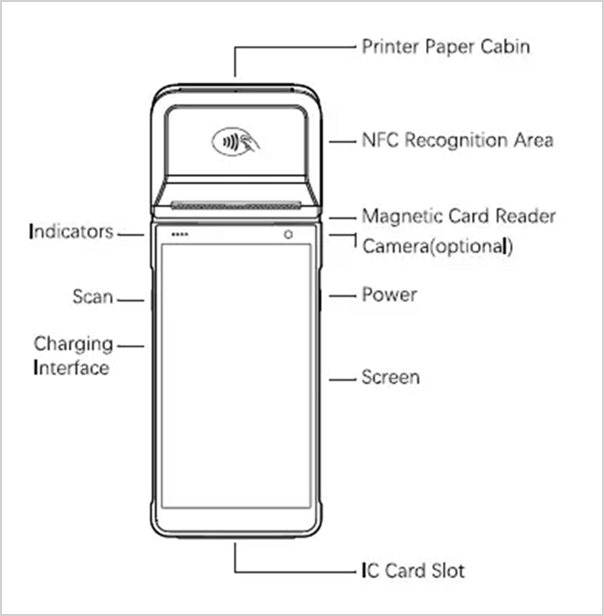
The Wiseasy P5 terminal is a wireless countertop terminal for the IT Retail system. This state-of-the-art card reader accepts chip, contactless NFC, or swipe.
Please Note: The integral thermal printer is not currently supported (more information below).
Our credit card readers are plug-and-play; simply connect it to a local Wi-Fi network, enter the pairing code, and start taking payments in minutes.
The P5 device is also low-maintenance with no additional upkeep required. Updates happen automatically using the Wi-Fi network with no interruptions and no hassle.
To view the terminal's parts and features, see the Wiseasy P5 product sheet.
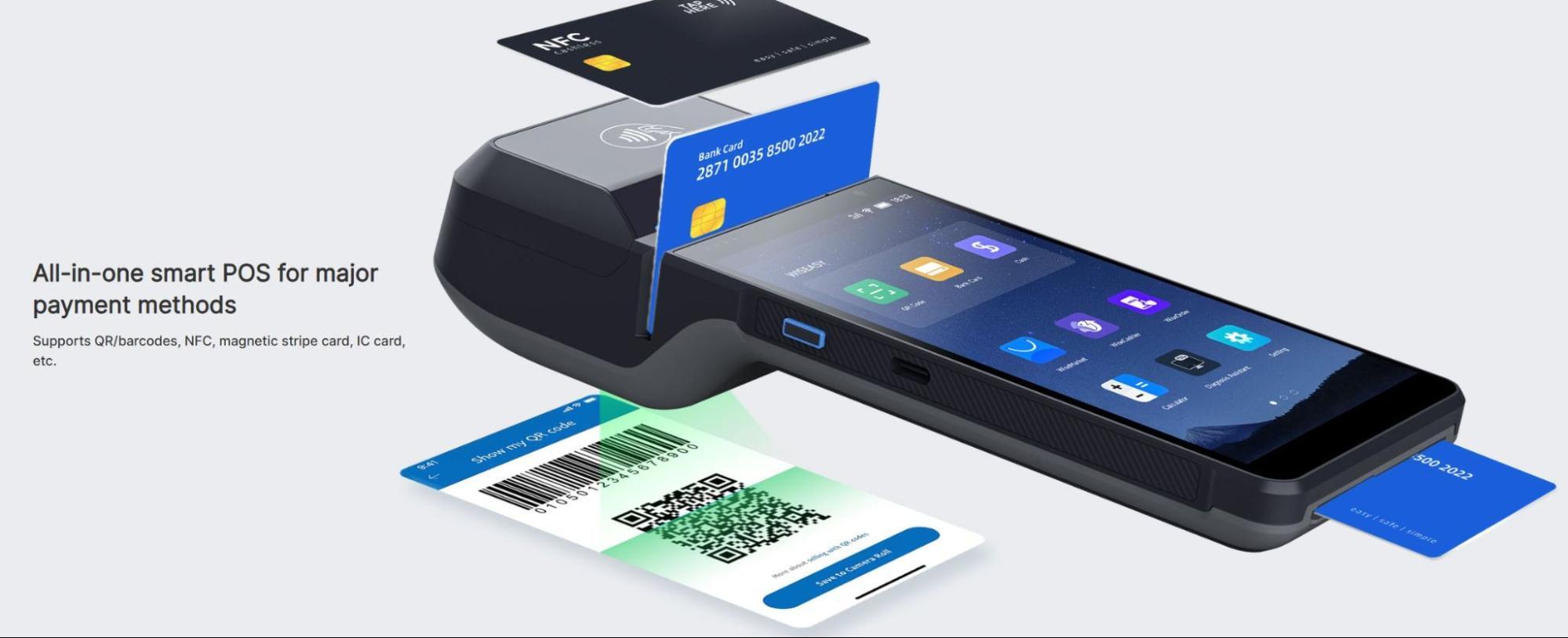
Source: wiseeasy.com
Supported Countries
Supported Payment Methods
Supplies / Components
Features
Please Note: The built-in receipt printer does not currently work with our IT Retail system integration. We may develop that capability in the future, but for now, you will need to use a stand-alone receipt printer.
When you first receive the device, it should come partially charged. Use the USB-C wall charger to begin charging the device to full power.
Once charged for at least 30 minutes, hold down the power button on the right-hand side until the screen turns on. Once the device is powered on, pressing the power button once will sleep or wake the device. To fully power off the device, hold down the power button until the Power Off option displays on the screen, then tap it.
If you need to replace the battery, lift up from the indentation at the bottom-center of the back cover to detach it from the device.
💡Note: Ideally the terminal should be powered off each evening and powered on each morning to receive automatic software updates.
The terminal must be connected to the internet before it can be paired or updated. For best performance, it should be connected to the same network as the point-of-sale computer.
💡Note: The Wi-Fi network must use WPA-Personal or WPA2-Personal encryption and be password protected. Wi-Fi is not supported for non-password-protected networks or enterprise networks.
You can purchase USB-C to Ethernet adapters separately to use with a cable Ethernet connection if Wi-Fi is not available, but it is likely you won’t need them since most new stores receive a dock with their terminal that has an Ethernet cable and connection built in for you.
On some older versions of the P5 terminal, the Quilt PayFac application may not open by default and must be tapped on like an app on a smartphone.
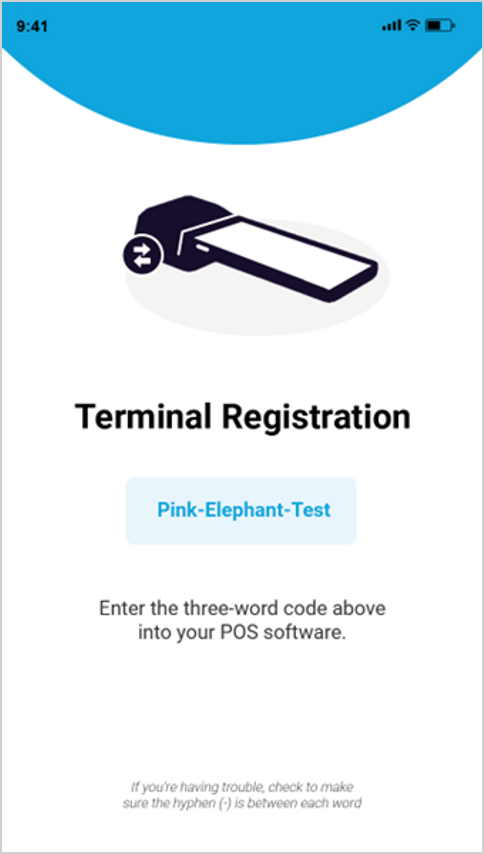
Source: wiseeasy.com
P5: Connecting to the Internet
Basic Hardware Troubleshooting for Card Readers
Q: Does the P5 come with a charging cradle?
A: Yes, your P5 Card Reader will come bundled with the Charging Cradle. If you have an issue with the cradle you can call our support team at the number below and we can troubleshoot or replace it if needed.
Q: I have a question, but I can't find my answer here. How do I get more assistance?
A: If you need immediate assistance, the IT Retail team is available 24/7. Feel free to contact our support team at 877-752-0625. You can also email us at support@marktpos.com, and we will respond within 24 hours.
Is this page helpful?
×Help us improve our articles