







Meals-on-Wheels Round Up Donations
We integrate with the Meals on Wheels Round-Up Donations program so your customers have the option t
 January 27, 2026
At times you may find the need to update your bank account information for where your payouts are deposited. The process differs slightly depending on the payment platform. This article outlines how to update bank details and what to expect during the verification process.
🔒Merchant Permission: Edit Bank Account
Access to edit your bank account is limited to Administration users that have been specifically given the Edit Bank Account permission in the Payment Portal.
To update a bank account follow the process below:
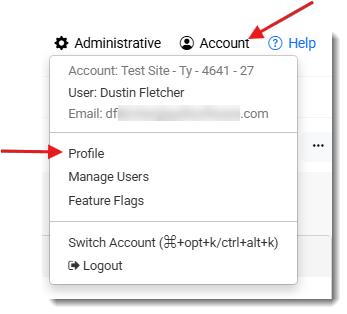

Click the Add Account button in that section.
💡Please Note: An existing bank account can’t be edited, only new bank accounts can be added. The default account can be updated to the latest bank account you have added.
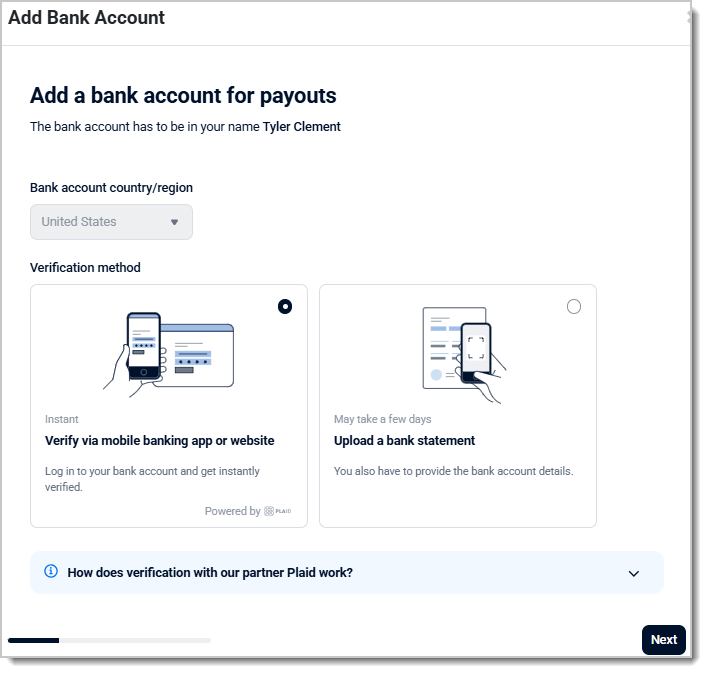
If you opt to use the automated process, the system will ask you for the bank that you use and then take you to their online web tool to log into your account. Once that is completed, it will populate all the needed information directly from your bank. This process cuts down the time it takes to validate the bank account.
If you opt to use the manual process, the system will take you to a page to fill in the bank routing and account numbers and it will ask you to upload a validation document. A voided check or statement that contains the full account number works best for this validation process.
💡Please Note: The name that is on the bank account must match either the legal business name or the DBA (Doing Business As / alternate business name) that is on your Payment Portal.
Once the new bank account has been added, the system will go through a multi step verification process before the new bank account will be available for payouts to be sent.
A confirmation email will be sent to all users set up on your account with the Edit Bank Account permission so they can approve the new bank account. If you have your multi-factor authentication set to send you a text message with your code, you will also receive a text message with a link to the approval page. The link sent in the email and on the text message will expire 24hours after the messages have been sent.
If the change is approved it will move to the next step of verification.
If the change is denied, it will move to be reviewed by our risk team.
Once approved the bank account will be validated for accuracy. This includes verifying the routing number and that the name on the bank account matches the Legal or DBA name.
A message is sent to our Risk team to approve the change of bank account.
Once you have completed the verification steps, the account becomes the default bank account for receiving your payouts.
A confirmation email is sent to all users with the Edit Bank Account permission to confirm the change has been made and is ready for use.
💡Please Note: The previous bank accounts will remain on the list of bank accounts with additional details on them of who requested, and approved the accounts.
Below you will find the different status options for the new bank account:
Pending — Waiting for the merchant’s email/text confirmation approval.
In Review — The account is being reviewed by the Risk team.
Validated — The account has been approved and is waiting on Risk approval.
Verified — The account has passed all validations.
Failed — Bank account did not pass Risk or merchant approval.
Invalid — Bank account could not be verified.
Errored — A payout to this account has failed.
Q. Who can update the payout bank account?
A. Any user on your merchant account with the Edit Bank Account permission can add a new bank account for payouts.
Q. Why can’t I edit an existing bank account?
A. For security, saved bank accounts cannot be edited in place. To make a change, add a new bank account and complete the required verification steps.
Q. What documents might I need for verification?
A. You may be asked for a bank statement or a voided check to confirm the account details if automatic verification is not selected or available.
Q. What should I do if I did not request the change?
A. Deny the request in the approval message, and then contact support right away so the request can be reviewed.
Q: I have a question, but I can't find my answer here, how do I get more assistance?
A: If you need immediate assistance, the IT Retail team is available 24/7. Feel free to contact our support team at: 877-752-0625. Or you can email us at support@marktpos.com and we will respond within 24-hours.
Is this page helpful?
×Help us improve our articles