







Manager Functions in the Front End
There is a wealth of administrative functionality for you in the Manager Functions area of the Front
 January 13, 2026
If you work in multiple geographical regions, you can organize your stores by areas in this part of the IT Retail system. This article will show you how to set up any Areas you might need. Take a look at how it's done!
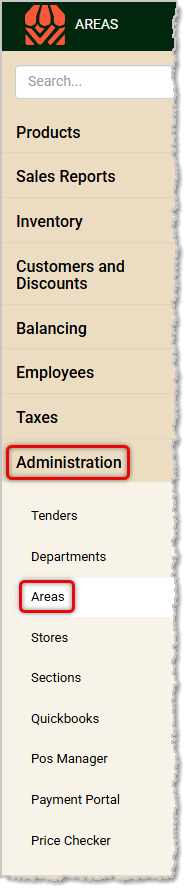
You can get to this part of the system by logging into the Back End and opening the Administration menu. Click on Areas to get started.
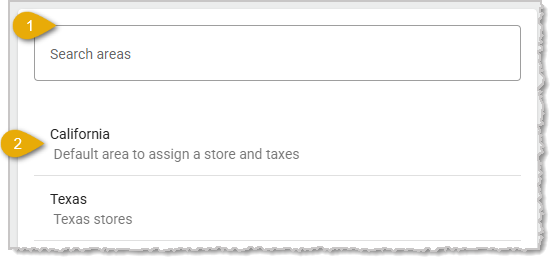
You will need to create at least one Area in the system for your Stores. An example of this might be that you do business in Chester County and you have three stores in different towns in that area. You would use the steps below to create that Area. Then as you create your stores, you can assign them to that Area, and that organization will be used in your sales reporting.
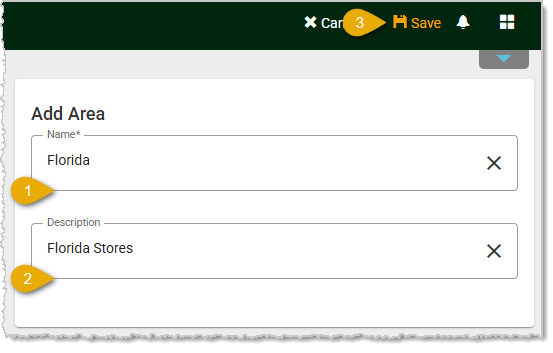
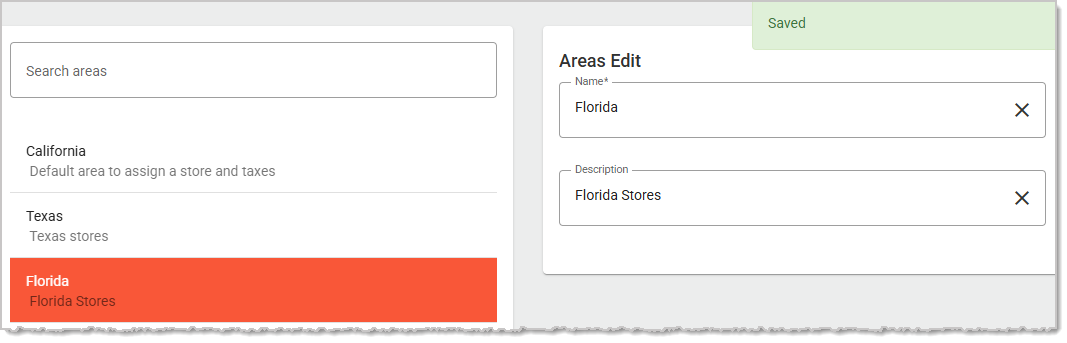
To create a new Area, use the right side of the page and follow these simple steps:
Q: I have a question, but I can't find my answer here. How do I get more assistance?
A: If you need immediate assistance, the IT Retail team is available 24/7. Feel free to contact our support team at 877-752-0625. You can also email us at support@marktpos.com, and we will respond within 24 hours.
Is this page helpful?
×Help us improve our articles