







Cashier Training
Welcome to IT Retail, we’re so glad you’ve chosen our POS for your store! This article will guide yo
 January 08, 2026
From time to time you may need to look up a transaction receipt and either reprint or send to the customer. This article will guide you through the Electronic Journal to find and work with completed transaction receipts. Take a look at what you can do!
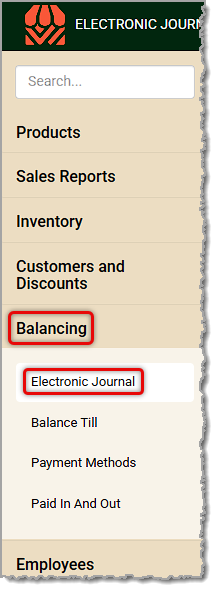
You can get to this part of the system by logging into the Back End and opening the Balancing menu. Click on Electronic Journal to get started.
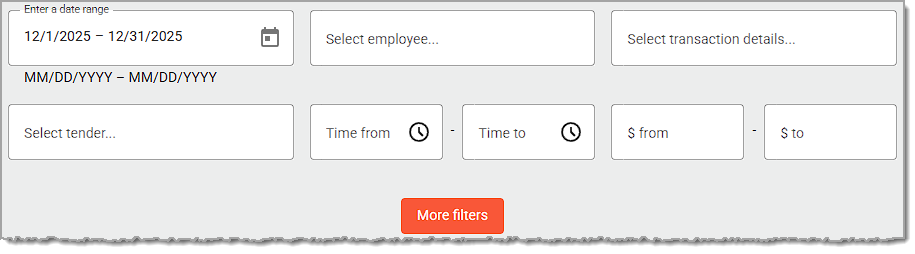
To find the transaction or Front End event you want, the IT Retail system offers many filtering options. Initially, you'll see completed and canceled transactions for the current day, but you can filter to any date range to find the transaction you want.
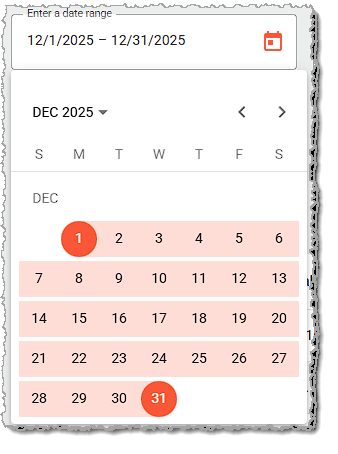
If you click on the Date Range field, you can set a from and to date, as pictured here:
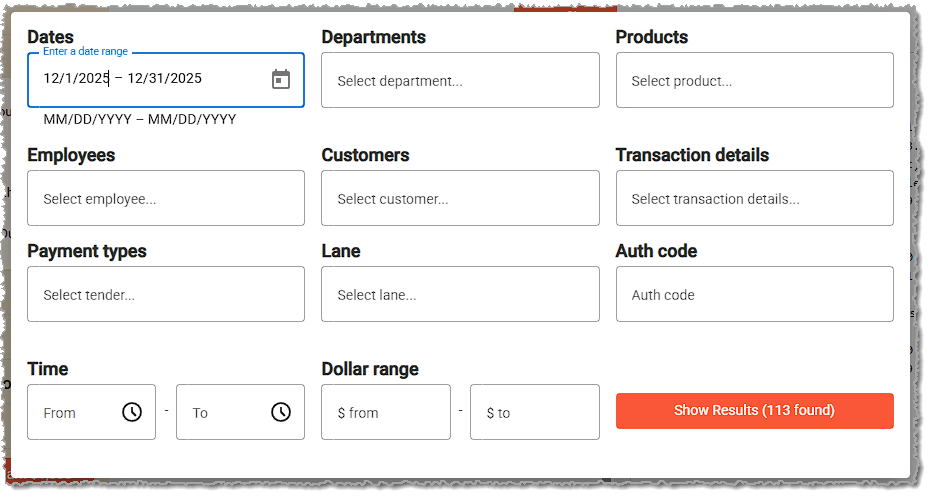
You can click the More Filters button to see all the filters available to you. They include Dates, Departments, Products, Employees, Customers, Transaction Details (this filter lets you choose from transactions including Discounts, Paid Ins, Paid Outs, Refunds, Voids, Vendor Payments, or transactions that were Canceled), Payment Types, Lane, Authorization Code, Time Range, and Dollar Range. Once you set the filters as needed, click the Show Results button to see transactions that fit within your selections. As you set filters, the number of transactions that match will update for you.
The results will display in a table showing the Status of each transaction (Canceled in red, or Completed in green), the Name of the cashier, the Tender used, the dollar Total of the transaction, and the Date & Time. The Tender column abbreviates each method, for example, Cash displays as CA.
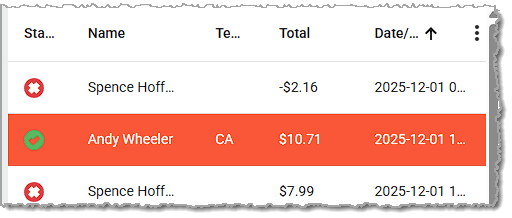
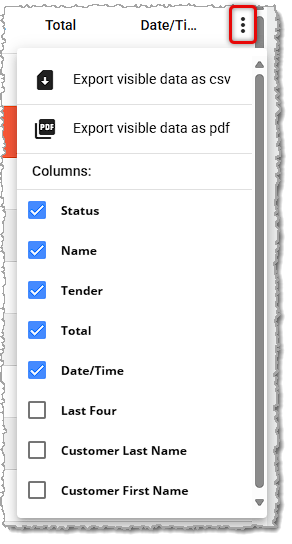
On the far right is an action menu with options for exporting the data as CSV or PDF files, and you can also adjust which columns display. Other columns you can view include the Last Four digits of the card used, the Customer Last Name, and the Customer First Name, as shown below.
Once you have found the transaction you want, use the information to work with the transaction as needed:
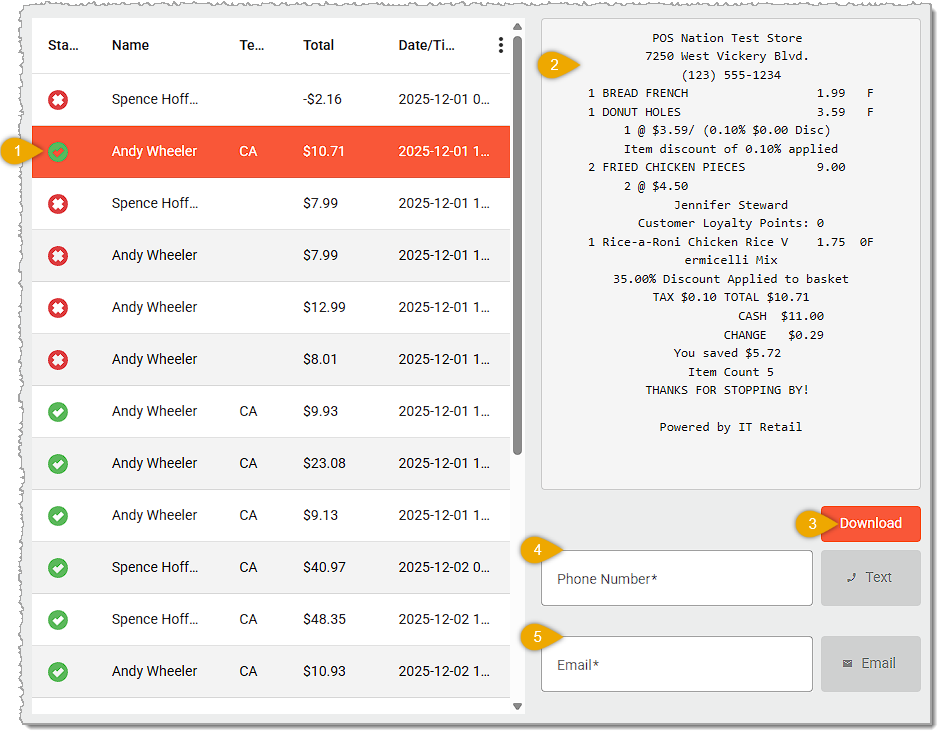

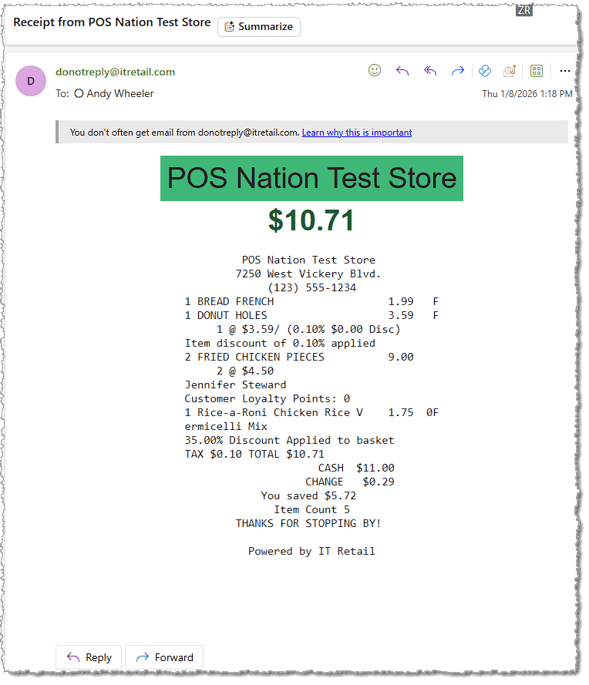
Please Note: If you are working in the Front End, you can go to Manager Functions > Transaction Search to find and print completed transaction receipts. However, if you want to send them via text or email you must do so from here. That area of Manager Functions is explained in detail in the article linked below named Reprint a Customer Receipt.
Q: I have a question, but I can't find my answer here. How do I get more assistance?
A: If you need immediate assistance, the IT Retail team is available 24/7. Feel free to contact our support team at 877-752-0625. You can also email us at support@marktpos.com, and we will respond within 24 hours.
Is this page helpful?
×Help us improve our articles