






IT Retail

Reprint a Customer Receipt

December 03, 2025December 03, 2025

From time to time you may need to print a receipt for a transaction that was previously completed. The system makes it easy to access all of your transactions and reprint their receipts as needed. Here is how you can do it!


Accessing Completed Transactions

From the Front End, you can look up any completed transaction from the Manager Functions window. Click or tap the Manager Functions button, and then click or tap Transaction Search to start.
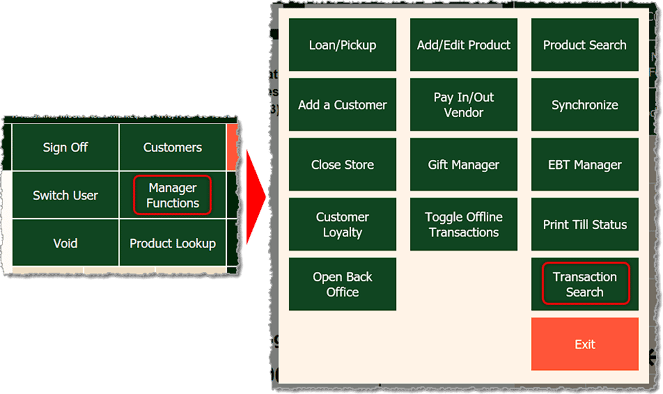
Image showing how to access the transaction search from the manager functions in the Markt POS Front End.

The Transaction Search window offers a number of ways to find what you want, depending on what you have for the transaction. Here is what you can do:
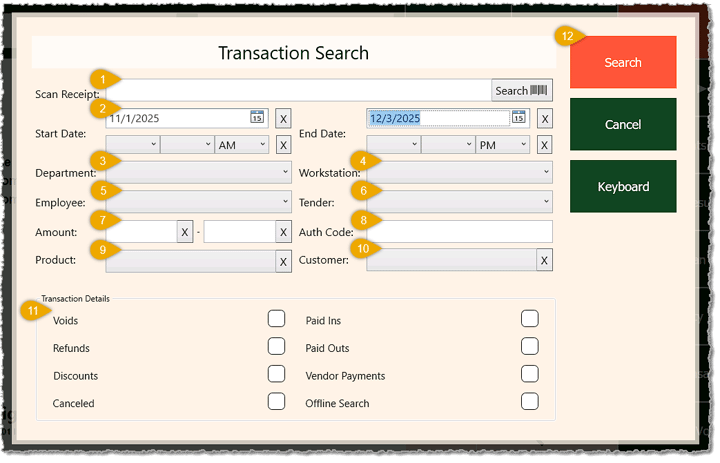
Image showing the transaction search window of the Markt POS Front End with key features highlighted.

If you will be manually entering information, you can click or tap the Keyboard button on the right to open the on-screen keyboard, if needed.

    1. Scan Receipt — This is the fastest way to get to a transaction. You can scan the receipt barcode then click or tap Search to go straight to the one you want.
    2. Date Range — You can enter a Start Date and Time and an End Date and Time to restrict your search to all transactions in the range.
    3. Department — If you choose a Department from the drop-list, the search will be restricted to transactions with items from the department.
    4. Workstation — If you choose a Workstation from the drop-list, the search will be restricted to transactions completed from that workstation.
    5. Employee — If you choose an Employee from the drop-list, the search will be restricted to transactions completed by that employee.
    6. Tender — If you choose a Tender Type from the drop-list, the search will be restricted to transactions paid for using that tender.
    7. Amount Range — You can enter a From Amount and To Amount in the amount fields and the search will be restricted to transactions with Totals falling within that dollar amount range.
    8. Auth Code — You can enter the Authorization Code generated for a card payment on the transaction and the system will find that transaction when you click or tap the Search button.
    9. Product — Click or tap this field to open the Product Search window where you can find the product you want and click on it. Once you have selected the product, the search will be restricted to transactions that had that item.
    10. Customer — Click or tap this field to open the Customer Search window where you can find the customer you want and click on them. Once you have selected the customer, the search will be restricted to transactions for only that customer.
    11. Transaction Details — Click or tap the checkboxes to restrict your search to transactions with the selected details. These options include transactions with Voids, Refunds, Discounts, Canceled, Paid Ins, Paid Outs, Vendor Payments, and Offline Search.
    12. Search — Click or tap the Search button in the upper right when you have configured your selections.

The Transactions window will open with all orders matching your search criteria. Each will display its Date and Time, Amount, the Employee that completed it, the Customer name, if any, and the Tenders used. If the transaction was completed, you'll see a green Checkmark Icon in the upper right. If it was canceled, you'll see a red X Icon. Browse transactions using the Next and Previous buttons until you find what you want. Click or tap the transaction's thumbnail. Once you have selected the one you want, click or tap the View button in the upper right to see the receipt.
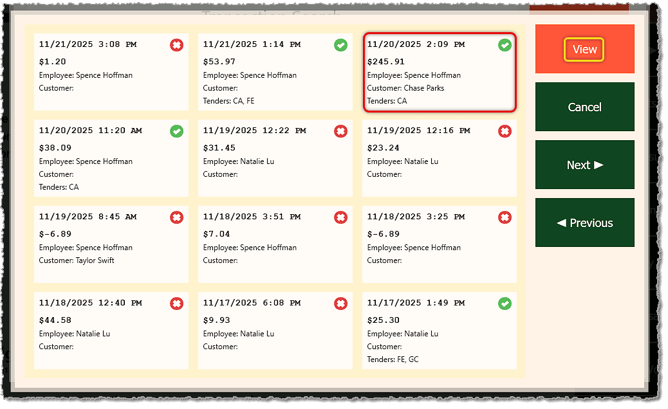
Image showing the transactions window of the Markt POS Front End.

The Receipt window shows you full details from the transaction as they appeared on the receipt, as in the example below. Click or tap the Print button to reprint the receipt on your receipt printer.
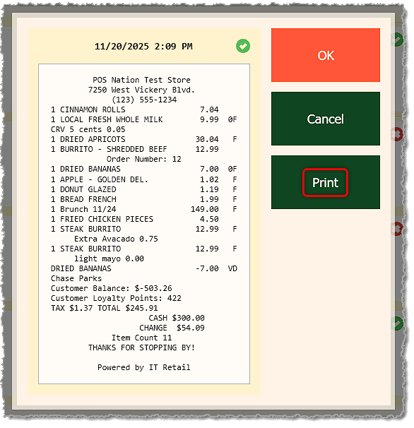
Image showing the View Receipt window of the Markt POS Front End.


Related Topics

Cashier Training

POS Front End Tour

Manager Functions in the Front End


Frequently Asked Questions

Q: How do I set up and use the receipt printer in my P5 card terminal?

A: The system doesn't currently support that printer, but we hope to in the future.


Q: I have a question, but I can't find my answer here. How do I get more assistance?

A: If you need immediate assistance, the team is available 24/7. Feel free to contact our support team at: 877-752-0625. Or you can email us at support@marktpos.com and we will respond within 24-hours.


Need Help?

Can't quite find the answer you're looking for? Our support team is just a call away.