







Cashier Training
Welcome to IT Retail, we’re so glad you’ve chosen our POS for your store! This article will guide yo
 November 20, 2025
You can ring up a product as a Non-Scan item if it doesn’t have a UPC / PLU code or it's not yet registered in the system. Read on to see exactly how you can do that!
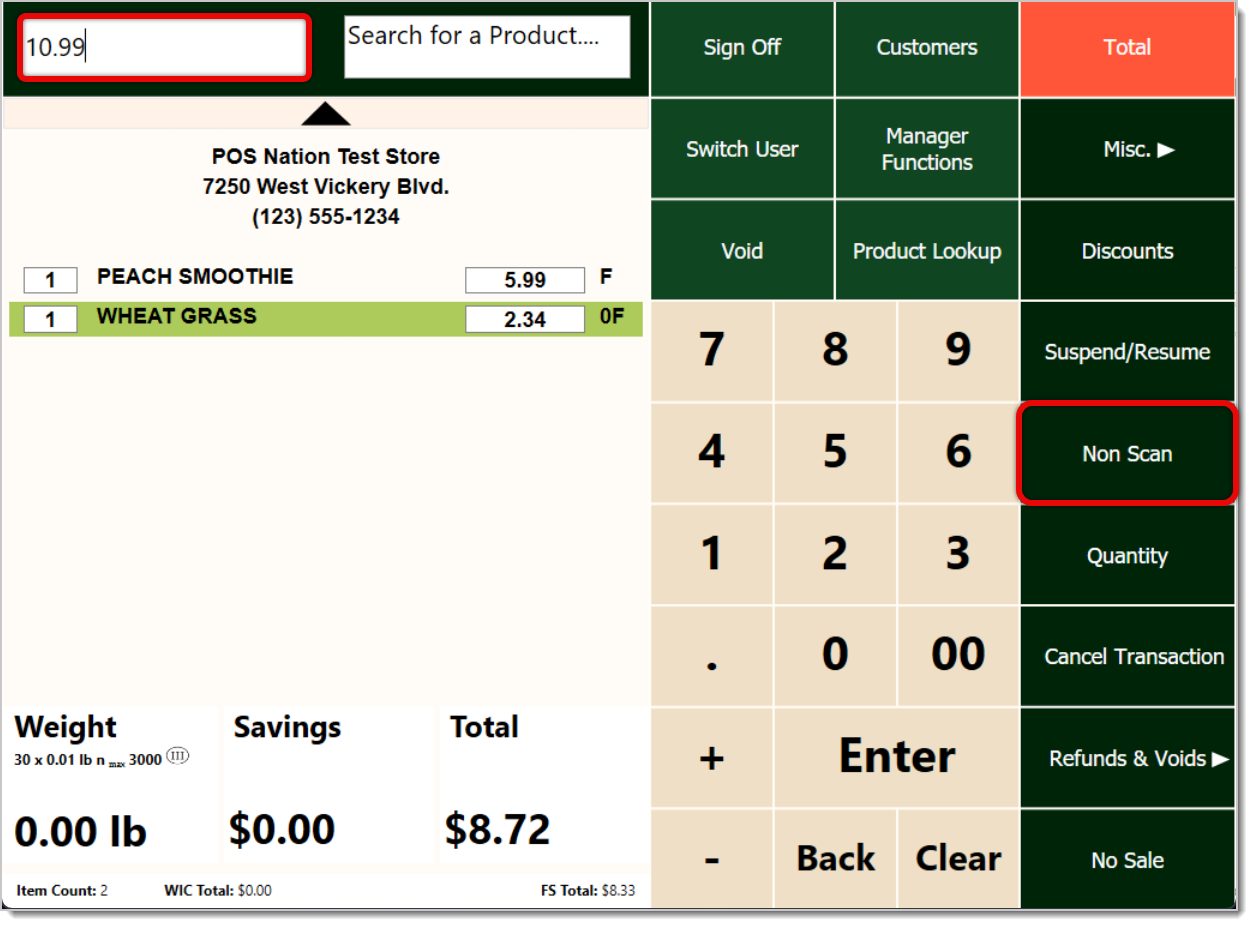
From the Front End, first enter the price of the product in the upper left, as highlighted in the picture below. Then tap or click on Non Scan in the right-hand panel.
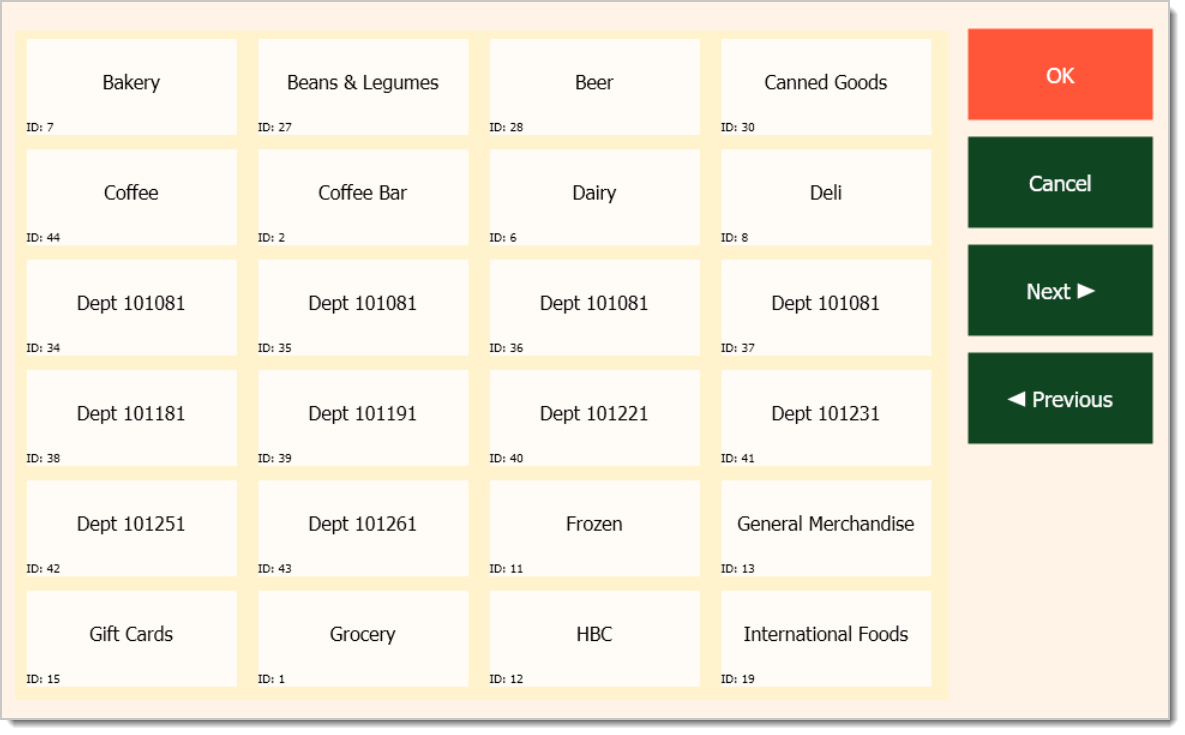
You’ll then have to click or tap on the product’s Department. Once it’s selected, click or tap on OK. You can browse multiple pages of departments by clicking or tapping on Next or Previous.
Note that only items in Departments that are set to Open in the Back End can be used for Non-Scan items. To set a department this way, in the Back End go to Administration > Departments > select the department > Department Tab > check the box for Open Department.
If you don’t have the Product Description function toggled on, the item will be automatically added, and it will show on the transaction just as its Department Name. For example, you’d see Deli on the transaction instead of a cheese name.
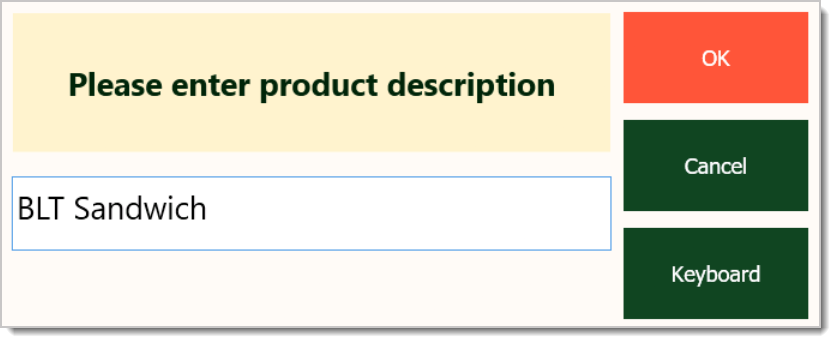
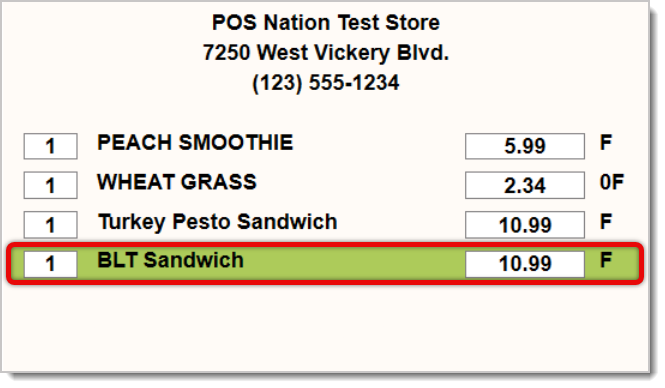
If you have the Product Description function on, a window will prompt you to type in the description, like “BLT Sandwich.” Then click or tap OK to add the item to the transaction.
To toggle this on, in the Back End go to Administration > POS Manager > Checkstand Receipt > Request a description for an open department sale and print it on the receipt.
Working With Products in Transactions
Q: I have a question, but I can't find my answer here. How do I get more assistance?
A: If you need immediate assistance, the IT Retail team is available 24/7. Feel free to contact our support team at 877-752-0625. You can also email us at support@marktpos.com, and we will respond within 24 hours.
Is this page helpful?
×Help us improve our articles