







Cashier Training
Welcome to IT Retail, we’re so glad you’ve chosen our POS for your store! This article will guide yo
 November 20, 2025
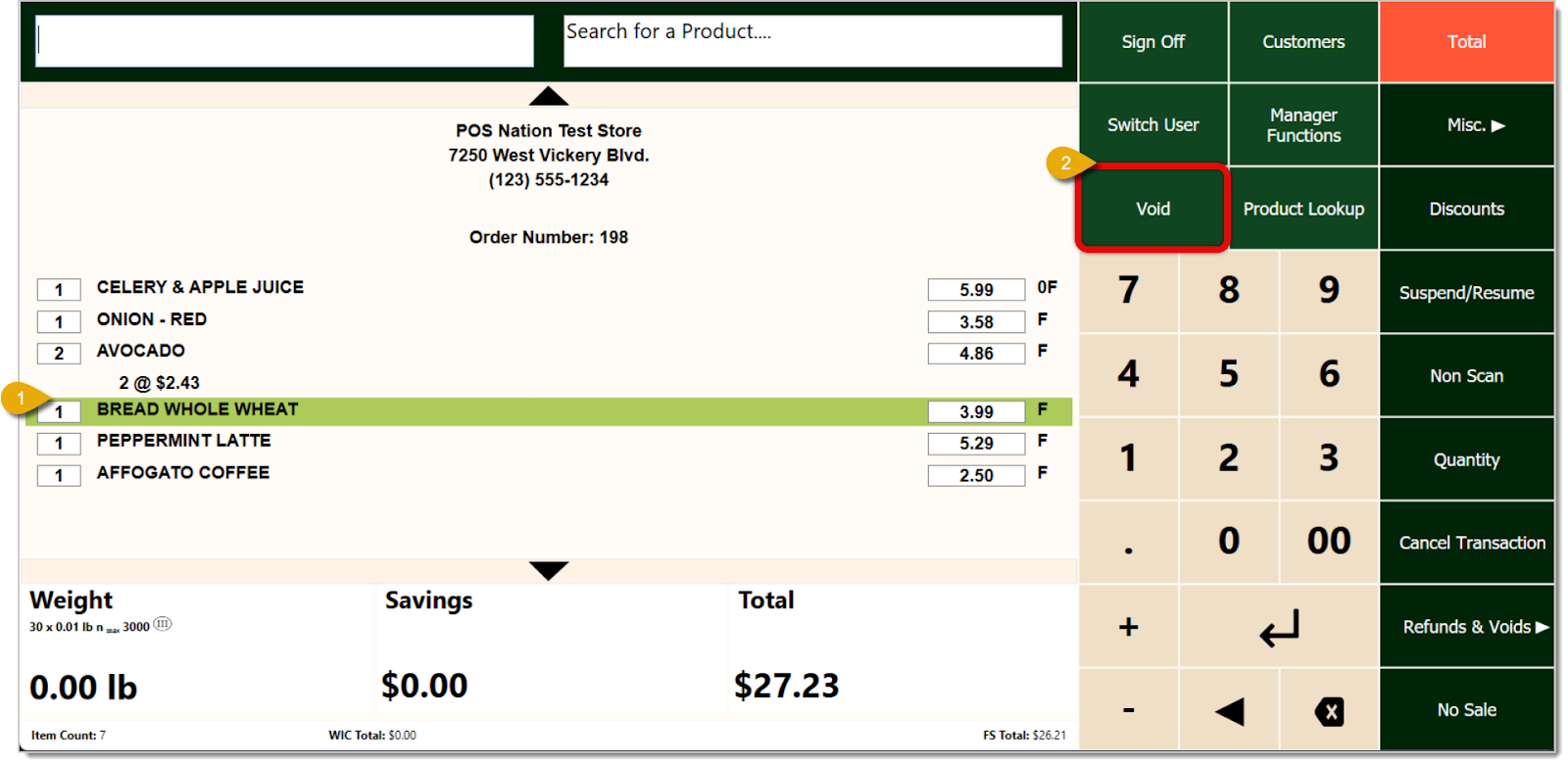
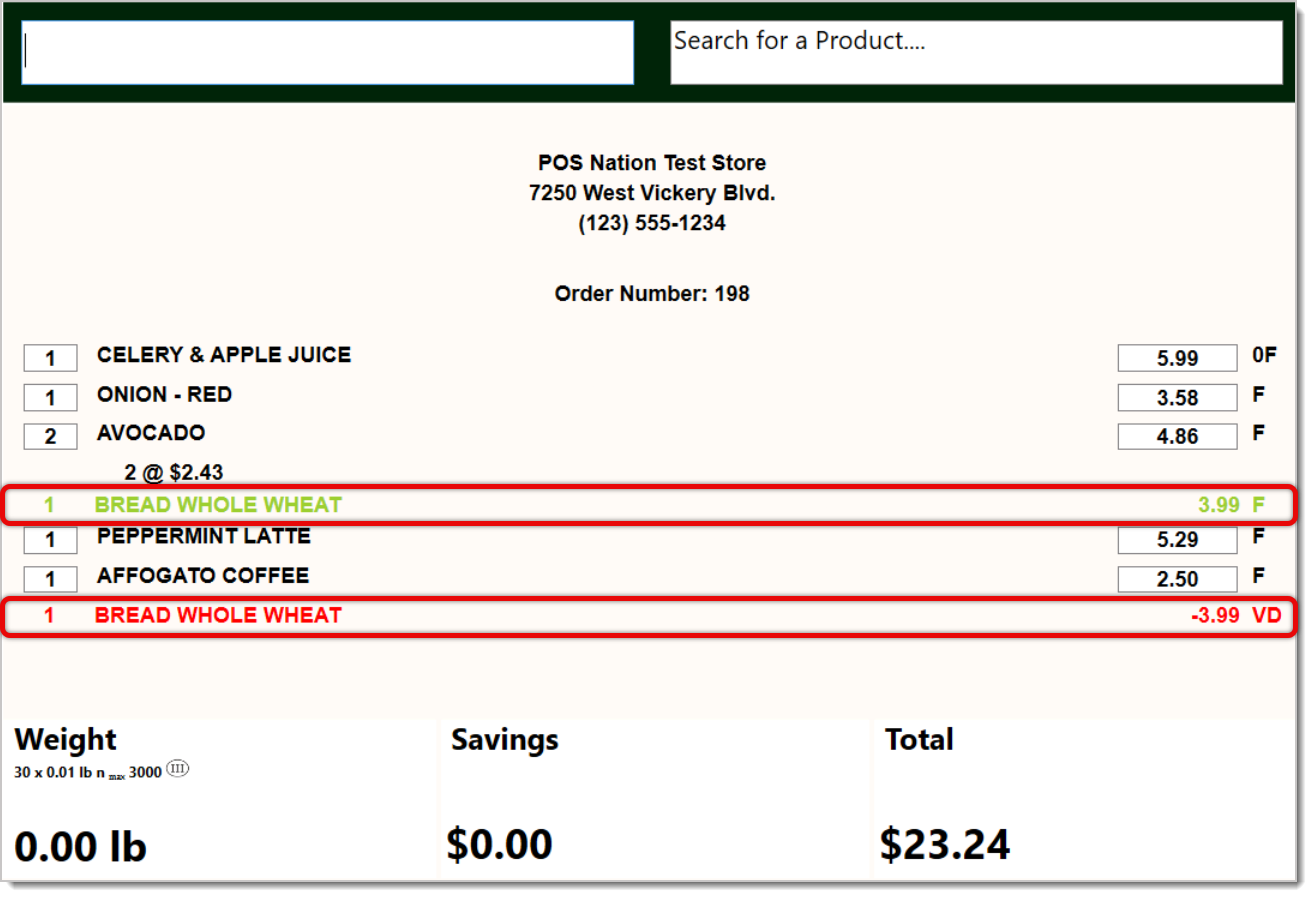
If a customer changes their mind about something or a cashier accidentally scans the wrong item, you can easily void it in the IT Retail system. Read on to see how you can quickly void an item. This article is for voiding individual items from a transaction. If you’d like to instead cancel an entire transaction, read our article about Canceling a Transaction linked at the bottom of this article.
Please Note: If you need to give employees the ability to void items in the Front End, go to the Back End and navigate to Employees > Roles > Front End > select the role > Transactions area > Void Item.
Working with Products in Transactions
Suspending and Resuming Transactions
Refunds and Returns in the Register
Q: What do I do if I want to cancel a whole transaction instead of just voiding single items?
A: You would use the Cancel Transaction button on the Front End. Read our article about Canceling a Transaction linked above.
Q: I have a question, but I can't find my answer here. How do I get more assistance?
A: If you need immediate assistance, the IT Retail team is available 24/7. Feel free to contact our support team at 877-752-0625. You can also email us at support@marktpos.com, and we will respond within 24 hours.
Is this page helpful?
×Help us improve our articles