







Cashier Training
Welcome to IT Retail, we’re so glad you’ve chosen our POS for your store! This article will guide yo
 November 20, 2025
Sometimes, a customer has to leave mid-transaction and come back later, so you’ll have to suspend the transaction so you can ring up other customers. If that’s the case, IT Retail makes it simple for you to put them on hold. Read on to see how you can suspend and resume transactions.
Please Note: In the Back End, use the Roles page to give employees permission to suspend and resume transactions. You can also configure in POS Manager whether or not cashiers are allowed to sign off when they still have Suspended Transactions.
Click or tap on Suspend / Resume from the right-hand panel.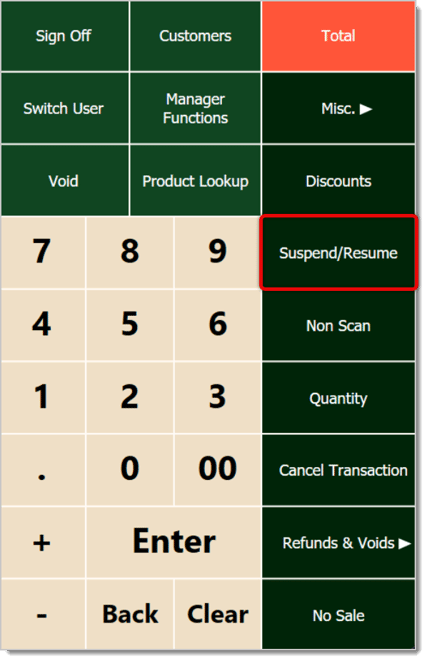
Enter a name for the order so you can track it down later. Click or tap on OK to save it.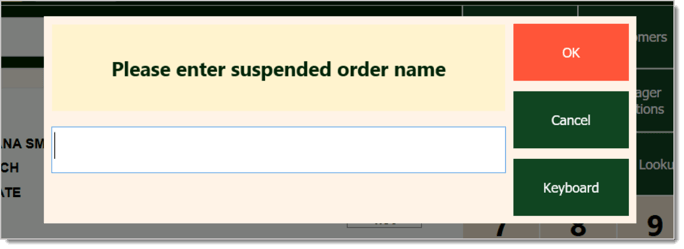
Select how the system will produce the receipt. This will also show the ID number of the suspended transaction. In the case of these transactions, we recommend just clicking or tapping on Paper so you have something physical for reference.
When the customer comes back and you want to resume the transaction, click or tap on Suspend / Resume again. This will open up the Resume Transaction window.
Enter either the order Name you set in the steps above or the ID number in the search bar at the top to find the transaction, then click or tap on the appropriate one to select it.
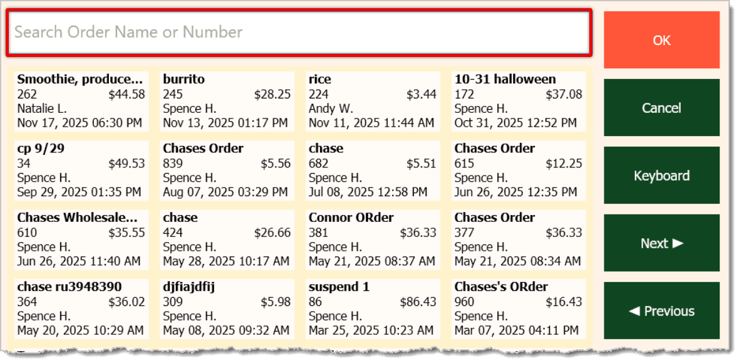
Click or tap on the OK button to resume the transaction, and proceed with the transaction as normal.
Q: How do I give an employee permission to suspend and resume transactions?
A: In the Back End, go to Employees > Roles. In the Role Editor, go to the Transactions area and check the permission boxes for Suspend and Resume. Be sure to save your changes.
Q: I have a question, but I can't find my answer here. How do I get more assistance?
A: If you need immediate assistance, the IT Retail team is available 24/7. Feel free to contact our support team at 877-752-0625. You can also email us at support@marktpos.com,and we will respond within 24 hours.
Is this page helpful?
×Help us improve our articles