







Cashier Training
Welcome to IT Retail, we’re so glad you’ve chosen our POS for your store! This article will guide yo
 November 20, 2025
Customers will occasionally need to cancel their entire transaction. Here’s the step-by-step guide on how to do that in the IT Retail system's Front End.
If you already have items loaded in the transaction and need to cancel it, click or tap on Cancel Transaction on the far right.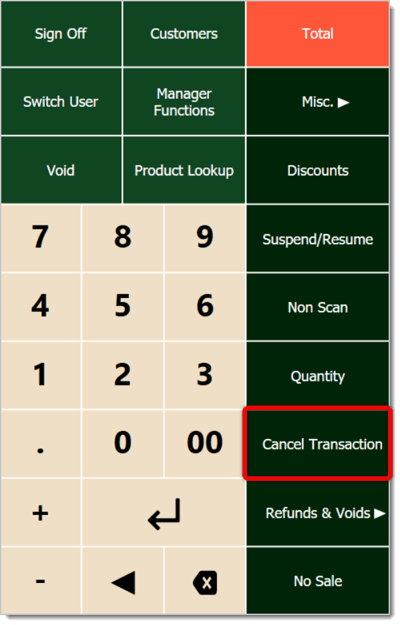
Once you’ve clicked or tapped on Cancel Transaction, it will be canceled, though you will still see line items until the Register clears. Note that the screen will read Item Count 0 below the line items.
Depending on your system settings, you’ll automatically have a receipt printed, or the register will prompt you to select the receipt type.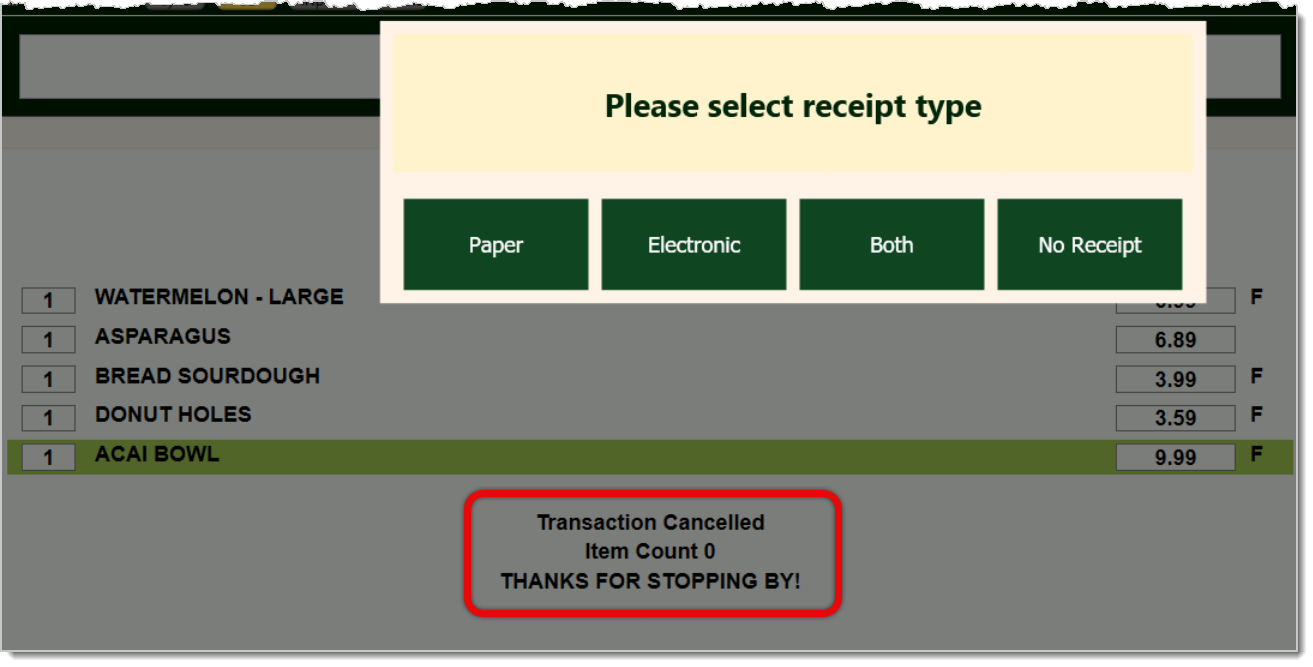
That’s it! You’re all set. All canceled transactions will appear in the Till Status report at the end of each shift.
Suspending and Resuming Transactions
Refunds and Returns in the Register
Q: What do I do if I just need to cancel one item?
A: You can Void individual items from a transaction using the steps details in the article titled How to Void Items, linked above.
Q: I have a question, but I can't find my answer here. How do I get more assistance?
A: If you need immediate assistance, the IT Retail team is available 24/7. Feel free to contact our support team at 877-752-0625. You can also email us at support@marktpos.com, and we will respond within 24 hours.
Is this page helpful?
×Help us improve our articles