







Cashier Training
Welcome to IT Retail, we’re so glad you’ve chosen our POS for your store! This article will guide yo
 November 20, 2025
The IT Retail system enables you to run transactions paid for with EBT, commonly known as Food Stamps or SNAP. Before your business can start taking EBT as a valid payment method, you’ll first have to:
After your store is accepted as a SNAP retailer, you can start accepting EBT payments. Read on to learn how to work with EBT in the IT Retail POS.
After you’ve configured which items are eligible for SNAP, you can start processing payments with EBT.
Add all items to the transaction., then click or tap on Total in the upper right. This will generate the total amount including tax and will open a panel of payment options.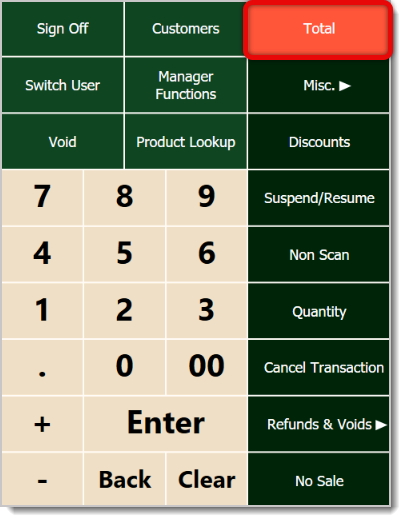
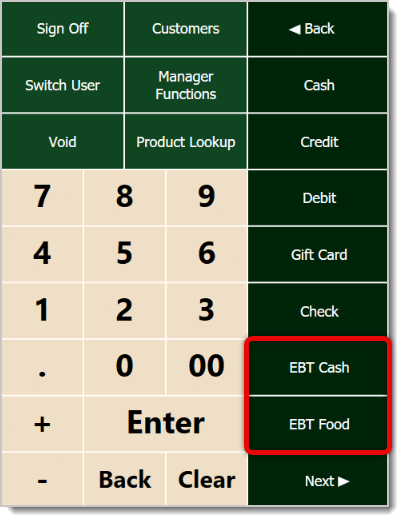
Click or tap on EBT Cash or EBT Food, depending on the nature of the transaction. For this example, we’ll use EBT Food.
Important Note: The EBT Cash and EBT Food buttons only work if you are not using PayFac devices to process payments. If your store does use IT Retail Payments, the Credit button, located above the EBT buttons, will process all card payments, including EBT card payments.
The POS will prompt you to confirm the amount that is being paid with EBT, and it will automatically exclude any non-eligible items. Click or tap on Yes to proceed with the transaction, or No if you need to change something.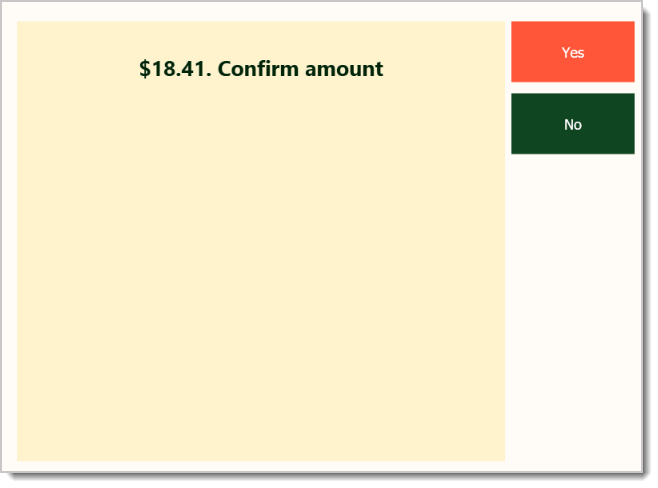
After the customer has used their EBT card and entered their PIN, check that the payment went through successfully. The system will prompt you to confirm that it was processed. Click or tap on Yes or No. 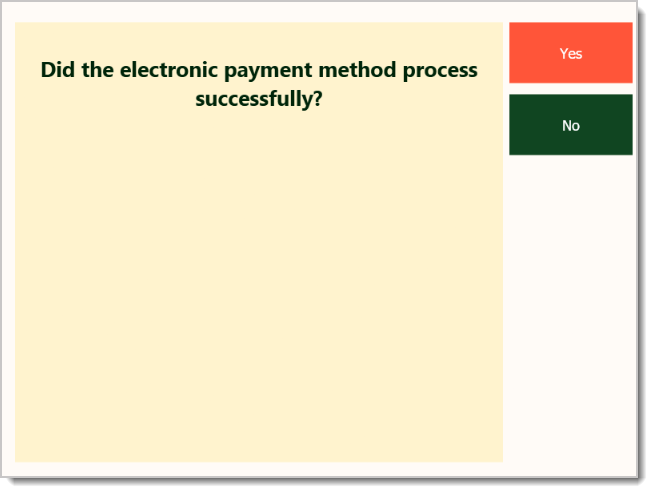
If there are any items that aren’t eligible for EBT Food, the customer can pay for the rest with any other method to complete the transaction.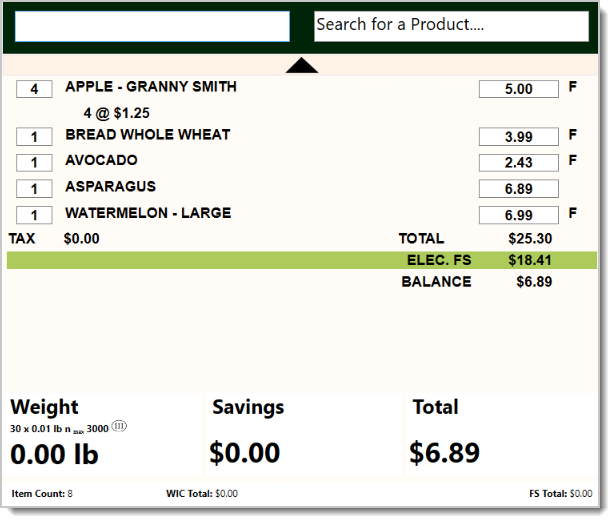
If a customer wants to check their EBT balance before their transaction, you can do so from Manager Functions.
From the POS, click or tap on Manager Functions in the keypad section.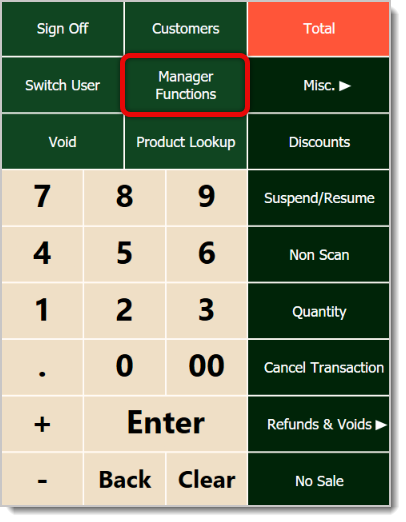
Click or tap on the EBT Manager button in the Manager Functions window.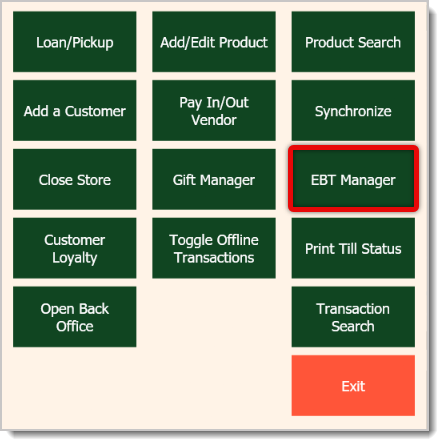
Click or tap on the appropriate option:
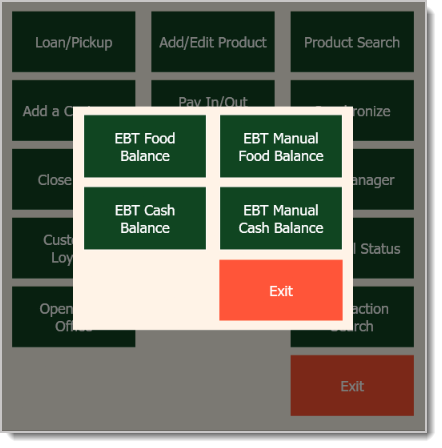
The POS will print out a receipt stating how much is on the customer’s balance, and you can then give that to the customer.
Suspending and Resuming Transactions
Q: How can I use my WIC (Women, Infants, Children) card to pay?
A: At present, the IT Retail system doesn't accept WIC payment methods. We hope to add this ability in the future.
Q: I have a question, but I can't find my answer here. How do I get more assistance?
A: If you need immediate assistance, the IT Retail team is available 24/7. Feel free to contact our support team at 877-752-0625. You can also email us at support@marktpos.com, and we will respond within 24 hours.
Is this page helpful?
×Help us improve our articles