End of Week Report

December 18, 2025
Your End of Week Report breaks down your sales by department, taxes collected, and tender types used in the past week by default. This article shows you how to generate your End of Week Report and how to work with it. Take a look!
Generate Your End of Week Report
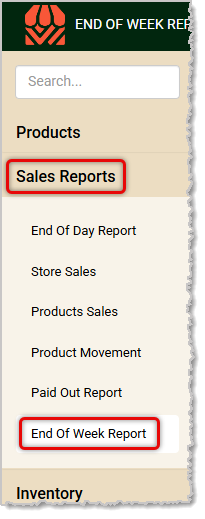
From the Back End open the Sales Reports menu and click on End of Week Report.
Here is how to work with your End of Week Report:
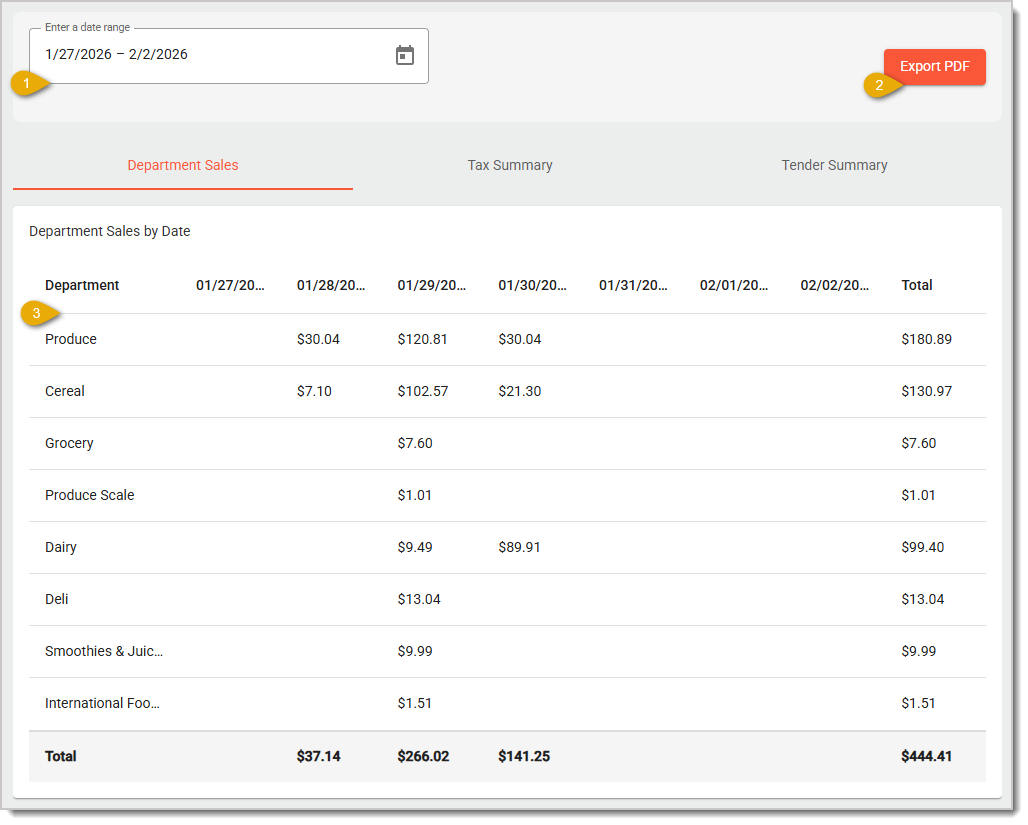
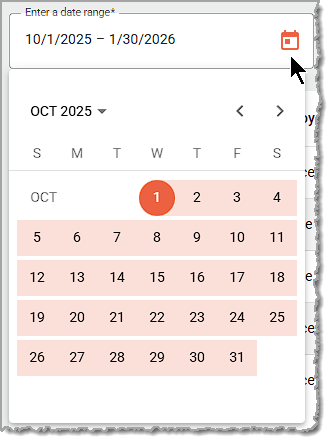
- Date Range — By default the date will be set to the past seven days (starting from today). If you need a different range of dates you can click in the field or on the Calendar Icon and use the date picker to set From and To dates, as pictured here.
- Export PDF — Click the Export PDF button to export a PDF file of all data for all three tabs of the End of Week Report, as pictured below.
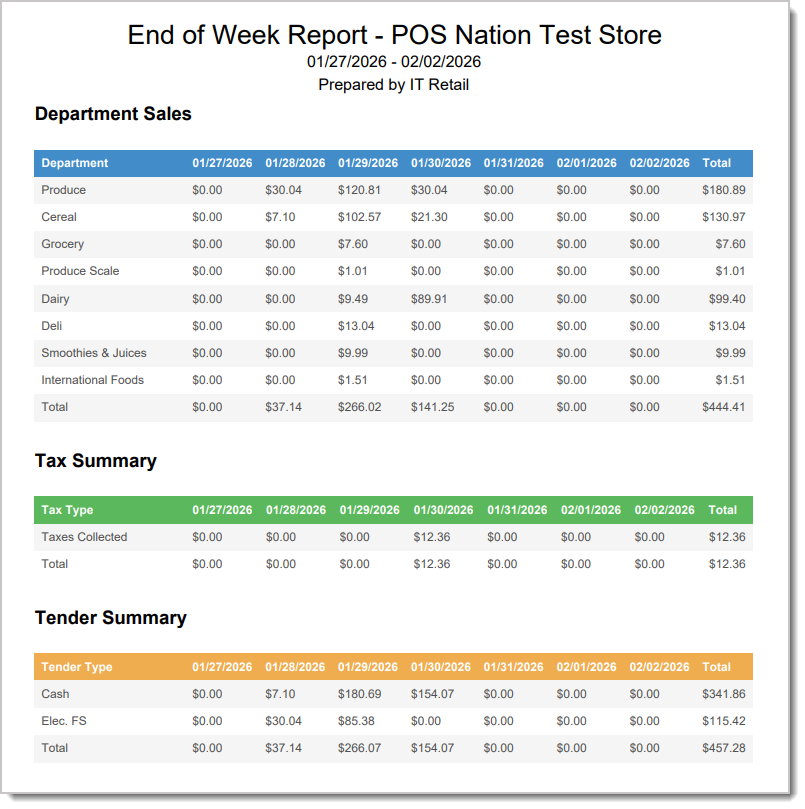
- Department Sales Tab — The Department Sales tab loads by default. The Data Table for Department Sales shows the Name of each department, each Date within the selected Date Range, and the Total sales dollar amount for each Department. Across the bottom of the table are the Totals for each column, ending with a Grand Total for all Department Sales for the period.
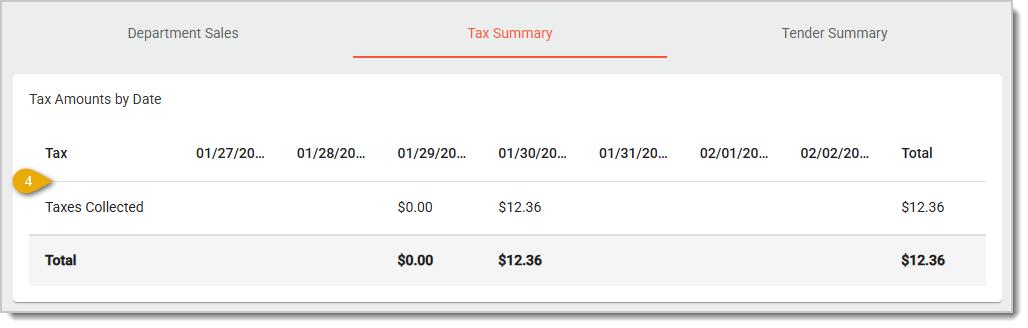
- Tax Summary Tab — The Data Table of Tax Summary tab shows the name of each Tax, each Date within the selected Date Range, and the Total dollar amount collected for each tax. Across the bottom of the table are the Totals for each column, ending with a Grand Total for all Taxes for the period.
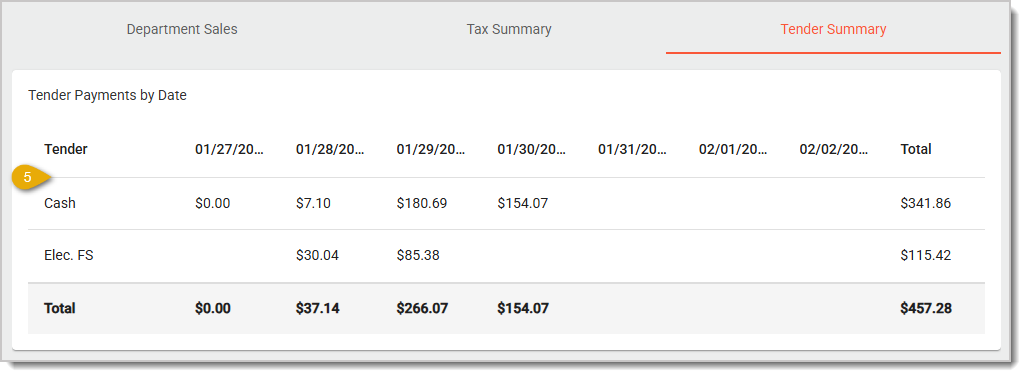
- Tender Summary Tab — The Data Table of the Tender Summary tab shows the name of each Tender, each Date within the selected Date Range, and the Total dollar amount for each tender type. Across the bottom of the table are the Totals for each column, ending with a Grand Total for all Tender Type Sales for the period.
We recommend that you keep weekly exports of this report for your records.
Related Articles
Back End Dashboard
The End of Day Report
Store Sales
Product Sales
Frequently Asked Questions
Q: I have a question, but I can't find my answer here. How do I get more assistance?
A: If you need immediate assistance, the IT Retail team is available 24/7. Feel free to contact our support team at 877-752-0625. You can also email us at support@marktpos.com, and we will respond within 24 hours.
The first thing you'll see when you open the IT Retail Back End is the Dashboard. Here, you can see
Keep track of your store's overall sales by working with your Store Sales report in the Back End. Th
The Product Sales report from the IT Retail system's Back End breaks down your store's product sales








Is this page helpful?
×Help us improve our articles