The End of Day Report

December 17, 2025
Need to see comprehensive details about your store's performance for the day? This article shows you how to generate your End of Day report and what the output means. Take a look at what's in there for you!
Generate Your End of Day Report
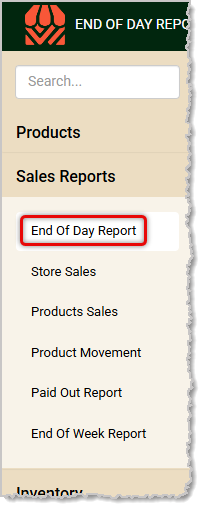
From the Back End open the Sales Reports menu and click on End of Day Report.
Follow these steps to generate your End of Day report:
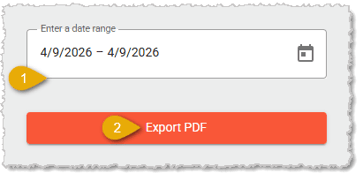
- Date Range — By default the date will be set to the current day only. If you need a range of dates you can click in the field and use the date picker to set From and To dates.
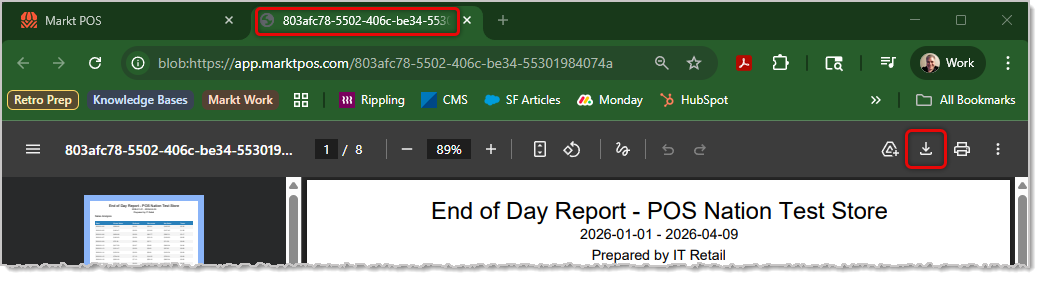
- Export PDF — Click the Export PDF button and the system will generate a PDF file of the data. Your browser will download the file for you, as shown below.
- Open the File — Depending on your browser, the file will either download, or the report will display in a new browser tab in a PDF viewer. In Chrome, the report will open in a new tab. In other browsers, you may need to look in your Downloads area and click on the file name to open it.
End of Day Report Overview
Your report will show the Store and Date Range it covers. It contains the following data sections:
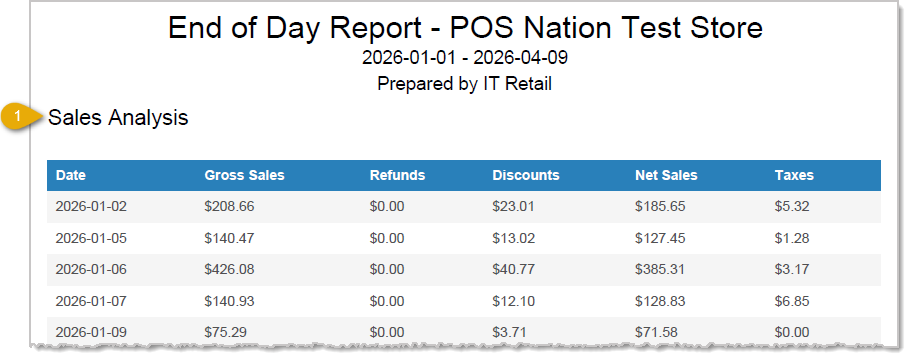
- Sales Analysis — The Sales Analysis section provides details about sales totals for each day within your date range. It includes the Date, Gross Sales, Refunds, Discounts, Net Sales, and Taxes for each day. Totals for all of the columns are at the bottom of the section (not shown).
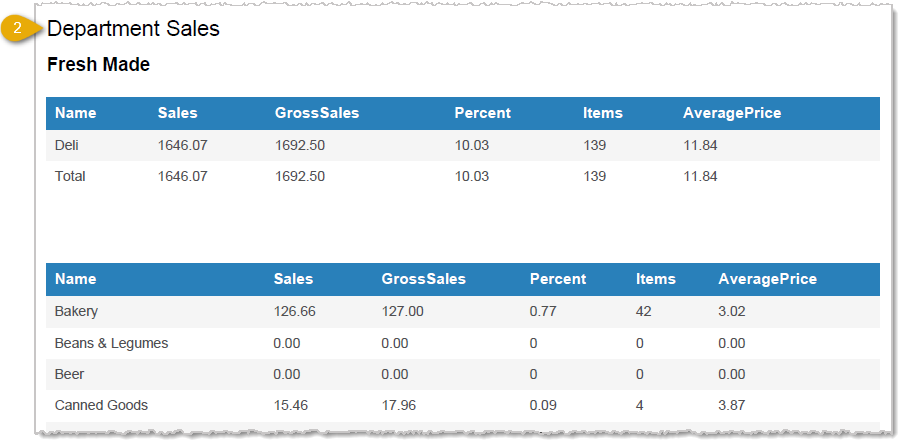
- Department Sales — The Department Sales section gives you sales totals for the whole period for each Department and are separated by Fresh Made (if used) and regular Departments. Each Department is listed with its Sales, Gross Sales, Percent of total sales, Item count, and Average Price of items sold during the period. Totals for all of those columns are at the bottom of the section.
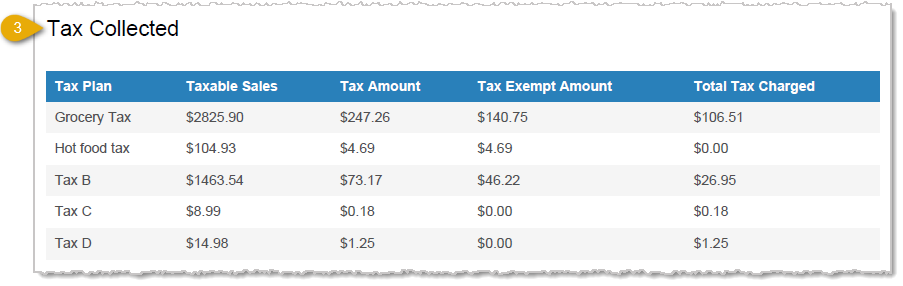
- Tax Collected — The Tax Collected section gives you tax totals for the whole period for each Tax that was used. Each Tax is listed with its name (Tax Plan), Taxable Sales, Tax Amount, Tax-Exempt Amount, and Total Tax Charged for items sold during the period.
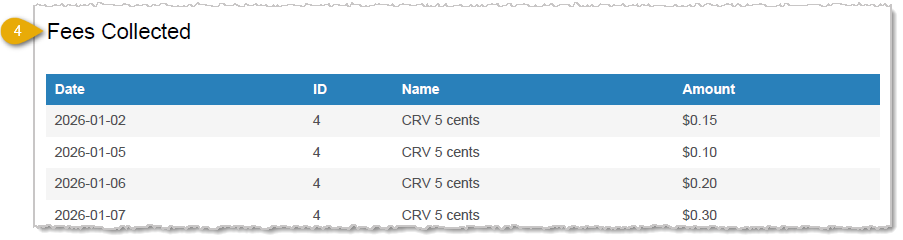
- Fees Collected — The Fees Collected section gives you fee amounts for each fee charged during the date range. Each fee is listed with its Date, ID, Name, and the Amount charged for each fee that occurred during the period. The Total for all of the fees are at the bottom of the section (not shown).
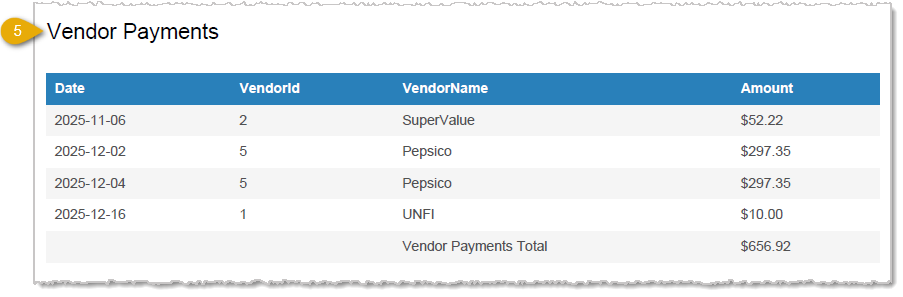
- Vendor Payments — The Vendor Payments section gives you outgoing payment totals for the date range for each payment to a Vendor. Each payment is listed with its Date, ID, Vendor Name, and the Amount paid. The Total for all of the payments are at the bottom of the section.
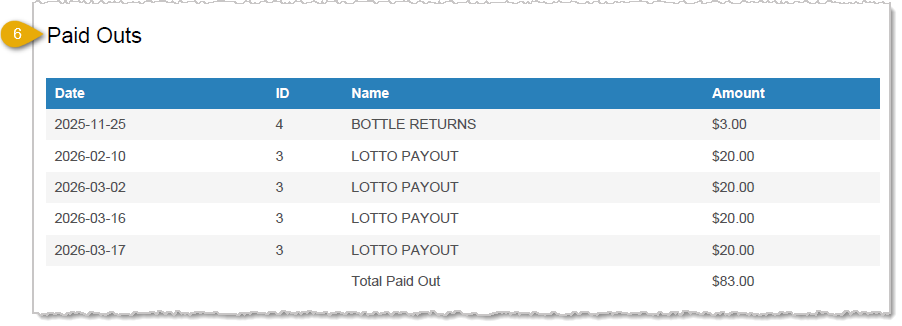
- Paid Outs — The Paid Outs section gives you paid out totals for the date range for each Paid Out event. Each Paid Out from the Front End is listed with its Date, ID, Name, and the Amount that was paid out. The Total for all Paid Outs are at the bottom of the section.
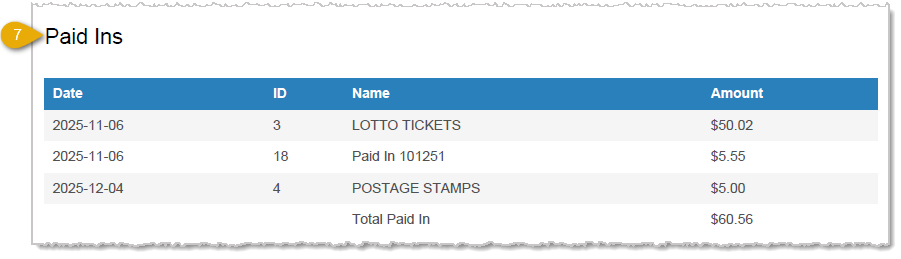
- Paid Ins — The Paid Ins section gives you intake totals for the whole period for each Paid In. Each Paid In event is listed with its Date, ID, Name, and Amount for Paid Ins during the period. The Total for the Paid Ins is at the bottom of the section.
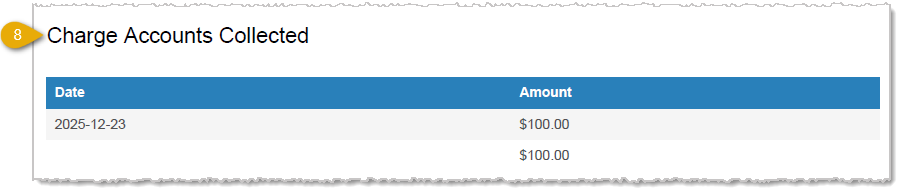
- Charge Accounts Collected — The Charge Accounts Collected section gives payments received for the date range for each charge account that had payments. Each payment is listed with its Date and Amount. The Total for all payments is at the bottom of the section.
- Gift Cards — The Gift Cards section give you details for the period for each Gift Card activity. Details include totals for Gift Cards Activated, Reloaded, Deactivated, and Redeemed for the period. It also gives the total dollar Amount Activated, Amount Reloaded, and Amount Redeemed.
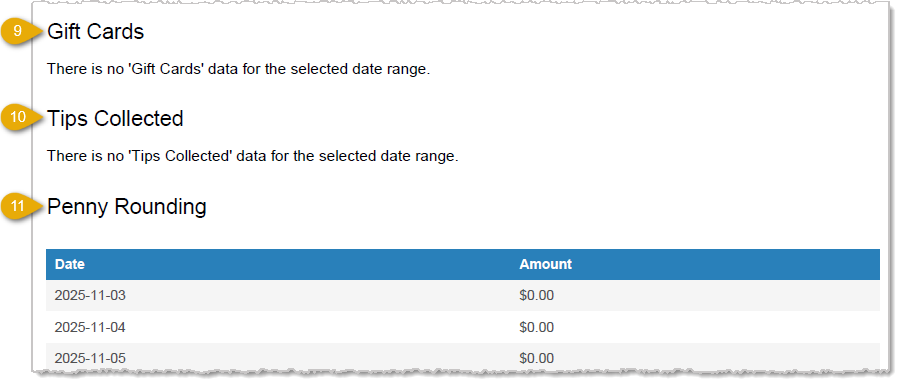
- Tips Collected — The Tips Collected section gives details on tips received for employees during the date range. Each employee that collected tips is listed with their Employee Name and the total dollar Amount of tips they received during the period. The Total for all tips collected is at the bottom of the section.
- Penny Rounding — The Penny Rounding section displays dates for when penny rounding was applied. The amounts are often fractional pennies and and may not show a value in the Amount column for each date.
- Donations Collected (Not Pictured) — If you are integrated with the Meals on Wheels round up donation program, Donations Collected through that integration will not be counted as sales revenue for the store, but the amounts donated will be displayed for you here by Date. The Total for the Amount column are at the bottom of the section.
- Dual Price Info — If you have Dual Price cash discounting active in the system, you’ll see the total Non-Cash amounts across all payment types here (all tender types that require card processing). This total represents the accumulated difference between the card price and the cash price that customers didn’t take advantage of in completed transactions. For example, in one transaction, a customer could have saved $10 by paying with cash; and in another transaction, a customer could have saved $24 by paying with cash but instead paid with a card, so the total here would be $34. The Total of the amount is at the bottom of the section.
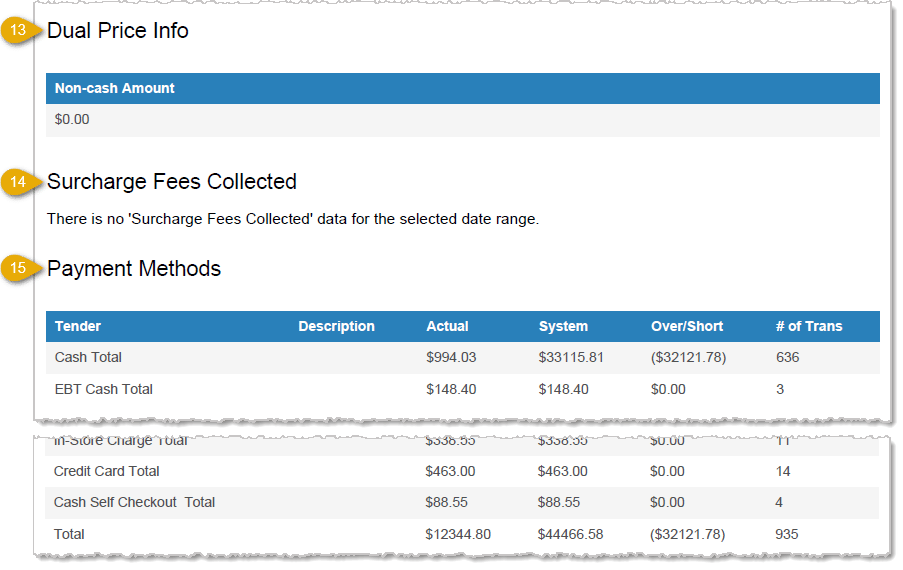
- Surcharge Fees Collected — If there were any surcharges during the reported period, the total dollar amount will display in this area.
- Payment Methods — The Payment Methods section gives you sales totals for the date range for each tender type used. Each payment method is listed with its Tender name, Description (if any), Actual sales amount, System total, Over/Short amount, and the Number of Transactions that used each tender type during the period. Totals for all of those columns are at the bottom of the section.
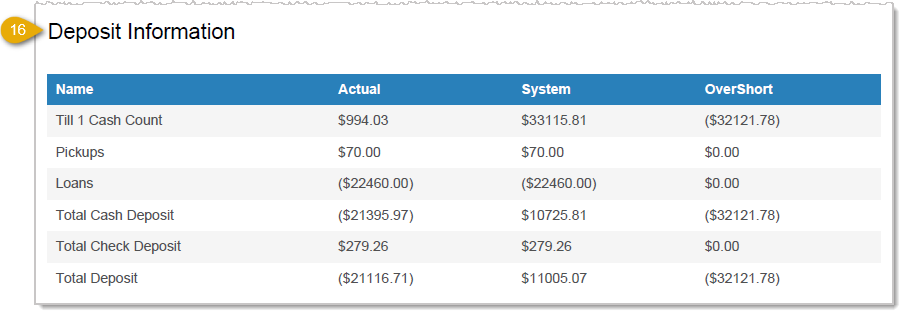
- Deposit Information — The Deposit Information section gives you dollar totals for different items that added to or subtracted from your deposits for the date range. Each item is listed with its Name, Actual amount, System amount, and Over/Short amount during the period. Totals for all of those columns are at the bottom of the section.
We recommend that you keep daily exports of this report for your records.
Related Articles
Cashier Training
Store Sales
Back End Dashboard
End of Week Report
Discount Sales
Tender Types in the Front End
Manager Functions in the Front End
End of Shift Procedures
Frequently Asked Questions
Q: I have a question, but I can't find my answer here. How do I get more assistance?
A: If you need immediate assistance, the IT Retail team is available 24/7. Feel free to contact our support team at 877-752-0625. You can also email us at support@marktpos.com, and we will respond within 24 hours.
Welcome to IT Retail, we’re so glad you’ve chosen our POS for your store! This article will guide yo
We have worked hard to make our Front End as user-friendly as possible, but there are a lot of movin
There is a wealth of administrative functionality for you in the Manager Functions area of the Front








Is this page helpful?
×Help us improve our articles