







Cashier Training
Welcome to IT Retail, we’re so glad you’ve chosen our POS for your store! This article will guide yo
 December 09, 2025
Keep track of your store's overall sales by working with your Store Sales report in the Back End. There, you can view sales summaries and details on each product at your store. Read on to find out how to use the Store Sales page.
To open Store Sales from the Back End, navigate to Sales Reports > Store Sales.
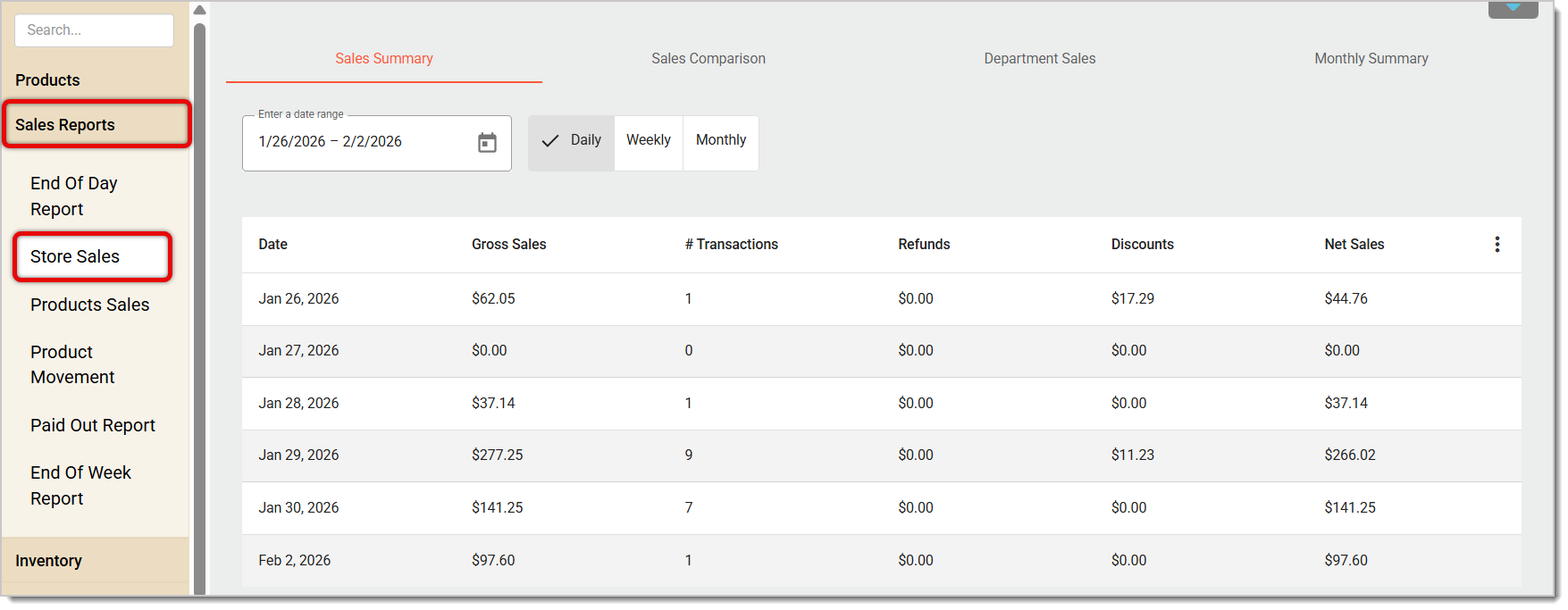
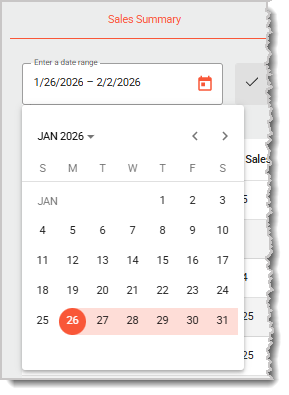
Select the Date Range you want from the date picker in the upper left.
You can change the type of data you want to view. The top of the page has a bar with the following tabs for viewing modes: Sales Summary (default), Sales Comparison, Department Sales, and Monthly Summary. You can click on any of the tabs to change views. Here's what each viewing mode has for you:
This tab gives you a summary of your total sales during the specified date range.
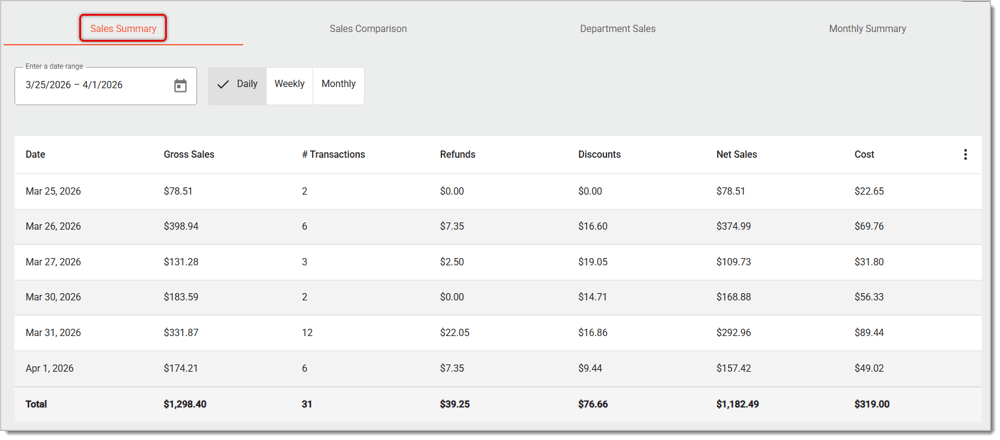
Columns in the Sales Summary report include:
Date
Gross Sales from the time period
Number of Transactions in the time period
Total dollar amount in Refunds in the time period
Total dollar amount of Discounts in the time period
Net Sales in the time period
You can also view sales totals by day, week, or month within the date range. To change time increments, click the button for the one you want next to the Date Range field, as shown below. 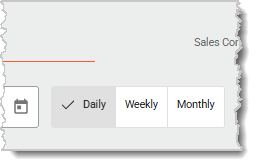
Your sales in the specified date range are compared to last year's sales.
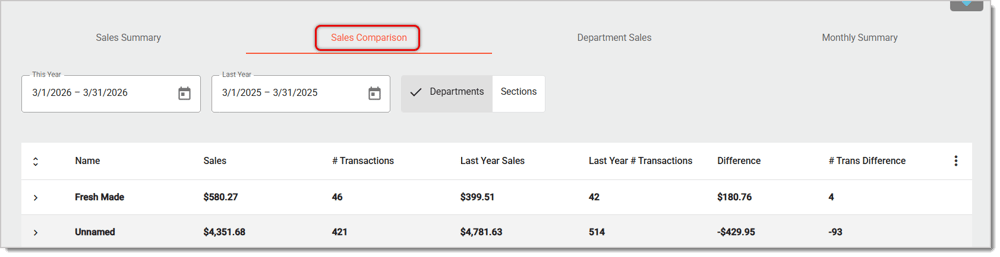
In this mode, you set date ranges from This Year and Last Year for comparison. For example, in the This Year field, you can set the range as March 1, 2026 to March 31, 2026. Then the date range for Last Year will automatically match the current year's, but you can also edit last year's date range if you don't want both ranges to be the same.
See the sales performances of individual Departments.
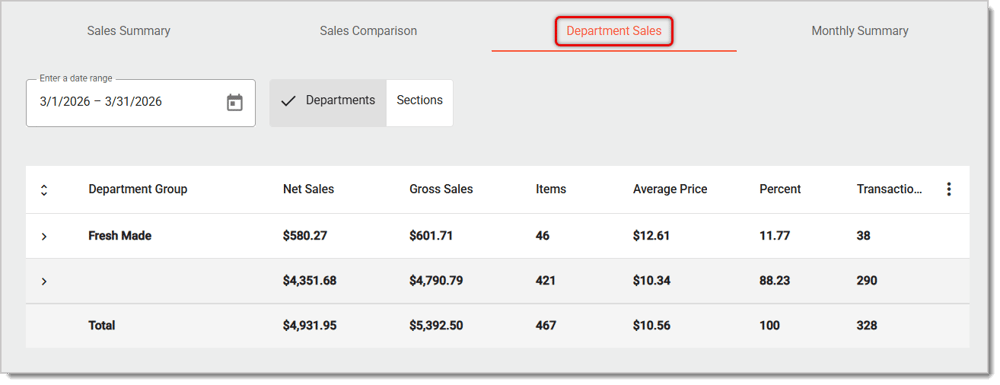
For example, you can see the total number of sales from just Fresh Made items in this viewing mode.
You can enter a date range above the data table.
You can view data in Departments or Sections mode by clicking on one of the corresponding tabs that are directly to the right of the Date fields (Sections are different subsections of your store's Departments, such as fruit, vegetables, and salad sections of your Produce Department). Note that if your store hasn't configured Sections in the Back End, the Sections mode in the Store Sales area will not show any data.
View the total sales of each month, which are compared side-by-side to the previous year's month-to-month sales. 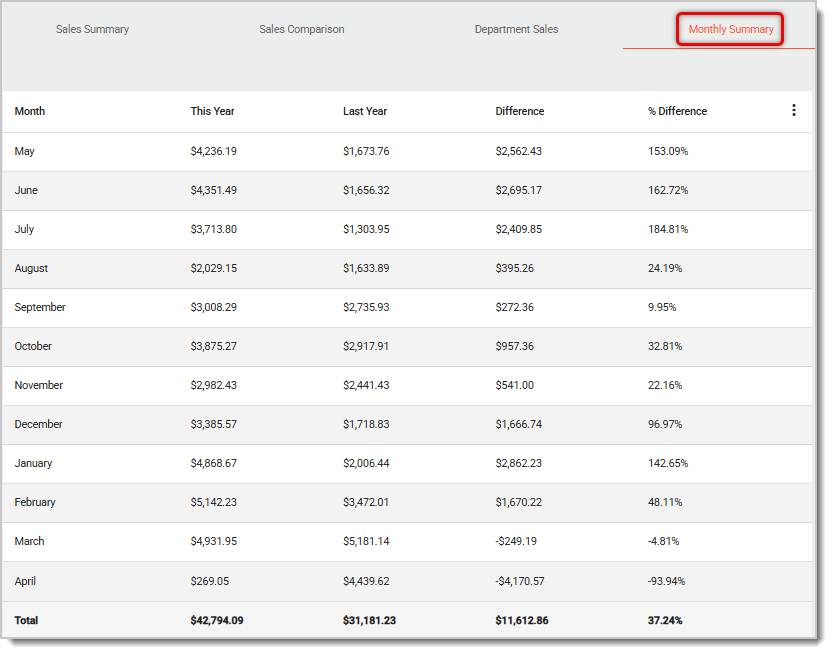
Columns you'll see in the Monthly Summary report include:
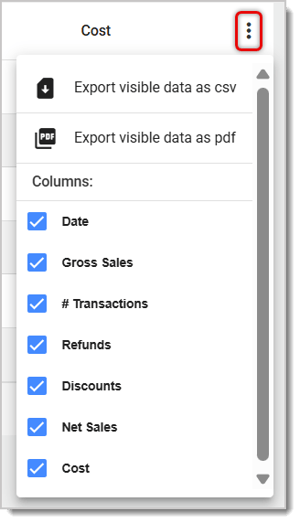
For each viewing mode, you can open the Action Menu by clicking on the Three-Dot Stack button, which is located on the far right of the data table. In the Action Menu, you can export the data as a CSV or PDF file. You can also un-check the boxes next to each column name to hide columns.
End of Day Fields and Calculations
Q: I have a question, but I can't find my answer here. How do I get more assistance?
A: If you need immediate assistance, the IT Retail team is available 24/7. Feel free to contact our support team at 877-752-0625. You can also email us at support@marktpos.com, and we will respond within 24 hours.
Is this page helpful?
×Help us improve our articles