End of Shift Procedures

December 08, 2025
Whenever you come to the end of a shift, there are several things you need to do, even if you don't change out cash drawers. This article will show you what to do and how it works in the Front End. Take a look at how to close out your shift!
Ending Your Shift
If you have multiple Cashier shifts during your work day, it is recommended that you use multiple cash drawers. This will allow each cashier to do a drawer cash count after their shift, as described in the steps below. These are recommendations based on our years of experience with retailers. Here is what to do in the Front End at the end of the shift:
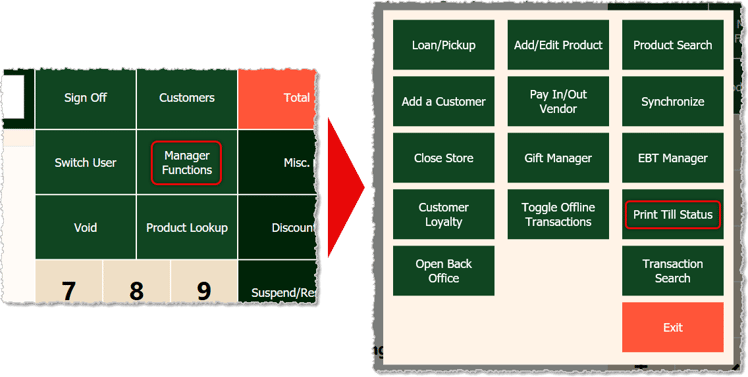
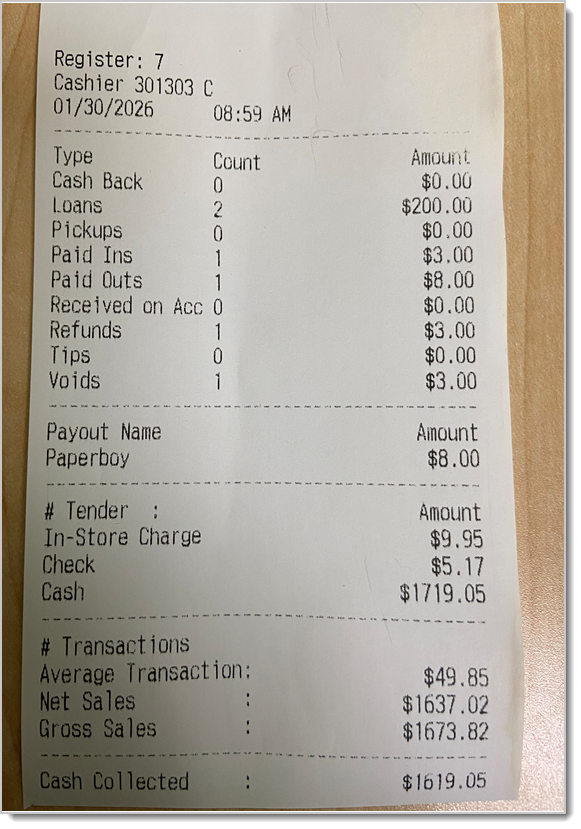
- Print the Till Status Report — Click or tap the Manager Functions button in the Front End, and in the window that opens, click or tap the Print Till Status button. Your receipt printer will print out a small report on the major activities during the shift for the till (the number of and dollar amount totals of your Pickups, Loans, Refunds, and Voids) and the tender types used with their total dollar amounts, as in the example below:
- First Drawer Count — Have the cashier do a manual count of the cash in the drawer and write down their cash denomination counts.
- Manager Drawer Count — Count and confirm the cashier's cash count from the drawer. You will need the denomination counts for the next step.
- Close Shift — In the Front End, in the Manager Functions window, click the Close Store button to close the shift and enter your cash count. The name of this button can be misleading, since its function doesn't have to be closing the store, but can also be just closing out a shift. Here is how this area works:
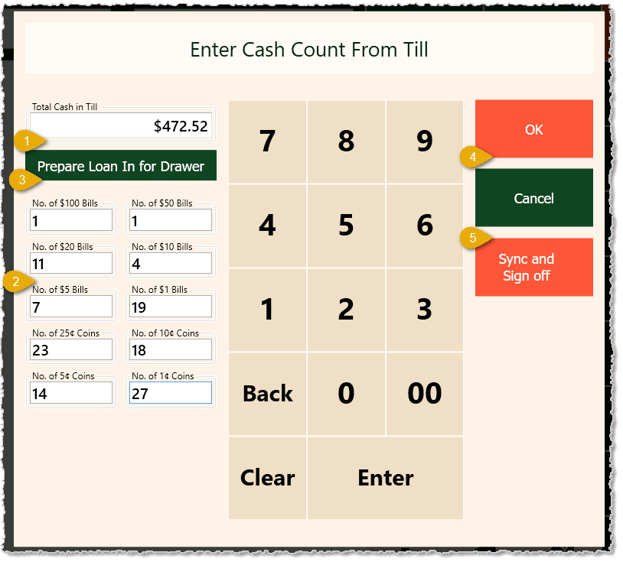
- Drawer Cash Count — You can manually enter a total here if you don't need to use the fields below to enter each denomination type. As you enter values into each cash denomination field, this area will total those entries and give you a final drawer count of your cash.
- Bill and Coin Denomination Counts — You can count each type of bill and coin you have and enter those amounts in these respective fields so the system knows what types of coins and bills you have in what quantities.
- Prepare Loan-In for Drawer — If the cash in the drawer totals less than you need in the drawer to start your next shift, you can click this button to run a Loan-In to add cash to the drawer to reach that total. For example, near the end of the shift, you might have had to remove cash to pay a vendor, and your closing cash in the drawer is only $124.00, but you need to start each shift with $200.00 according to your store policy. You can click this button to run a Loan-In for the $76.00 you need.
- OK — When you've completed your drawer cash count and any Loan-In you might have needed, and if a new Cashier doesn't need to sign in for the next shift, you would click or tap this button.
- Sync and Sign Off — Click or tap this button to update the server with your cash-count and any Loan-In you might have needed. This will close the shift by signing you off. This can be the end of a shift for a cashier to bring up the login for the next one or it can be the end of the day for the store.
This article is about the Front End for close of shift, but there are end of day procedures needed in the Back End. You can find them in the Balancing area, and they are detailed in the Balance Till article linked below.
Related Topics
Manager Functions in the Front End
Balance Till
Print Till Status Report
Frequently Asked Questions
Q: I have a question, but I can't find my answer here. How do I get more assistance?
A: If you need immediate assistance, the IT Retail team is available 24/7. Feel free to contact our support team at: 877-752-0625. You can also email us at support@marktpos.com and we will respond within 24-hours.
Welcome to IT Retail, we’re so glad you’ve chosen our POS for your store! This article will guide yo
Adding products to a customer’s transaction is straightforward. Below is a step-by-step guide on how
You can ring up a product as a Non-Scan item if it doesn’t have a UPC / PLU code or it's not yet reg








Is this page helpful?
×Help us improve our articles