Tender Types in the Front End

December 03, 2025
Your customers have many ways they can pay for their orders. This article will show you what all of them are and how to use them in the Front End. Take a look at what's available for you!
Taking Payment on a Transaction
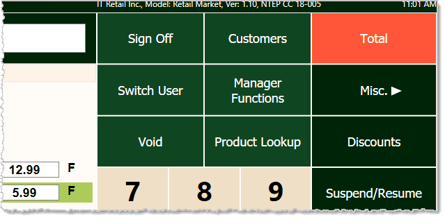
Once you have entered all the items for a sale, you can proceed to the payment step. Start by clicking or tapping the Total button in the upper right.
On the right side of the Front End, you'll see payment methods the customer can use for the transaction. Depending on the size of your display, you might need to use the Next button in the lower right to see other options. The customer can pay with multiple methods if the first method doesn't cover the total for the transaction. Click or tap on the first method they want to use. In our example, the customer will pay partially by cash and partially by card, but descriptions for all payment types are listed below.
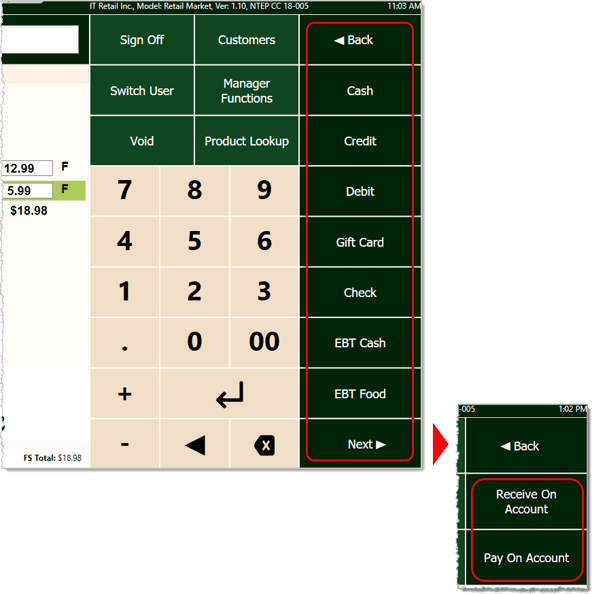
Payment Methods include the following:
- Cash — Your cash drawer will automatically open. Place the cash in the appropriate receptacle and give your customer their change, as needed.
- Credit / Debit (PIN terminal not integrated with the POS) — The system will ask you to confirm the Electronic Transaction and may ask you to confirm the amount. Run the card in the card terminal and click or tap OK once it's successfully charged.
- Credit / Debit (PIN terminal integrated with the POS) — After you click or tap Credit or Debit, the POS will display a “Please Wait” message and the customer will be prompted to insert, swipe, or tap their card.
- Gift Card — After you click or tap the Gift Card button, the POS will display a “Please Wait” message. Depending on settings, you may be asked to confirm the amount.
Please Note: Gift transactions may require a separate gift card processor. Please reach out to the IT Retail team if you are not yet set up for gift card transactions.
- Check — After you click or tap the Check button, the POS will ask for the amount. Enter the amount for the check and it will be applied to the transaction.
- EBT Cash — After you click or tap the EBT Cash button, the system will prompt the customer to swipe their card on the PIN pad. After the customer information is processed, the screen and receipt will display the EBT funds used on this purchase as well as the remaining balance.
Please Note: EBT Balance Check is under EBT Manager in the Manager Functions area if you need to check an EBT card balance.
- EBT Food — After you click or tap the EBT Food button, the system will prompt the customer to enter their card. After the customer information is processed, the screen and receipt will display the EBT funds used on this purchase as well as the remaining balance on the card.
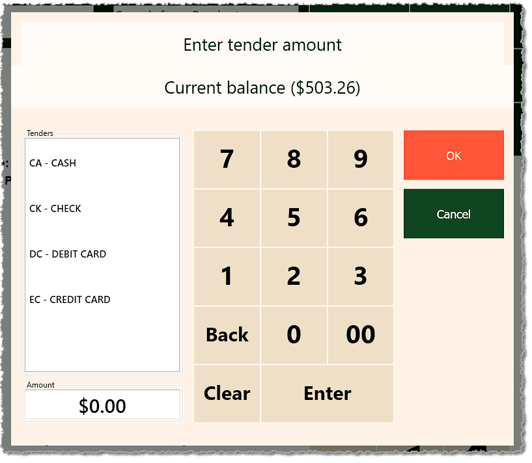
- Receive On Account — If a customer is loaded into the transaction and they have a balance they owe the store, you can use Receive On Account to let them make a payment toward their balance, as pictured below. Select the method they'll use for payment on the left, and then enter the amount and click or tap the OK button to take the payment. Payments made this way will appear on the In-Store Charge Report in the Customers & Discounts area of the Back End. Please Note: For transactions of this type, you cannot have other items in the transaction.
- Pay On Account — If the customer in the transaction is allowed to charge purchases in-store and pay toward their balance later, you can click or tap the Pay On Account button. The amount will be added to their balance owed. Payments made this way will appear on the In-Store Charge Report in the Customers & Discounts area of the Back End.
Related Topics
POS Front End Tour
Cashier Training
Frequently Asked Questions
Q: How can I use WIC for payments in my store?
A: Currently we do not support payment via WIC (Women, Infants, Children) in the IT Retail system, but we hope to in the future.
Q: I have a question, but I can't find my answer here. How do I get more assistance?
A: If you need immediate assistance, the IT Retail team is available 24/7. Feel free to contact our support team at: 877-752-0625. Or you can email us at support@marktpos.com and we will respond within 24-hours.
Welcome to IT Retail, we’re so glad you’ve chosen our POS for your store! This article will guide yo
Adding products to a customer’s transaction is straightforward. Below is a step-by-step guide on how
You can ring up a product as a Non-Scan item if it doesn’t have a UPC / PLU code or it's not yet reg








Is this page helpful?
×Help us improve our articles