







Meals-on-Wheels Round Up Donations
We integrate with the Meals on Wheels Round-Up Donations program so your customers have the option t
 January 27, 2026
A dispute (or chargeback) occurs when a customer questions a transaction on their debit or credit account statement. The Disputes page of the Portal will help you track, manage, and respond to any of these disputes. You can submit evidence, accept disputes, view deadlines, and review dispute status updates on this page.
A customer disputes a transaction through their bank or card issuer.
The bank or card issuer investigates, informs you as the merchant and your card processor of the dispute, and provides the deadlines for responding to the dispute.
You have typically 5 - 10 days to respond with evidence. The amount of time is determined by the card issuer and dispute type.
Funds are held in reserve until the case is resolved.
If you win, the funds are returned. If not, the refund is processed and the funds are returned to the customer's card.
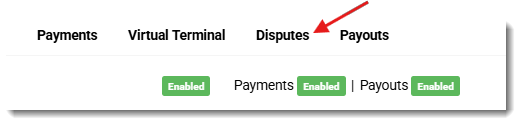
Once you have logged into your IT Retail Payments Portal page, click on the Disputes option in the upper left.
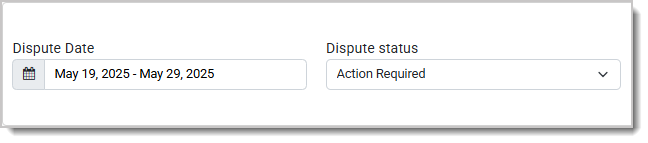
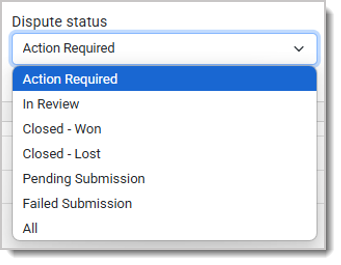
The Disputes page lists all disputes you have received for your account, with key information for each. Above the disputes there are two filters, a Date Range filter and a Dispute Status filter that can help you narrow down to whatever dispute for which you might be looking. The dispute statuses are Action Required, In Review, Closed - Won, Closed - Lost, Pending Submission, and Failed Submission. By default, the status filter will show you All dispute statuses.
There is a Download and a Print function available in the upper right that will export or print the list of disputes based on your filter settings. The export will include all the information for the disputes, including the Payment Intent (PI).
Each row shows an individual dispute with the following information:
Clicking anywhere on a row opens a panel with the full Dispute Details, including:
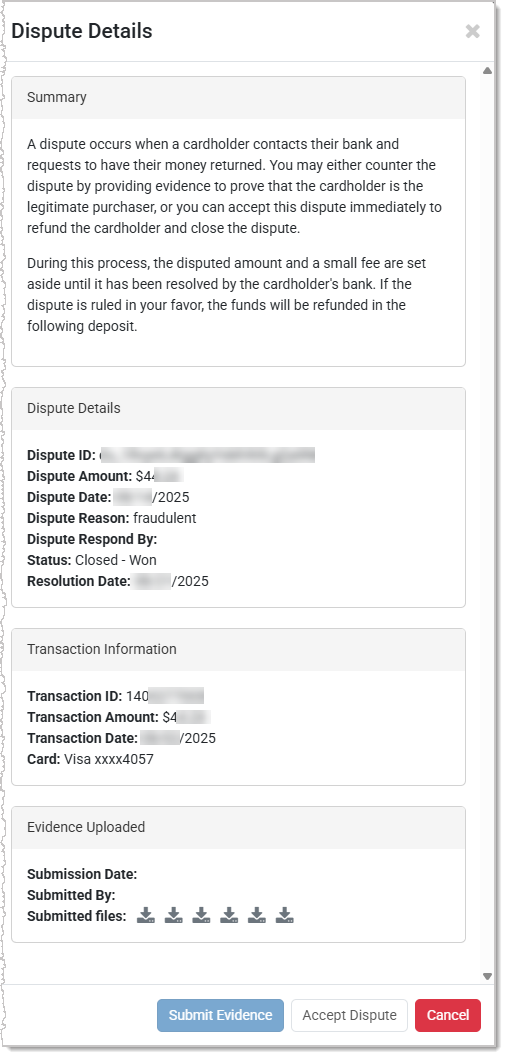
The Dispute Details panel also gives access to the Action buttons to accept the dispute, or to submit evidence. Dispute Actions include:
Submit Evidence — Clicking this button opens the evidence upload form. This will be disabled once you submit evidence.
Accept Dispute — By clicking this you are manually accepting the dispute. This immediately resolves the case in favor of the customer as Closed – Lost.
Cancel — Close the panel without taking action.
💡Note: Once you click the Accept Dispute button or the Submit button, neither action can be undone.
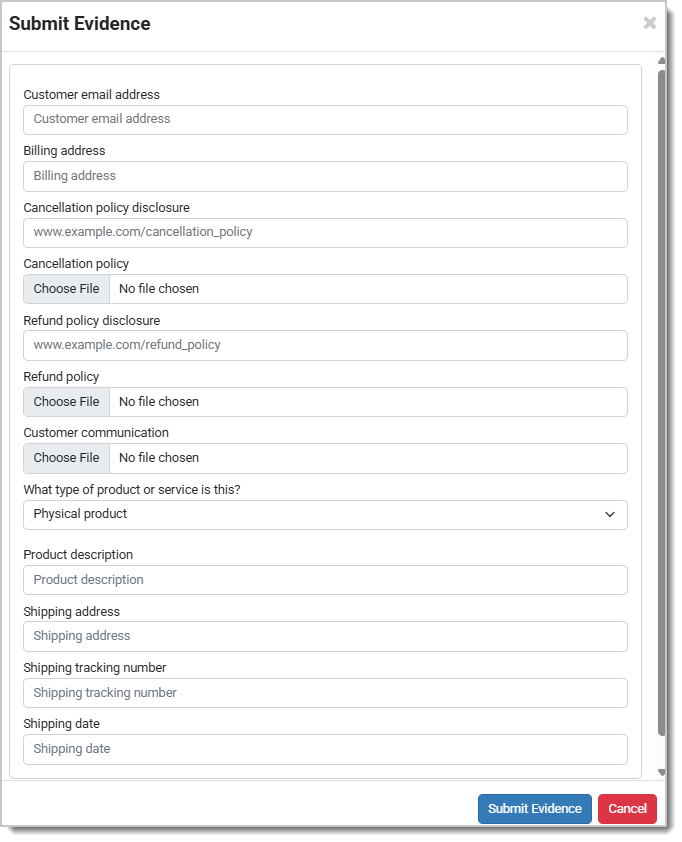
Once you click the Submit Evidence button, the Submit Evidence panel will open as pictured below. It allows you to upload documentation and answer key questions. Fields change depending on the product or service involved. Once you have submitted evidence it cannot be changed, so make sure you are including all of the information and documented evidence to increase your chances of winning the dispute.
You can click on the Submit Evidence button and look at the fields you need to fill out to know what information and documents to gather before submitting.
Here is an example of the Submit Evidence panel:
Q: I have a question, but I can't find my answer here, how do I get more assistance?
A: If you need immediate assistance, the IT Retail team is available 24/7. Feel free to contact our support team at: 877-752-0625. Or you can email us at support@marktpos.com and we will respond within 24-hours.
Is this page helpful?
×Help us improve our articles