IT Retail

Portal Manage Users Page

January 26, 2026January 26, 2026

The Manage Users page allows you to view, create, and manage user access for your Payments account if you have admin permissions. This article will show you how to use the features on the page.


Accessing the Manage Users Page

You can access the Manage Users page by logging into your Payments Portal, clicking on the Account drop-list in the upper right, and clicking Manage Users.
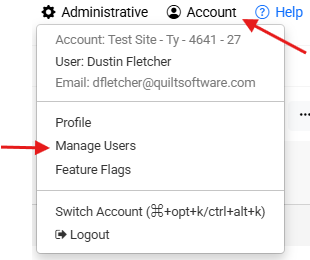
Image showing how to get to the Manage Users page in the Account menu of the Payment Portal.


Manage Users Main Page

The Manage Users page is set up with a list of all users that have been setup to access your account. You can use the drop-list for the Permission filter to only display users that are set with a specific permission. At the top of the page you can use the main Search field to search for a keyword, name, or email address to locate the user ID that you need. You can see the date and times stamps for when the login ID was setup, last updated, and last used to login.


Status Indicator

There is an indicator that is located between the last name and the email address. There are three possible Statuses that allow you to know at a glance if there was an issue with sending the email or if the email is validated.
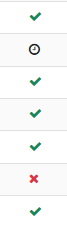
  • Green Checkmark — Email has been validated.
  • Red X — Invalid email (failed delivery).
  • Clock Icon — Email pending validation.

Image showing the user status indicators of the Manage Users page of the Payment Portal.


Creating a New User

Click the Create User button to begin adding a new User:
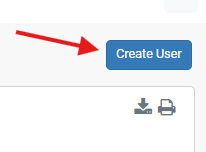
Create user button on the Manage Users page of the Payment Portal.

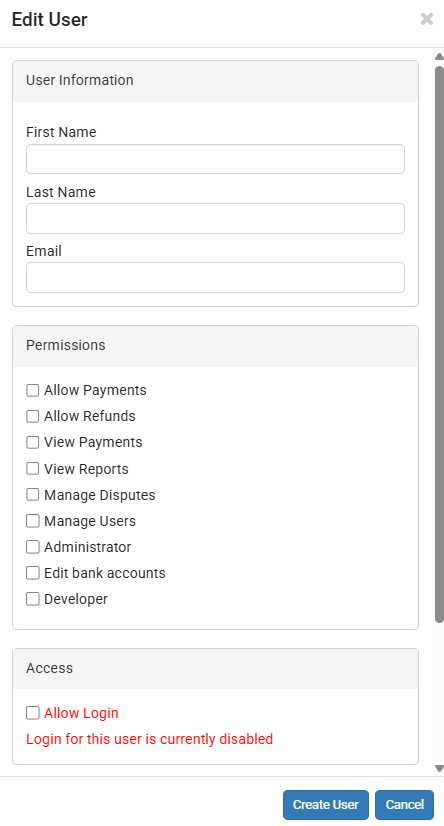
  • Enter the First and Last Name and Email Address.
  • Select the User's Permissions.
  • Check Allow Login to send the welcome email and grant access.
  • Click on the Create User button at the bottom of the user setup screen.

Image showing the Edit User panel in the Manage Users page of the Payment Portal.


Available Permissions

  • Allow Payments — With this permission on, the user can process transactions in the Virtual Terminal.
  • Allow Refunds — With this permission on, the user can issue refunds in the Virtual Terminal.
  • View Payments — With this permission on, the user can access completed transaction lists on the Payments page.
  • View Reports — With this permission on, the user can view and export reports from the Payments Portal.
  • Manage Disputes — With this permission on, the user can respond to chargebacks on the Disputes page.
  • Manage Users — With this permission on, the user can create, edit, and delete users on the Manage Users page.
  • Administrator — With this permission on, the user can update information on the Profile page.
  • Edit Bank Accounts — With this permission on, the user can change Payout information for the bank account.
  • Developer — With this permission on, the user can manage API credentials.


Editing Existing Users

Click on a user’s email address to open their details. From the user details page you will be able to update their permissions, find the password reset link, reset their Multi Factor Authentication, and remove their login access without deleting the user from your account.

On the edit user page you will be able to:

  • Edit the user name.
  • Edit the user email address.
  • Resend the password reset link.
  • Reset MFA (Multi Factor Authentication).
  • Update user roles and access.

💡Note: Updating a user’s email address requires them to click the validation link in the confirmation email sent to the new email address before the change will take effect.
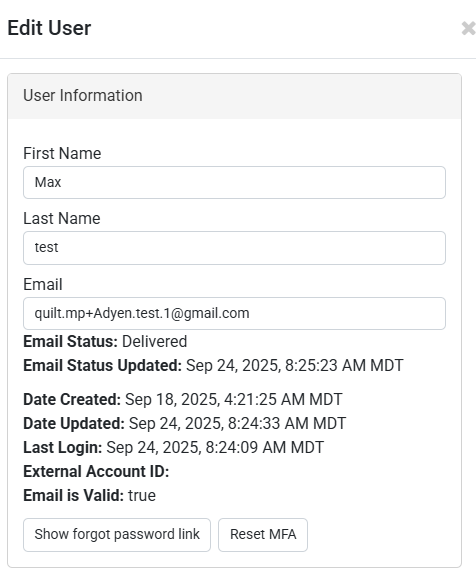
Image showing the Edit User panel of the Manage Users page of the Payments Portal.


Related Topics

Payment Portal

Portal Payments Page

Portal Virtual Terminal Page

Portal Payouts Page

Payouts Paused/Pending

Portal Profile Page

Portal Disputes Page


Frequently Asked Questions

Q: I have a question, but I can't find my answer here, how do I get more assistance?

A: If you need immediate assistance, the team is available 24/7. Feel free to contact our support team at: 877-752-0625. Or you can email us at support@marktpos.com and we will respond within 24-hours.

Need Help?

Can't quite find the answer you're looking for? Our support team is just a call away.