







Cashier Training
Welcome to IT Retail, we’re so glad you’ve chosen our POS for your store! This article will guide yo
 January 30, 2026
If an item is priced incorrectly, close to expiration, or slightly damaged, you can override its price from the register. It’s a simple process, and here’s how it works.
Click or tap on Miscellaneous on the far right.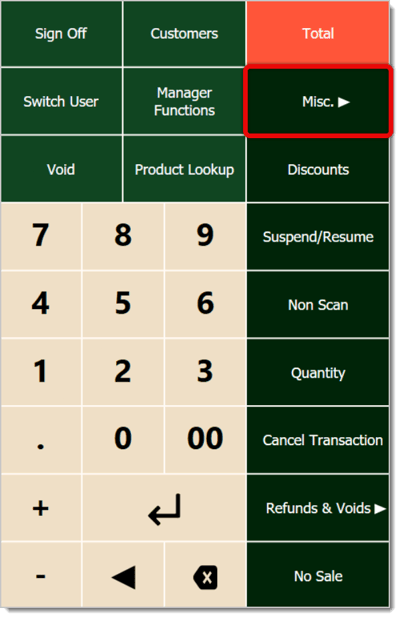
You will see more options open in the panel. Click or tap on Price Override.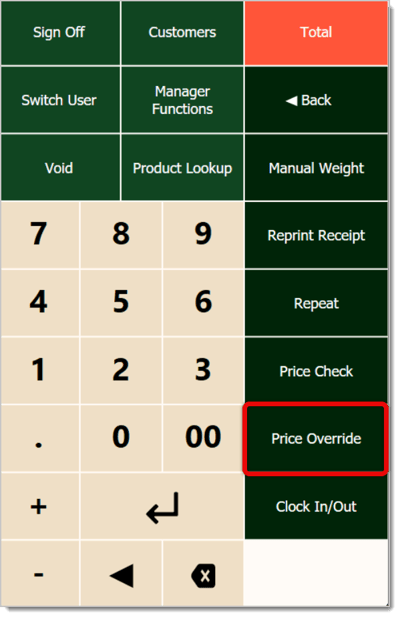
You’ll see PK appear in the item-scan field in the upper left.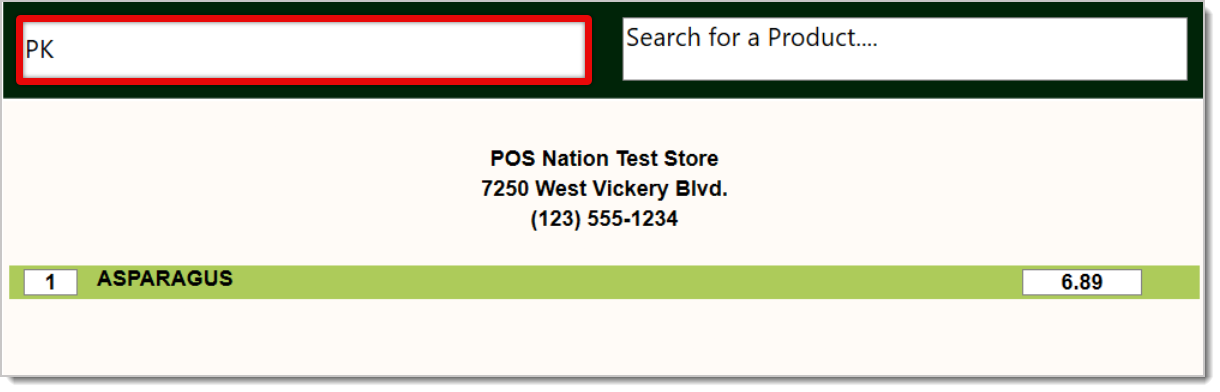
Scan the item, use Product Lookup, or use Product Search to enter the item code.
A window will open, prompting you to enter the correct Price.
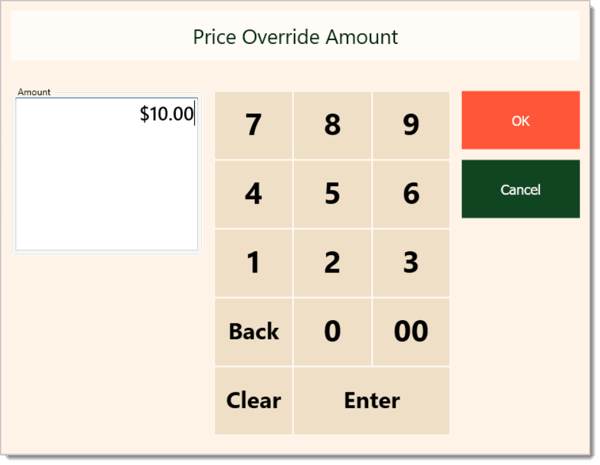
Click or tap on OK to set the new price for this transaction (this does not save it to the product in the database).
You’ll see the item and its updated price in the transaction’s item list.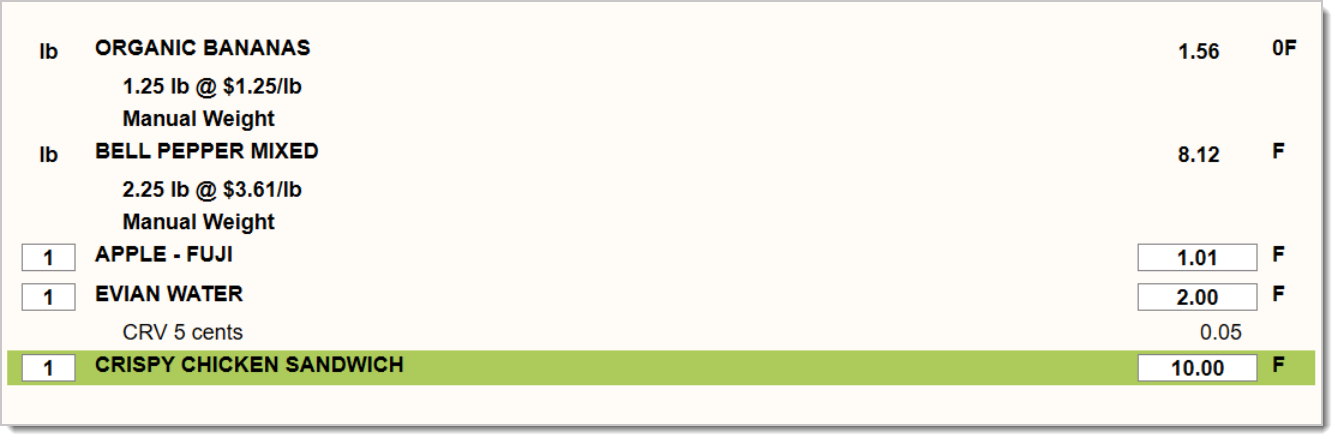
Note that this price override is only for this transaction and does not update the item's price in the Back End. This new price will print on the customer's receipt, though.
Working with Products in Transactions
Refunds and Returns in the Register
Q: I have a question, but I can't find my answer here. How do I get more assistance?
A: If you need immediate assistance, the IT Retail team is available 24/7. Feel free to contact our support team at 877-752-0625. You can also email us at support@marktpos.com, and we will respond within 24 hours.
Is this page helpful?
×Help us improve our articles