







Working With Products in Transactions
Adding products to a customer’s transaction is straightforward. Below is a step-by-step guide on how
 December 03, 2025
You can take advantage of special product pricing to give discounts to customers in multiple ways. This article will show you how to enter special pricing in the IT Retail Back End.
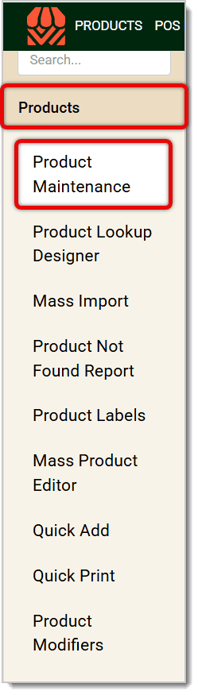
From the Back End, click on Products in the main menu. In the Products menu, click on Product Maintenance.
On the Product Maintenance page, use the Search to scan in a UPC or search by keyword for the product you want.
Click on the product you’re going to give Special Pricing. You’ll see the product’s details load to the right.
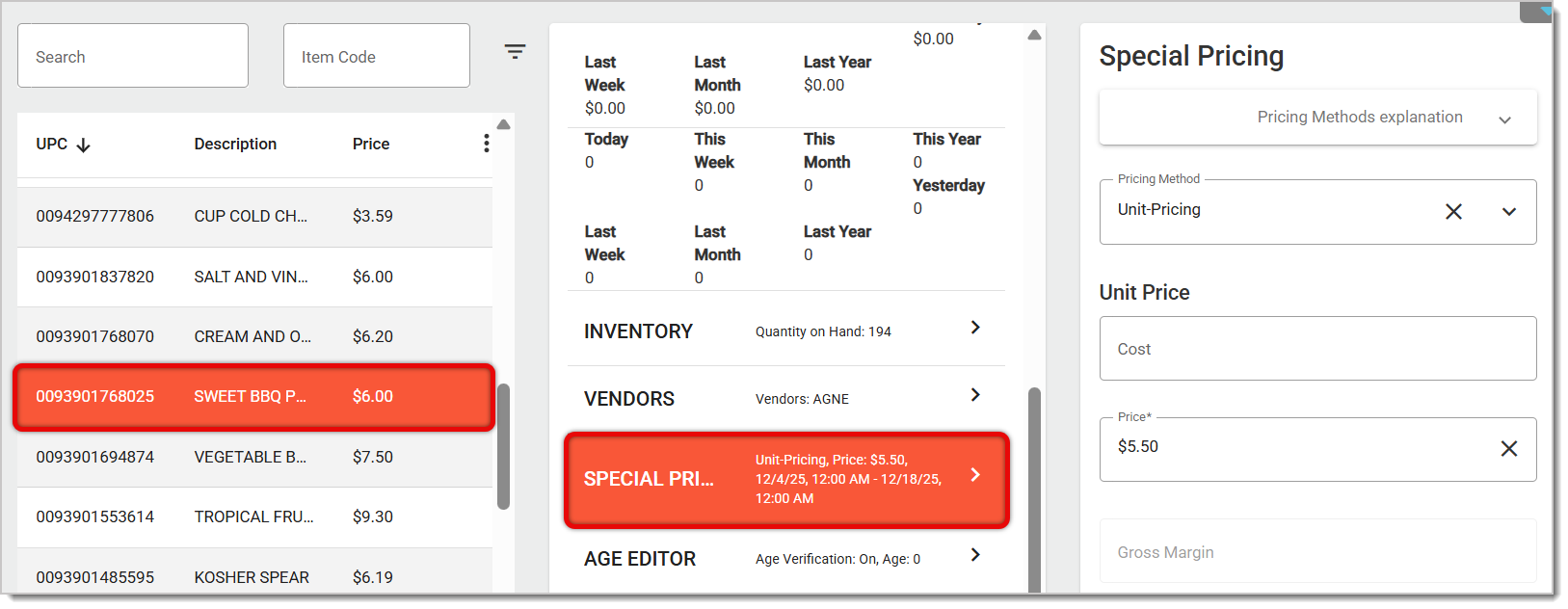
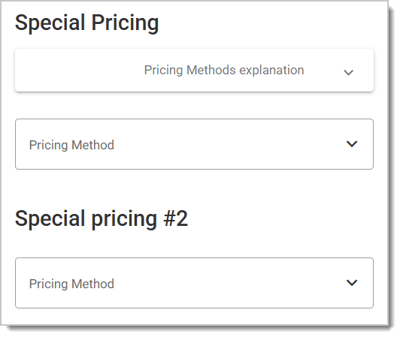
You’ll see the Special Pricing menu on the far right of the screen. Here, you can select the Pricing Method, each of which we’ll explain in more detail.
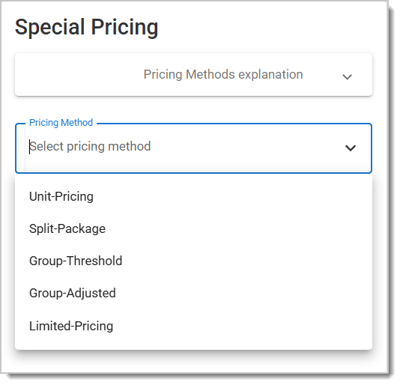
Available pricing methods are Unit Pricing, Split Package, Group Threshold, Group Adjusted, and Limited Pricing.
This is the default pricing method and is meant to place a single item on sale, usually for a set period of time.
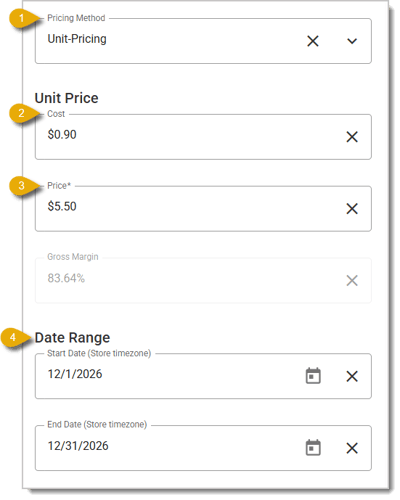
For example, the normal price of an item could be $6. With special pricing, you can instead set it to be $5.50 starting from December 1, 2026 until December 31, 2026, after which the price will go back to normal. When the product gets scanned, the POS will show the price as $5.50 and tell the customer they saved .50 cents.
To set unit pricing, you need to do the following:
Enter the Start and End Dates under Date Range. The sale price will start being active on the beginning of the Start Date and the end of the End Date. This step is optional. If you don’t enter dates, the item will remain discounted until you delete the Unit Pricing or set dates. This is useful for items you want to sell at a continued discount.
In the Front End, an item with a Unit Pricing discount will look like this:

With Split Package pricing, product units are bundled together for a discounted price.
An example would be a deal where a customer buys 3 items for $1 total. When the customer chooses to buy 3, the pricing per unit will be divided into $0.33, $0.33, and $0.34, which will equal to $1 when added up.
If a customer buys more than 3, the pricing sequence will start over at 0.33 + 0.33 + 0.34.
Note that you should not use this pricing method if you’re setting up a deal that’s similar to 2 items for the price of 1. You should instead use Group Threshold pricing.
To use Split Package pricing:
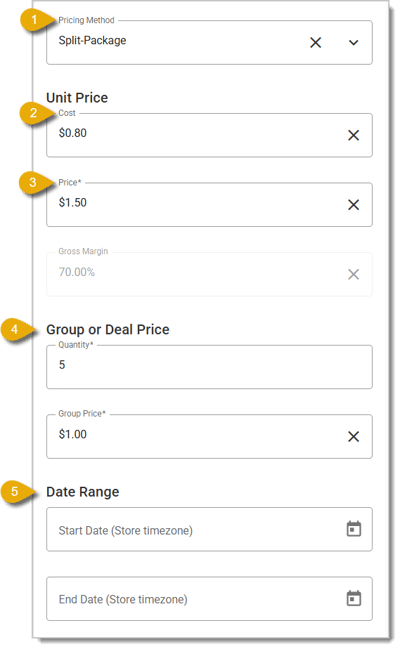
Select Split-Package in the drop-list under Pricing Method.
You can enter the Cost you pay to have the product in your store. This will not affect the actual discount. The Cost field just helps calculate the Gross Margin of profit you would make according to the discounted Price in number 3.
Enter the normal Price of the product. This field is required.
Scroll down to Group or Deal Price to enter the quantity in the deal and its corresponding price. In this case, we’ll be entering 3 under Quantity and $1.00 under Group Price.
You can also select the Date Range. If you choose not to set dates, the price will be perpetually active.
In the Front End, an item with a Split Package Pricing set up for a 3 for $4 discount will look like this:

With Group Threshold pricing, the customer will pay for a product according to its unit pricing until they reach a specific quantity. Once they reach that threshold, the POS will adjust the price to its Group Price.
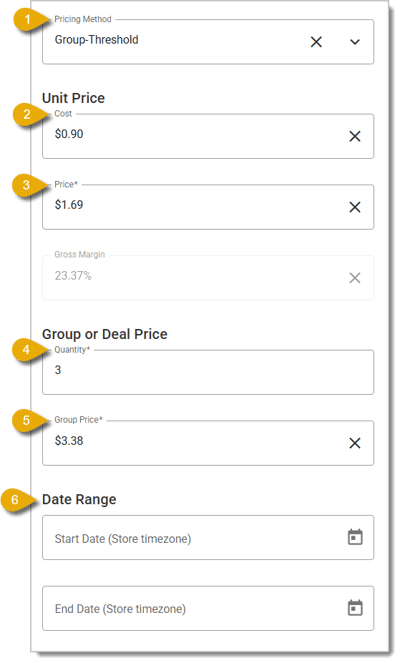
For example, the normal price of an item could be $1.69. You can set a Buy 2 Get 1 Free deal, meaning there would be a total of 3 items for the price of 2.
We'll use this example to show you how to set Group Threshold Pricing. Follow these steps:
Select Group-Threshold under Pricing Method.
You can enter the Cost you pay to have the product in your store. This will not affect the actual discount. The Cost field just helps calculate the Gross Margin of profit you would make according to the discounted Price in number 3.
Enter $1.69 as the Price under Unit Price. This field is required.
Scroll down to Group or Deal Price to enter the Quantity as 3.
Set the Group Price as $3.38.
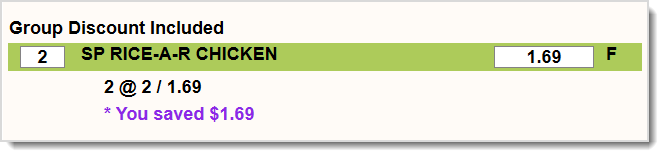
From the Front End, each item will ring up as $1.69. Once the customer reaches 3 of the same item, the price will be adjusted to reflect that one was free.
In the Front End, an item with a Group Threshold Pricing set up for a buy one get one free discount will look like this:
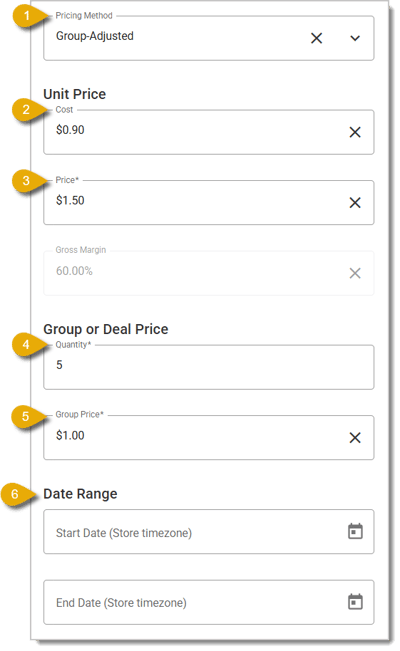
In the case of Group Adjusted pricing, the customer will pay the unit price until they reach a specified quantity, like with Group Threshold pricing. What is different about Group Adjusted Pricing is that then they’ll pay a different price per item once they reach the threshold. If they buy more than the threshold, the POS will continue applying the group price to each subsequent item.
For example, let’s say one donut at your store normally costs $1.50. You can set up a deal so buying 5 donuts together will be $5 total. If a customer chooses to just buy 4 donuts, they will have to pay $1.50 for each one.
However, if they get a fifth, the POS will adjust the price per unit so each instead costs $1.00. The customer can add more than 5 and still buy each following one at $1.00 each.
In this example, we’ll show you how to set this up in the Back End:
Select Group-Adjusted under Pricing Method.
You can enter the Cost you pay to have the product in your store. This will not affect the actual discount. The Cost field just helps calculate the Gross Margin of profit you would make according to the discounted Price in number 3.
Go to Unit Price and enter the Price as $1.50. This field is required.
Under Group or Deal Price, we’ll enter 5 as the Quantity.
Enter $1.00 as the Group Price.
Like all other pricing methods, you can set a Date Range. If you don’t set a date range, the Special Pricing will continually be active.
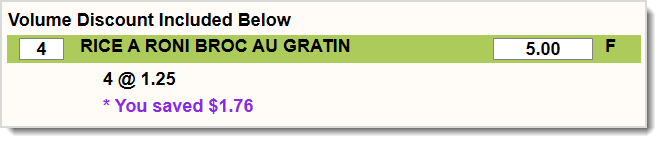
In the Front End, an item with a Group Adjusted Pricing set up to buy 4 or more for $1.25 each discount will look like this:
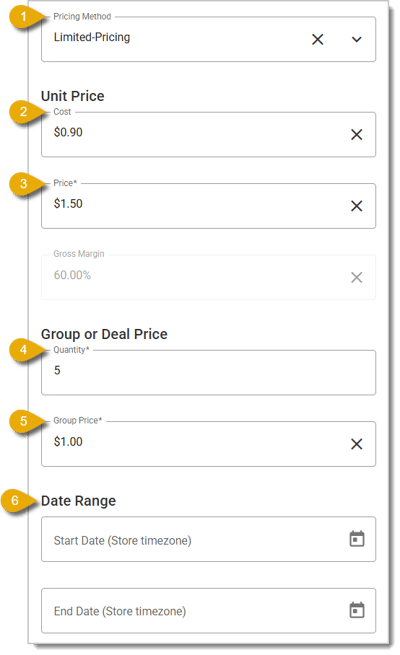
Limited Quantity Discount pricing is different from other Special Pricing methods in that after reaching the threshold, subsequent items will go back to normal pricing.
Like the example above in Group Adjusted pricing, let’s say one donut at your store normally costs $1.50. You can set up a deal so buying 5 donuts together will be $5 total. If a customer chooses to just buy 4 donuts, they will have to pay $1.50 for each one.
However, if they get a fifth, the IT Retail system will adjust the price per unit so each instead costs $1.00. Any donuts following this would cost $1.50, so a sixth donut would cost $1.50.
Using this donut example, here’s how to set that up:
Select Limited-Pricing under Special Pricing.
You can enter the Cost you pay to have the product in your store. This will not affect the actual discount. The Cost field just helps calculate the Gross Margin of profit you would make according to the discounted Price in number 3.
Under Unit Price, enter the Price as $1.50. This field is required.
Under Group or Deal Price, we’ll enter 5 as the Quantity.
Enter $1.00 as the Group Price.
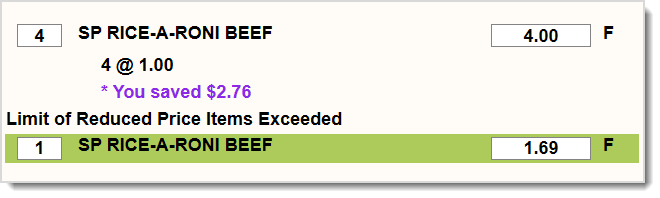
In the Front End, an item with a Limited Quantity Pricing set up with a discount for up to 4 items for $1 each will look like this:
Apply a Coupon in the Front End
Giving Customer Reward Coupons in the Front End
Q: What is the best Special Pricing method to use for a BOGO deal (buy one, get one)?
A: For BOGO deals, you will want to use the Group Threshold Pricing method, since it applies to every 'set' of items the customer buys. You are able to set it up for whatever 'discount' on the additional item(s) you like, so it can be buy one, get one free, or buy one, get two at 50% off, or whatever you are looking for in your BOGO deal.
Q: I have a question, but I can't find my answer here. How do I get more assistance?
A: If you need immediate assistance, the IT Retail team is available 24/7. Feel free to contact our support team at 877-752-0625. You can also email us at support@marktpos.com, and we will respond within 24 hours.
Is this page helpful?
×Help us improve our articles