







Receive Inventory
The Receive Inventory page allows you to easily receive product deliveries and to update quantities.
 September 16, 2026
You are able to easily add Purchase Orders to the system by taking a photo or uploading a CSV. This article will show you how to import your POs. See how easy it is!
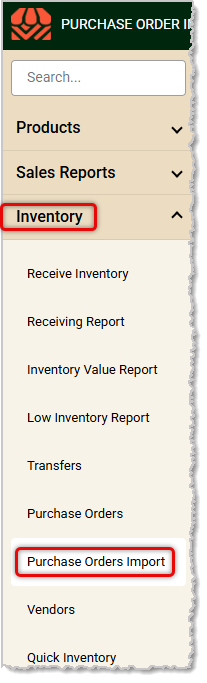
You can get to this part of the system by logging into the Back End and going to Inventory > Purchase Orders Import.
Create a Product in the Back End
Q: Do I have to push every field, or can I choose which ones update?
A: You can choose. In the Confirm Fields to Push window, check only the boxes for the fields you want to send to the other stores.
Q: Does clicking Save update the product for all my selected stores right away?
A: No. Save only applies to the store you're logged into. You still need to click Push Fields to X Stores to send the changes to the rest.
Q: I have a question, but I can't find my answer here. How do I get more assistance?
A: If you need immediate assistance, the IT Retail team is available 24/7. Feel free to contact our support team at 877-752-0625. You can also email us at support@marktpos.com, and we will respond within 24 hours.
Is this page helpful?
×Help us improve our articles