Inventory Value Report

December 12, 2025
The Inventory Value Report will show you the Quantity On Hand and dollar value of your products. Keep reading to what the report has for you and how to work with it!
Please Note: To ensure accuracy, you should periodically conduct an inventory count before viewing the Inventory Report. You can use the Quick Inventory page for a fast inventory count of items in your store.
Inventory Value Report
To begin working with your Inventory Value Report, go to Inventory > Inventory Value Report in the main system menu.
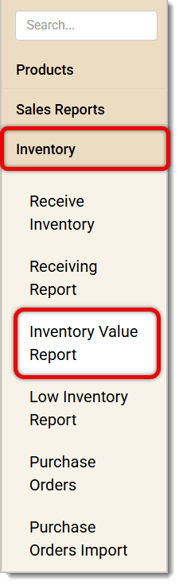
Here's how to work with your Inventory Value Report:
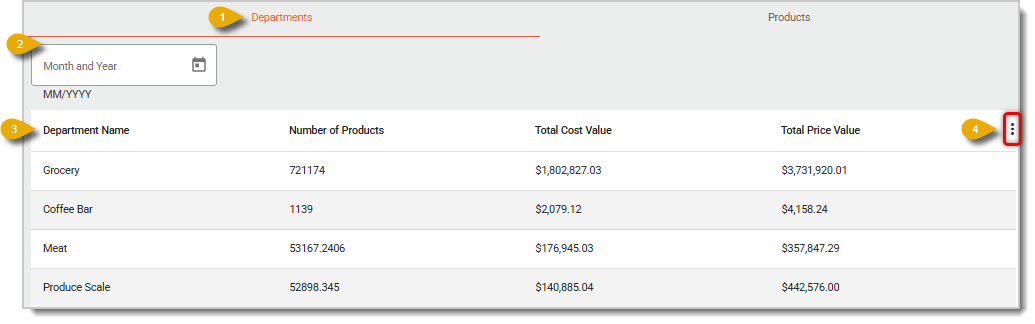
- Inventory Value Tabs — Click on either tab to view the data by Departments or Products, respectively. The image above shows the Departments tab view withthe table organized by Departments. Below is the page in the Products tab view, where you can select a Department and Section to narrow down your data.

- Date — By default, the table will show the current month's data. You can change the date range by selecting it here.
- Data Table — In the data table in the Department view you’ll see the Department Name, total Number of Products, Total Cost Value the store paid for the inventory, and the Total Price Value you charge customers for the inventory. The Products tab has the columns listed above, as well as columns for UPC, Description, and Expiration Date, if any. Click on a column headers to sort your data according to that column. Click again to reverse the sorting order.
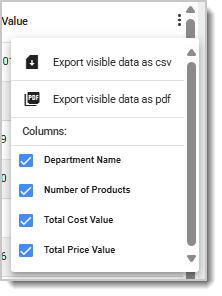
- Action Menu — Click on the Three-Dot Stack icon to open the Action Menu, where you can export your data as a CSV or PDF file. You can also control which columns will be visible.
Related Articles
Receiving Report
Receive Inventory
Low Inventory Report
Quick Inventory
Shrink Report
Frequently Asked Questions
Q: I have a question, but I can't find my answer here. How do I get more assistance?
A: If you need immediate assistance, the IT Retail team is available 24/7. Feel free to contact our support team at 877-752-0625. You can also email us at support@marktpos.com, and we will respond within 24 hours.
The Receive Inventory page allows you to easily receive product deliveries and to update quantities.
The IT Retail system makes it easy to add or update your products in the Back End. This article deta
You can easily create a Purchase Order for when you run low on items from a certain vendor you wish








Is this page helpful?
×Help us improve our articles