







Working With Products in Transactions
Adding products to a customer’s transaction is straightforward. Below is a step-by-step guide on how
 December 12, 2025
You can easily create a Purchase Order for when you run low on items from a certain vendor you wish to reorder. In this article, we'll show you how to create and work with your Purchase Orders in the IT Retail system's Back End.
Before you create a Purchase Order for items that are running low, you should first set an item's Quantity On Hand (if you are not already tracking its inventory) and set the Low Inventory Alert quantity. This is so the item will appear on your Low Inventory Report when it needs to be reordered.
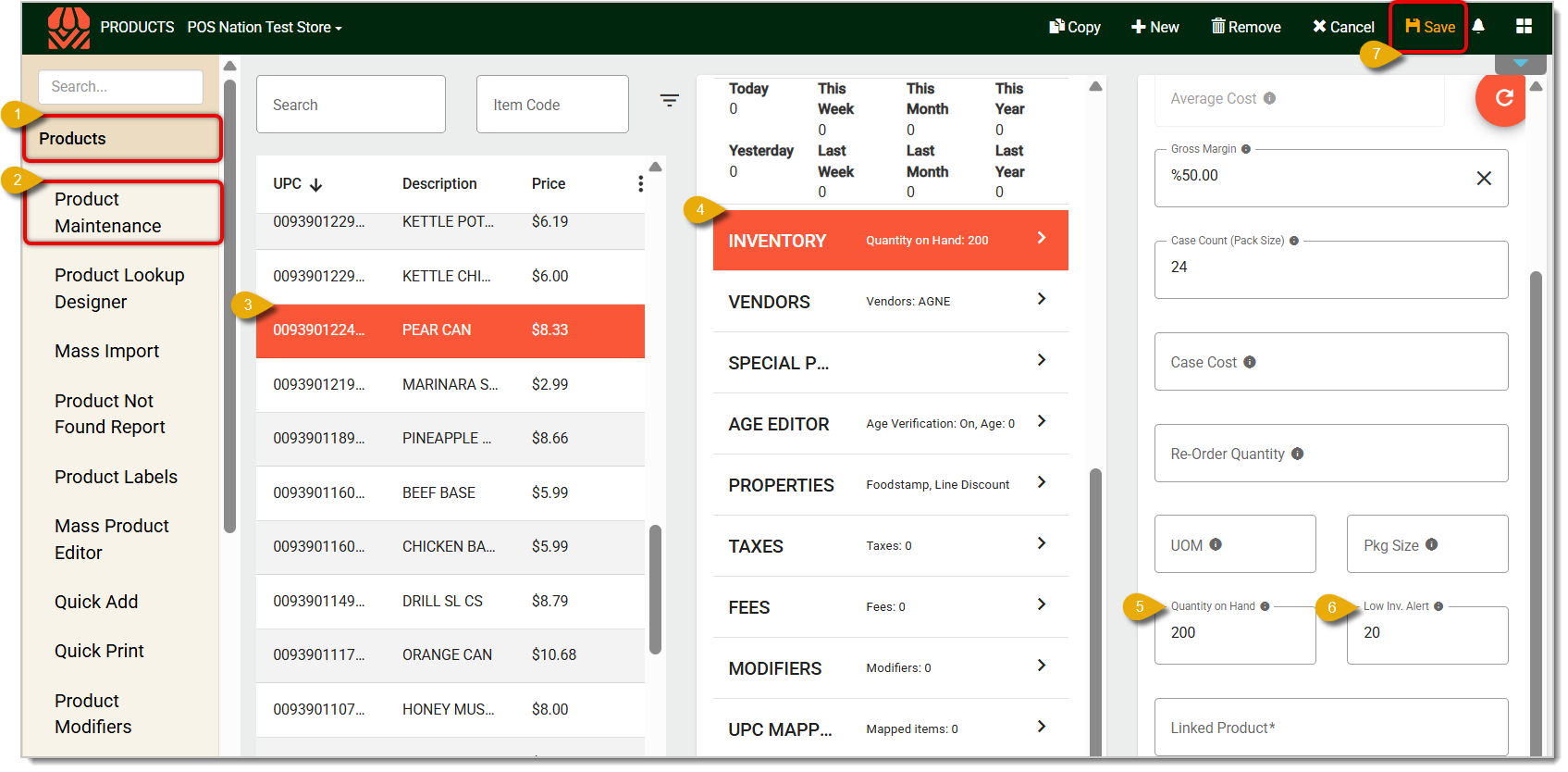
To access your Low Inventory Report, go to Inventory > Low Inventory Report.
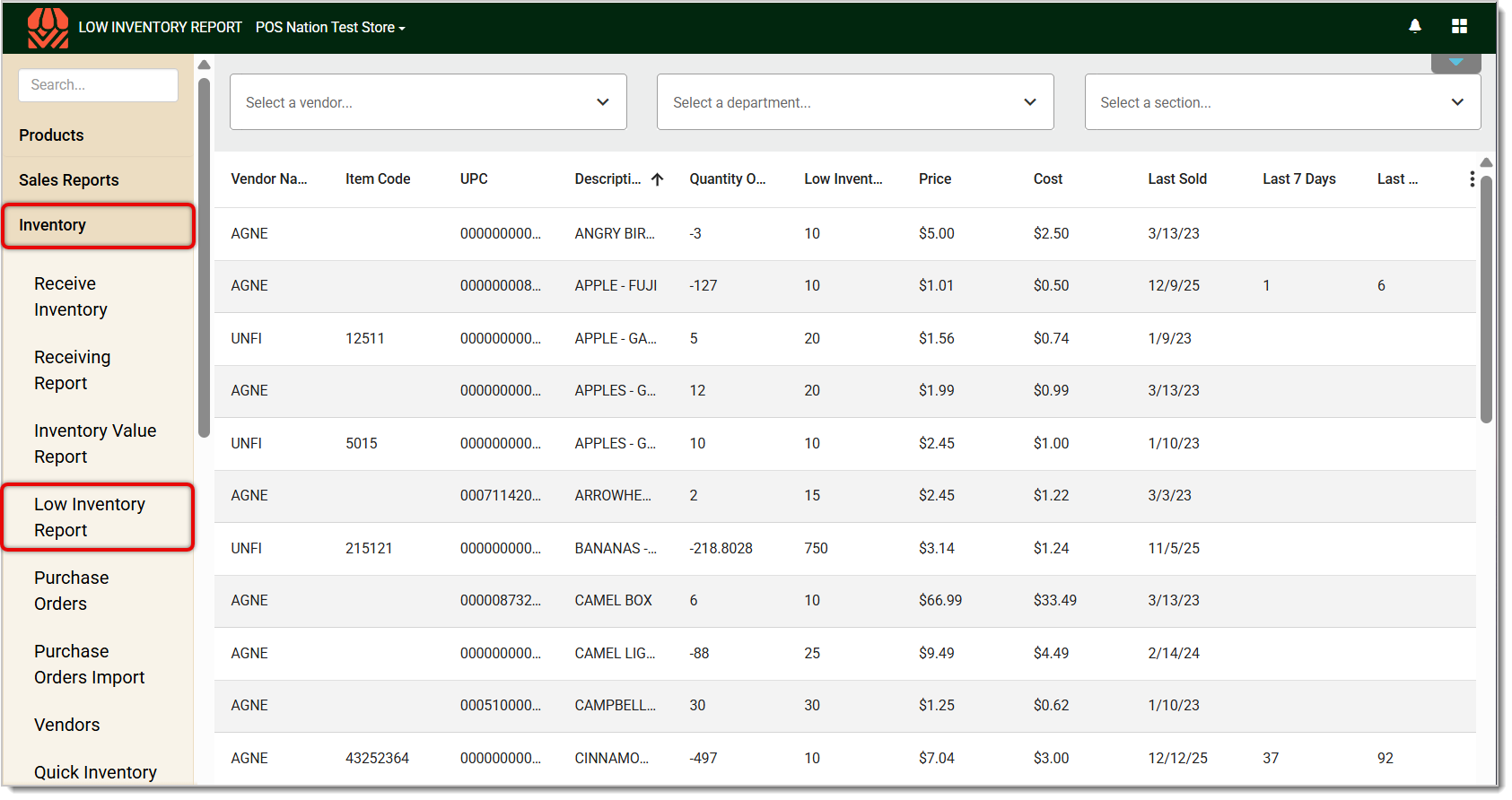
This is where you'll find all items that have reached their Low Inventory Alert quantities or below. Filter by Vendor to see items that need to be reordered from that vendor. Filter by Department or Section of a department if you want to see what needs to be restocked in those areas.
Here is how you can make a new Purchase Order for items low in inventory:
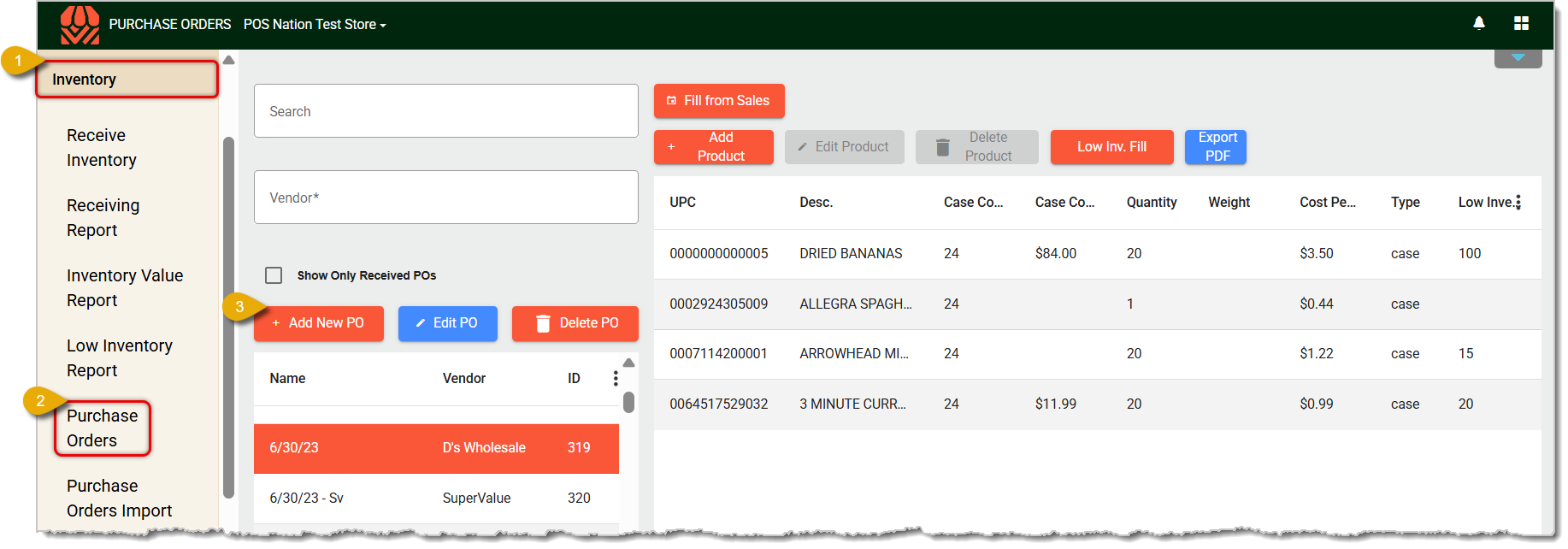
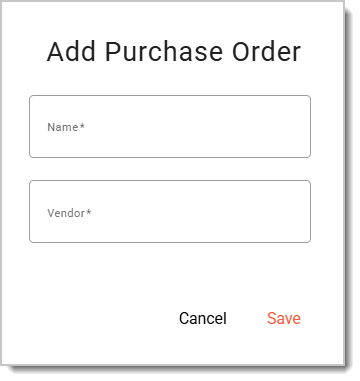
Next, Search for the new Purchase Order you've just created.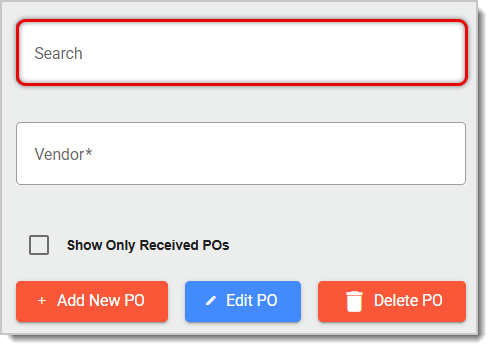
Click on the new Purchase Order to select it; it should be highlighted.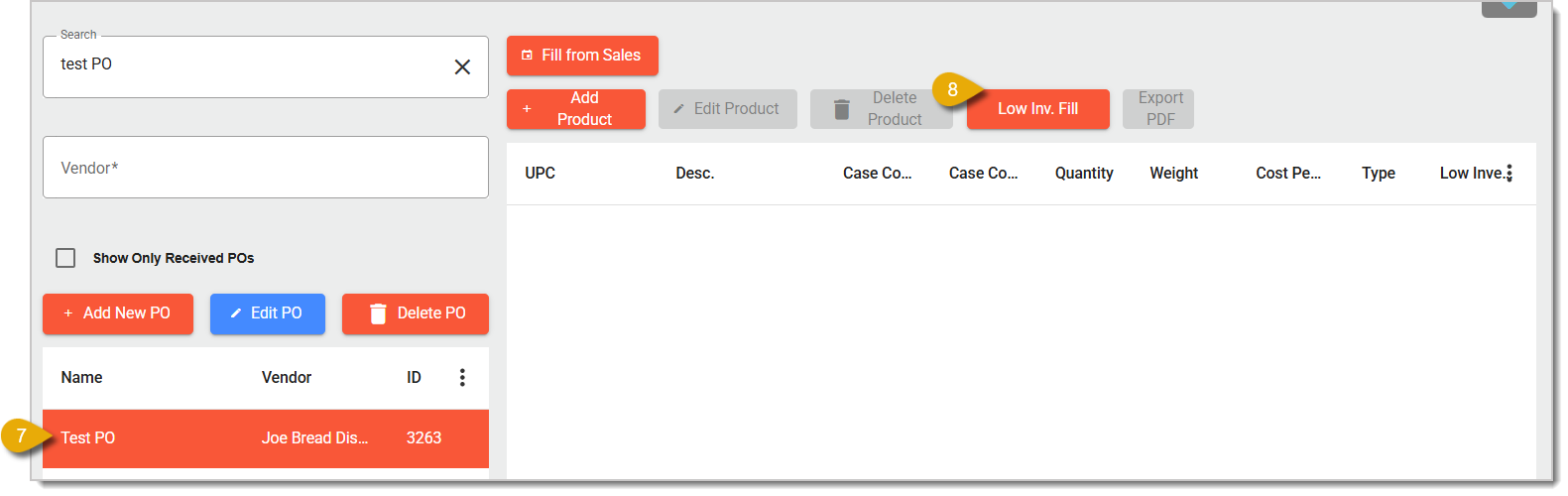
To the right, click on Low Inventory Fill to automatically populate the below table. Whatever items are at or below their Low Inventory Alert quantities for the vendor will populate the table.
If you want to change the purchase order details for a product, select the product to highlight it and click on the Edit Product button. 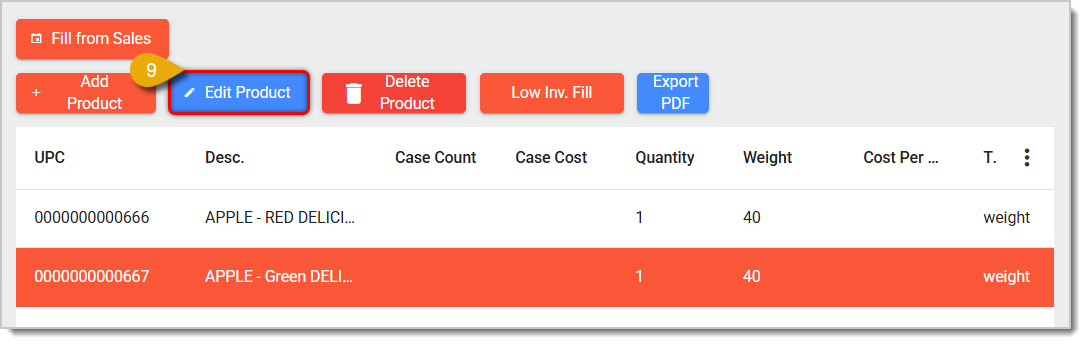
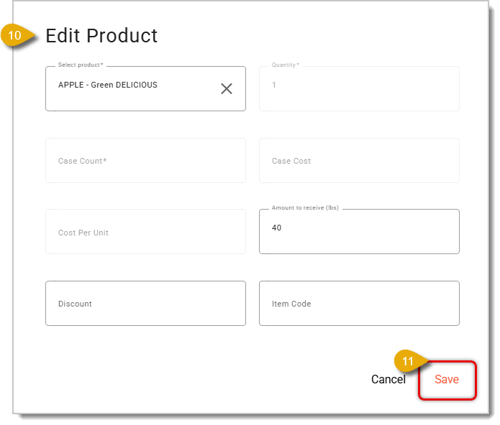
Repeat these steps for all UPCs you want to reorder.
In the Purchase Order table, you can see a column for Quantity, which indicates how many units you want to order. When working with low inventory items, this is specifically a re-order quantity; you cannot change this quantity from here. If you want to edit that Quantity, navigate in the Back End to Products > Product Maintenance > Inventory > Re-order Quantity.
Q: I have a question, but I can't find my answer here. How do I get more assistance?
A: If you need immediate assistance, the IT Retail team is available 24/7. Feel free to contact our support team at 877-752-0625. You can also email us at support@marktpos.com, and we will respond within 24 hours.
Is this page helpful?
×Help us improve our articles