







Manager Functions in the Front End
There is a wealth of administrative functionality for you in the Manager Functions area of the Front
 January 15, 2026
If you want faster turnaround on restocking your inventory you can set up and use low inventory alerts to keep your shelves optimally full. This article will show you how to set up your alerts and how they work. Take a look at what this can do for you!
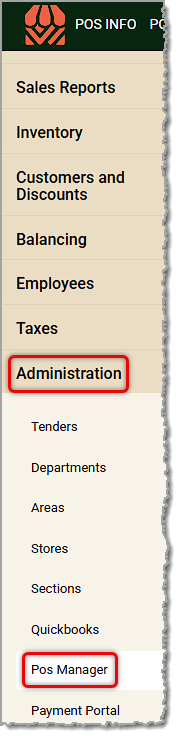
You can get to this part of the system by logging into the Back End and opening the Administration menu. Click on POS Manager to get started.
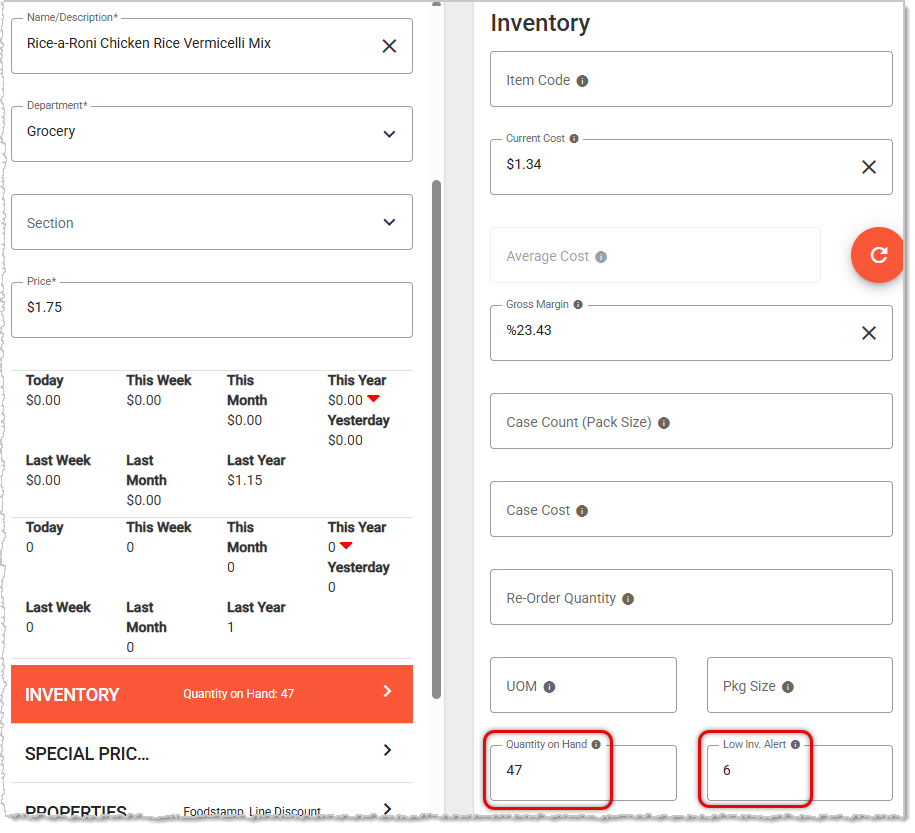
For this setting to work properly for you, you should be following the Best Practice of entering Low Inventory Alert quantities into your products any time you add new items. There are instructions below on where and how to enter those values. Doing so will help you stay on top of inventory that needs to be reordered or refilled if you keep back-stock.
To work in this area you need to go to the Checkstand Screen tab of the POS Manager. In the section for Display on Touchscreen, scroll down until you see the setting for Display Low Inventory Alerts.
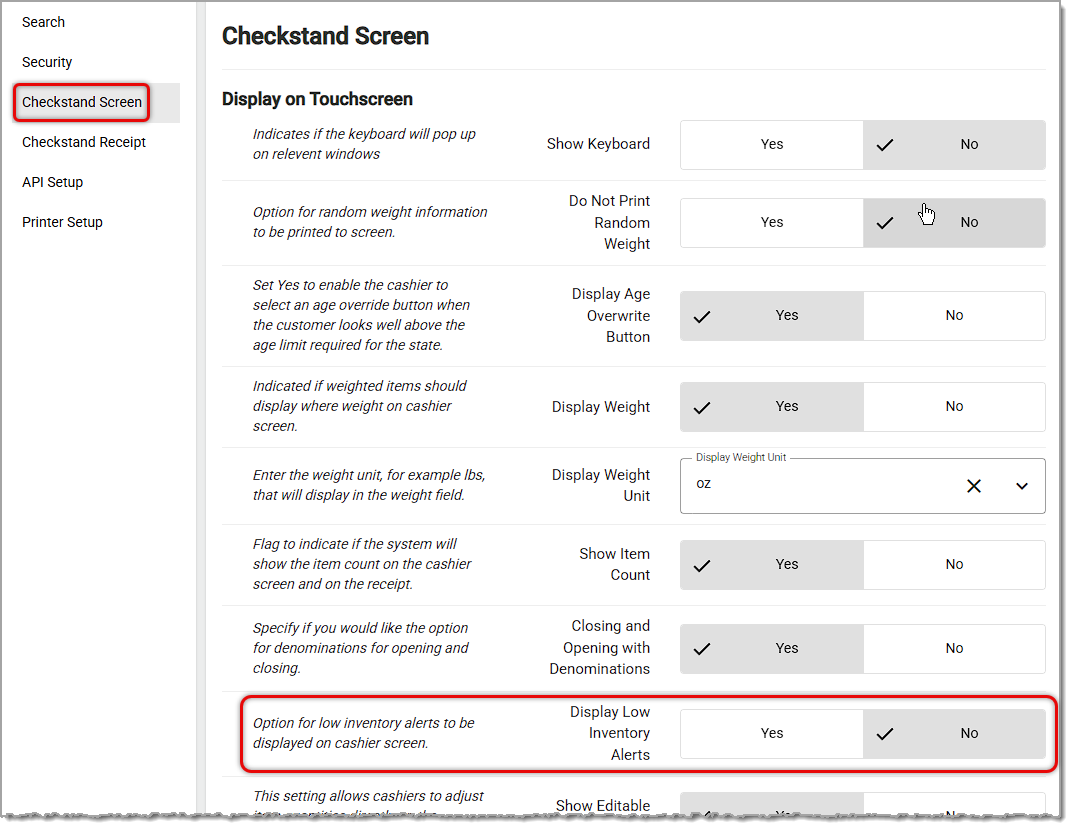
If you set the Display Low Inventory Alerts option to Yes, you can start getting alerts in the Front End for items that are low in inventory. The Front End alerts on your Checkstand Screen will look like this:
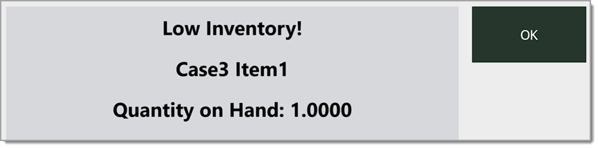
This alert will trigger and pop up whenever you load an item into a transaction that has a Quantity On Hand that's equal to or less than the Low Inventory Alert quantity. You can set the alert quantity in the Product Maintenance > Inventory tab for the product, as pictured here:
For items that reach zero inventory on hand, the notifications will no longer pop up.
Q: I have a question, but I can't find my answer here. How do I get more assistance?
A: If you need immediate assistance, the IT Retail team is available 24/7. Feel free to contact our support team at 877-752-0625. You can also email us at support@marktpos.com, and we will respond within 24 hours.
Is this page helpful?
×Help us improve our articles