Payment Methods

January 09, 2026
To see the latest data on the tender types used you can use the Payment Methods report. This article will show you how to get the most out of the report. Explore what's in there for you!
Working With the Payment Methods Report
You can get to this part of the system by logging into the Back End and opening the Balancing menu. Click on Payment Methods to get started.
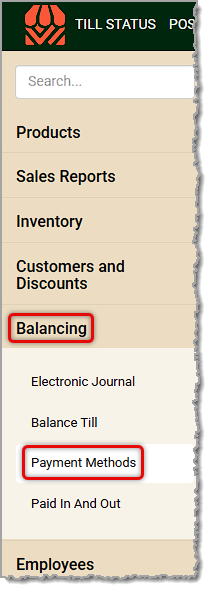
By default, the system will show you the payment methods data for the current day and will list all tills for the store. Here are the features of the report:
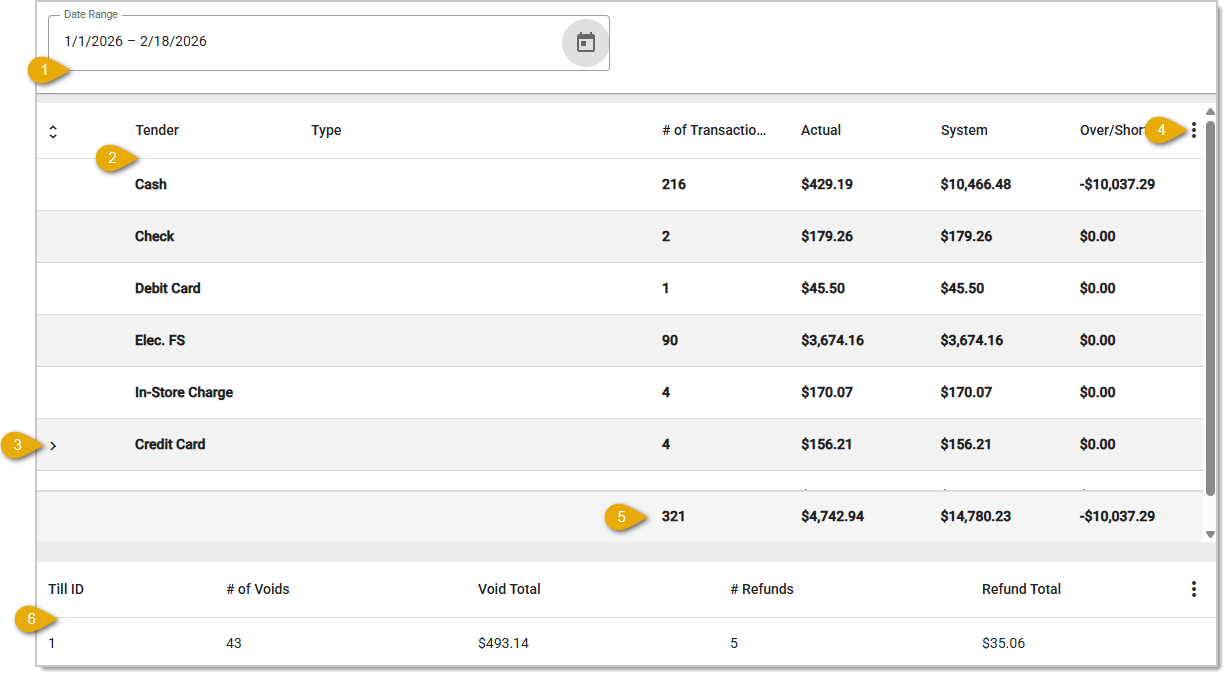
- Date Range — You can click in the Date Range area to choose a different date or a range of dates for payment methods data.
- Tenders Data Table — The Tenders Data Table displays each Tender name, Type, the Number of Transactions in which the payment method was used, the Actual dollar amount spent, the System count for amount spent, and any Over/Short amounts for the date range selected. The drawer is Over when it has more money in the actual count than in the system count, and it's Short when it has less.
- Expand Item — You may have some tender types with additional details that can be expanded, such as the Credit Card lines showing card types used (Visa, MasterCard, Discover, Amex, etc.). Click the + icon to expand a line or the - icon to collapse it again.
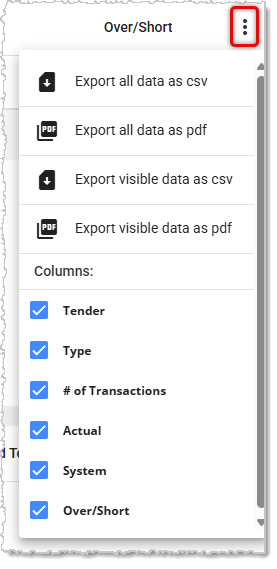
- Action Menu — Click the Three-Dot Stack button to open the Action menu where you can Export the data in the table as a CSV or a PDF. You can also choose which columns you want to show or hide.
- Totals — Columns with numeric values are totaled for you in the bottom row of the table.
- Till Data Table — The report also offers data about the Tills in the store, listing the Till ID, Number of Voids, Void Total dollar amount, Number of Refunds, and Refund Total dollar amount.
Related Articles
Cashier Training
Tenders
Frequently Asked Questions
Q: I have a question, but I can't find my answer here. How do I get more assistance?
A: If you need immediate assistance, the IT Retail team is available 24/7. Feel free to contact our support team at 877-752-0625. You can also email us at support@marktpos.com, and we will respond within 24 hours.
Whenever you come to the end of a shift, there are several things you need to do, even if you don't
From time to time you may need to look up a transaction receipt and either reprint or send to the cu
It's a good practice to double-check cashier drawer counts of cash after a shift is complete, and th








Is this page helpful?
×Help us improve our articles