







Cashier Training
Welcome to IT Retail, we’re so glad you’ve chosen our POS for your store! This article will guide yo
 December 04, 2025
The IT Retail system enables you to print out Shelf Tags yourself. You just have to set this up in the Back End, so read on to see how quickly you can get started on your Shelf Tags!
You should start by choosing how labels will be added to the label queue. Note that Shelf Tags are different from Item Labels, which are placed directly on items like deli or baked goods. Shelf Tags are the labels placed on shelves to show product names, prices, and barcodes.
Go to Administration > POS Manager > Security.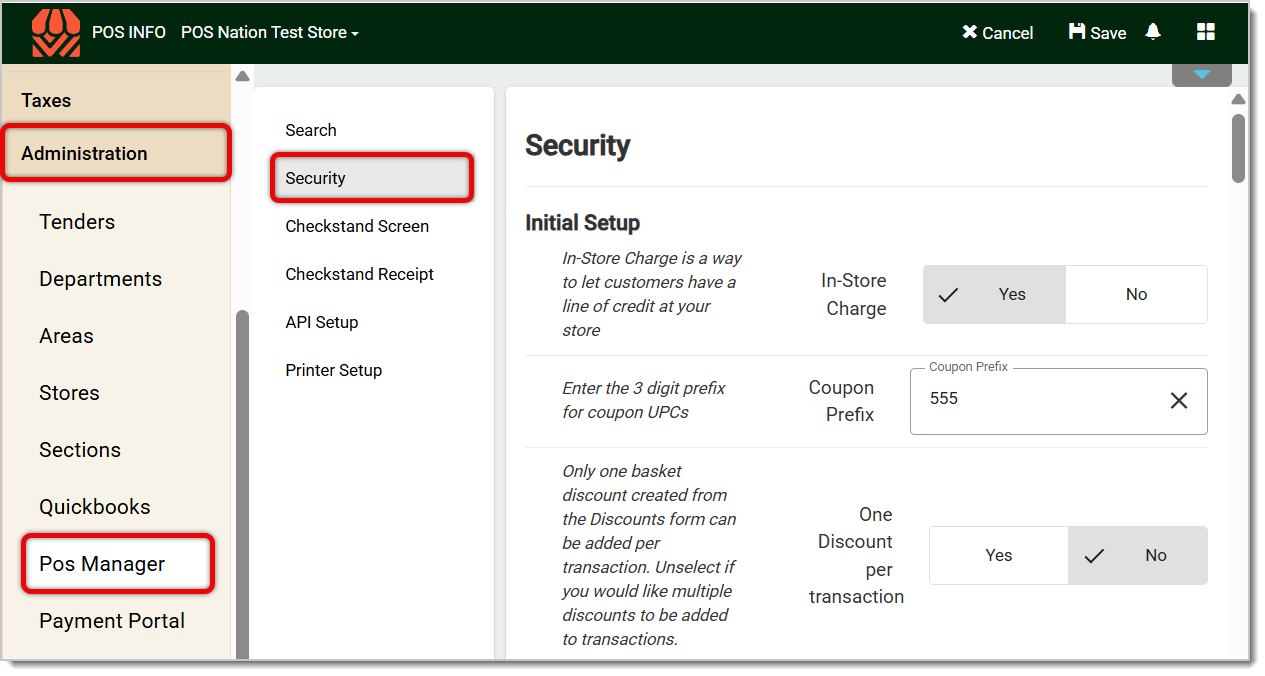
Scroll down the page of the Security tab and find Label Queue.
Use the drop-list to select from Prompt, Automatically, or None. 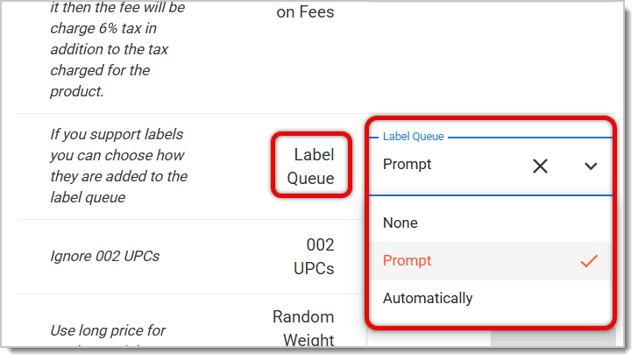
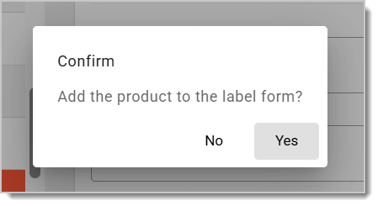
Now that you’ve added items to the Label Queue, you can move on to printing your labels.
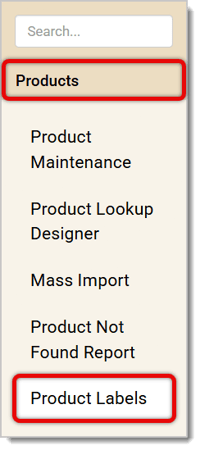
Go to Products > Product Labels. You’ll see all of your pending labels in the queue.
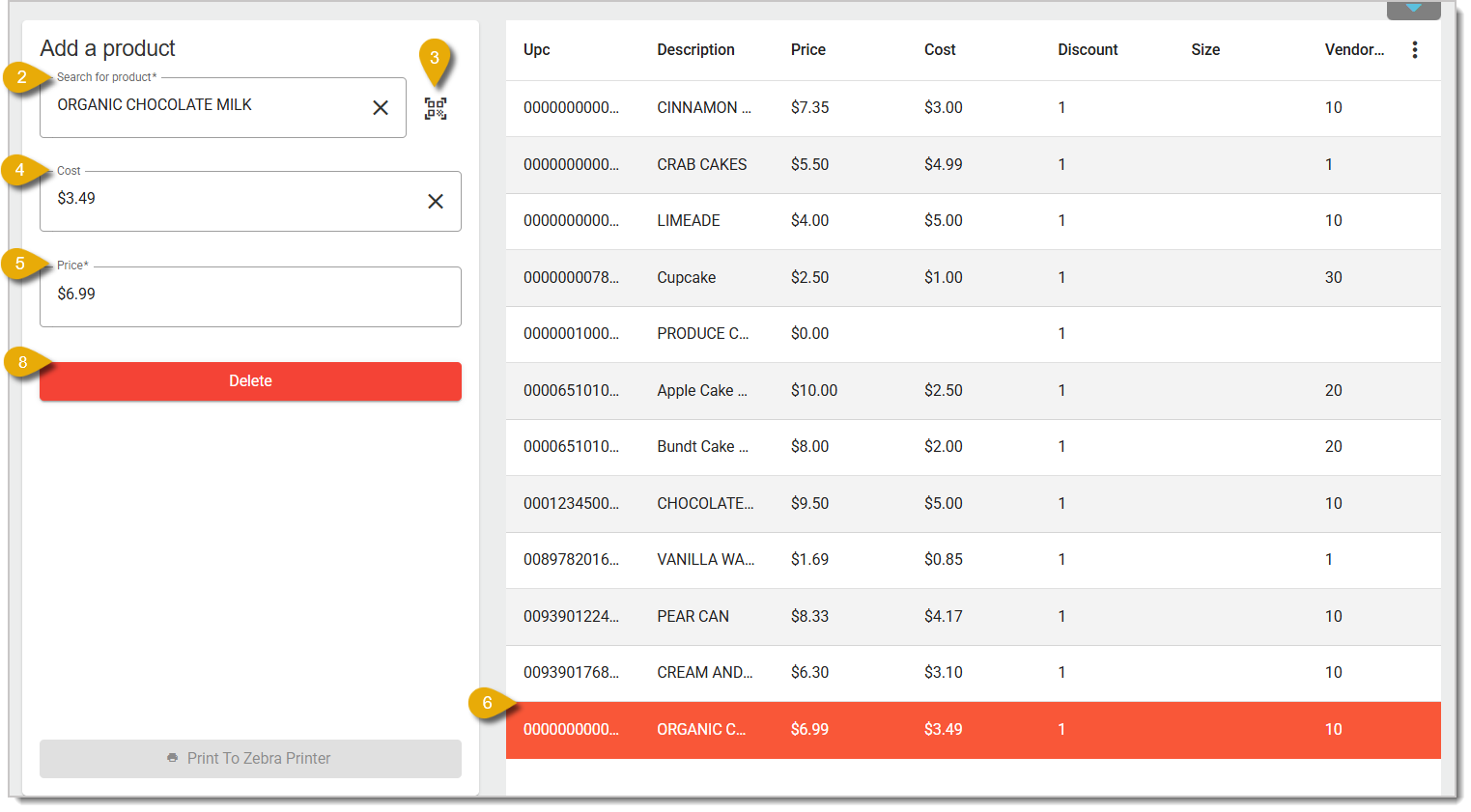
If you want to add another product to the Label Queue, use Search For Product to enter the UPC, Description, or Item Code.
You can also upload a picture of the UPC using the Camera button on the right of the Search bar.
Once you’ve selected an item, the Cost and Price will prepopulate, and the item will be automatically added to the queue (the table on the right).
Edit the price if you need. Doing so will also edit the item's price in the table.
You can additionally edit the price of an item from here. Click on an item in the data table, and the item will be highlighted.
Then edit the Price (not shown).
If you want to remove an item from the Label Queue, select the item with the checkbox and click on the Delete button. This does not delete the product from the system, it just removes it from the Label Queue.
When you’re ready to print, you have two options:
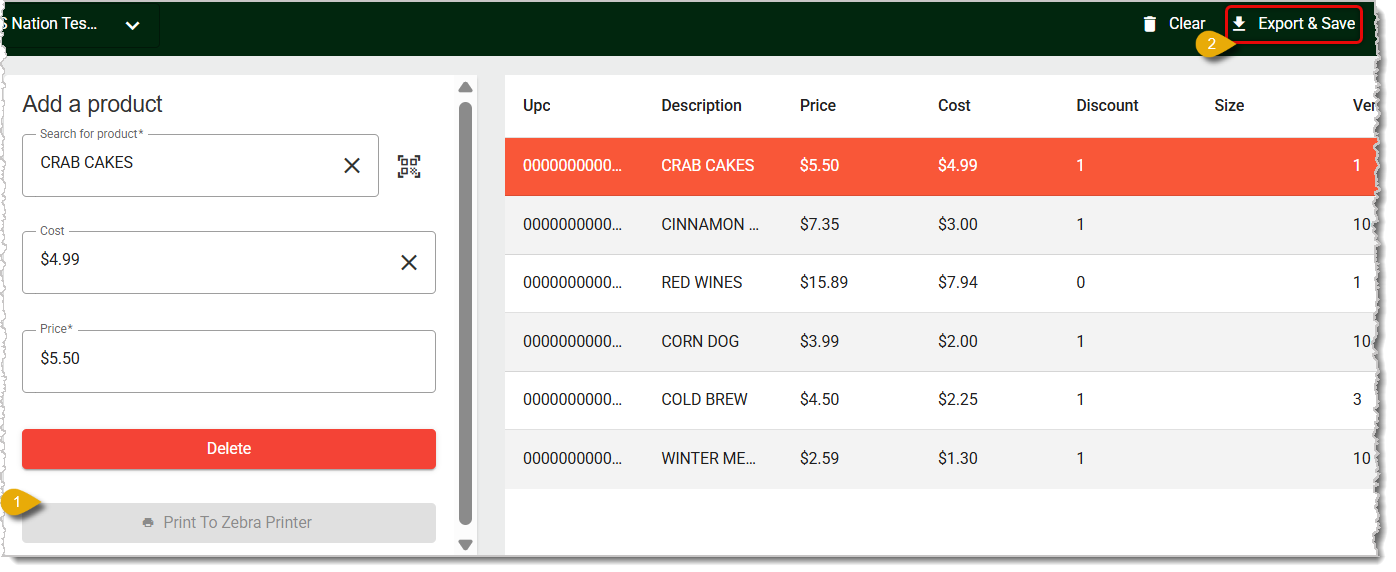
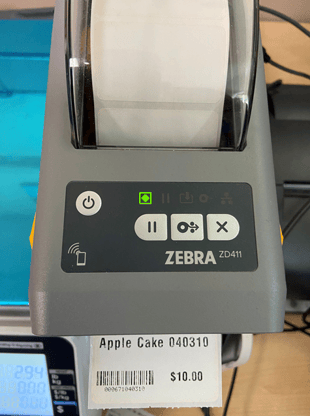
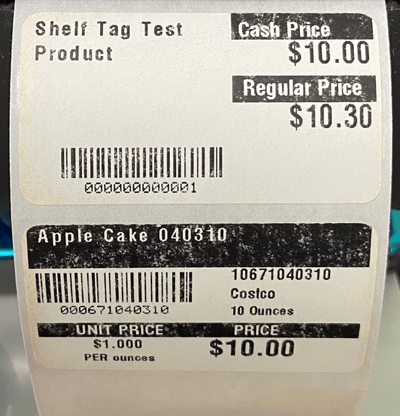
Please Note: If you need to print more than one label for one specific item, we recommend you use Quick Print instead, as there isn't a feature for that in the Product Labels area. You can read the Quick Print article in the Related Articles section below.
Q: How do I print labels that go on the products themselves?
A: The IT Retail system doesn't have a way to print labels that go on products. You'll want to use a simple price gun for that task.
Q: I have a question, but I can't find my answer here. How do I get more assistance?
A: If you need immediate assistance, the IT Retail team is available 24/7. Feel free to contact our support team at 877-752-0625. You can also email us at support@marktpos.com, and we will respond within 24 hours.
Is this page helpful?
×Help us improve our articles