Quick Print

December 05, 2025
Quick Print enables you to print Shelf Labels fast. The setup process is fast and easy, so read on to see for yourself!
Set Up Quick Print
Please Note: Quick Print is specifically for shelf labels, which are not the same as item labels. Shelf labels are placed in shelves to display product names and barcodes. Item labels are the price or description labels placed directly on products like deli items and baked goods.
First set up your printer and connect it to your device. Once it’s set up, you can get started on printing from the Back End.
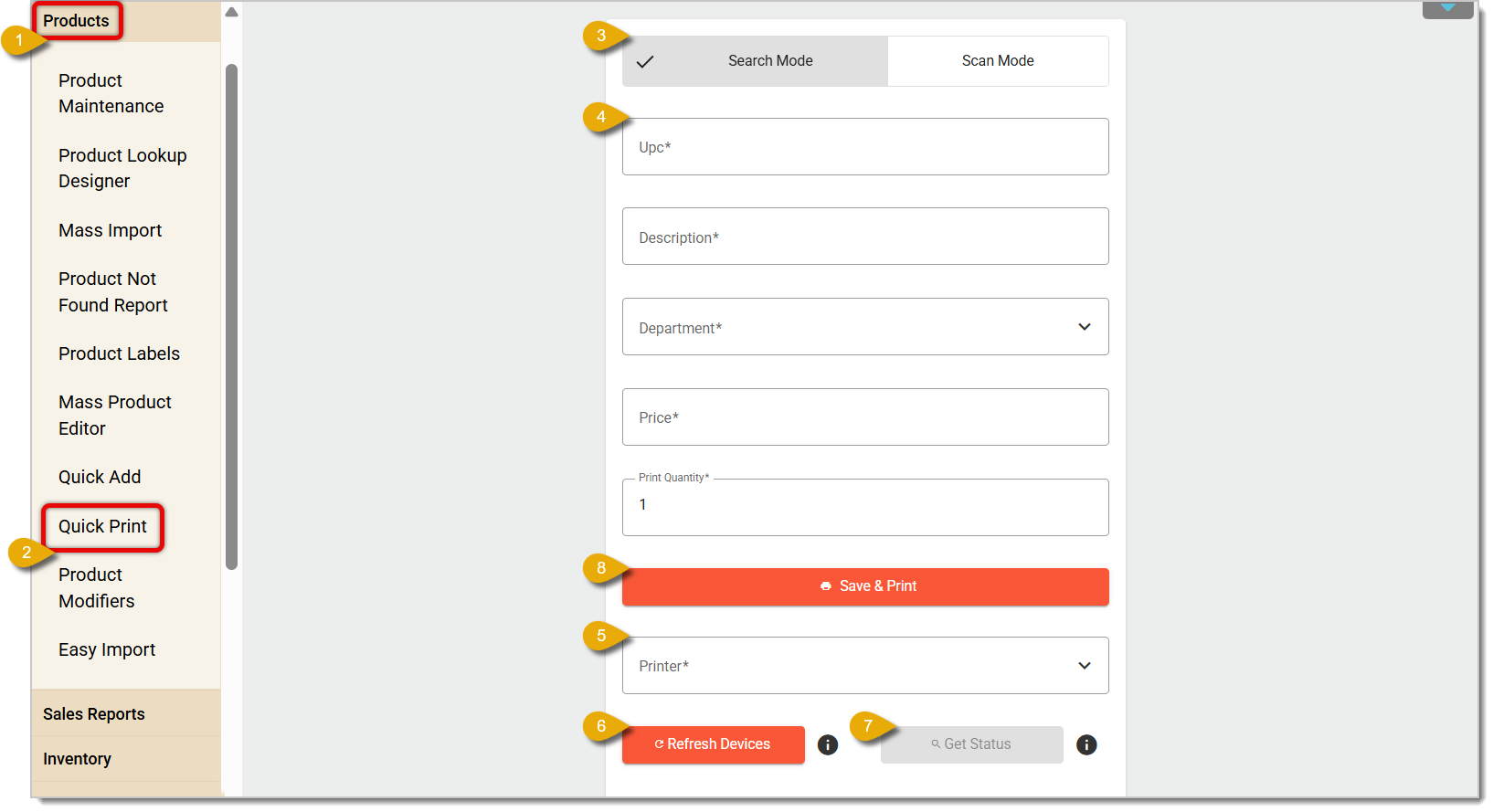
- Navigate to Products and click on it.
- Click on Quick Print.
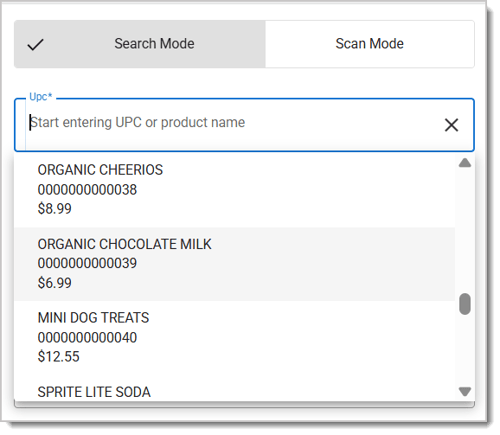
- After opening the Quick Print form, it will automatically be on Search Mode by default. In Search Mode, you can enter the product’s UPC in the UPC field; matching search results will display in a drop-list so you can select the product.
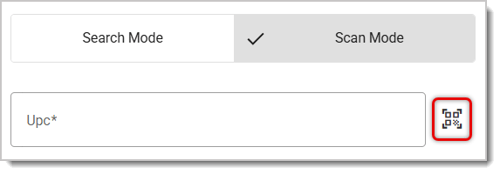
You can also click on the Scan Mode tab. In Scan Mode, you instead scan the item’s barcode by clicking on the Scan icon directly to the right of the UPC field. This will use your device’s camera. Once you’ve scanned the item, the IT Retail system will automatically fill all detail fields. Note that every field in this form is required before you can print.
- Edit any of the product’s details for the label, if needed. Note that any saved edits will also update the product’s information in the Back End.
- Select your printer from the drop-list.
- If you can’t find your printer, click on Refresh Devices.
- You can click on Get Status to check if your selected printer is ready to print.
- Once you’re ready to print, click on Save and Print.
Related Articles
Product Labels
Quick Add
POS Manager Printer Setup
Frequently Asked Questions
Q: I have a question, but I can't find my answer here. How do I get more assistance?
A: If you need immediate assistance, the IT Retail team is available 24/7. Feel free to contact our support team at 877-752-0625. You can also email us at support@marktpos.com, and we will respond within 24 hours.
Adding products to a customer’s transaction is straightforward. Below is a step-by-step guide on how
Processing refunds and returns is a natural part of retail sales. We’ll walk you through the steps o
Going live with EBT (SNAP) is exciting and may not be as daunting as you’d think. We've done a few t








Is this page helpful?
×Help us improve our articles