







How to Create Customers in the Front End
If a customer wants to sign up for your store’s membership program, you can add them in the Front En
 July 10, 2026
Bounce Back Coupons are a type of electronic coupon that will give your customers incentive to come back soon after a purchase. The coupons generate a code that will either print on the receipt or will be sent via SMS to the customer for use in their next visit. This article will show you how to set up Bounce Back Coupons and how to redeem them in the Front End. Take a look at what they can do for you!
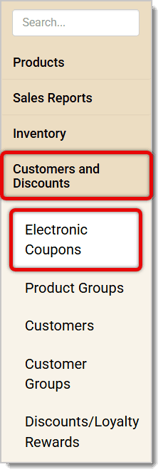
To work with Bound Back Coupons, first go to Customers and Discounts > Electronic Coupons.
You'll configure the Name, Description, Valid From and Valid To dates, Limit per Order, and Priority the same way you do for regular Electronic Coupons. The initial Triggers and the final Awards will also be the same as they are for regular coupons. For full details on that process, click here to view the Electronic Coupons article.
Bounce Back Coupons work differently than standard ones: The Triggers and final Awards are the same, but this type of coupon involves a two-step process: You'll create two coupons, one to Trigger a coupon code, and a second coupon that will use the code as the trigger to get the Award at checkout in the Front End. The goal with these coupons is to give your customers incentive to come back soon after a purchase.
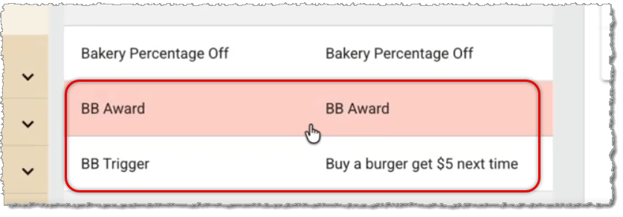
First, the customer will trigger the Trigger Coupon using identical triggers to the ones used for Regular electronic coupons, but instead of applying an award right away, the initial step's award is a Bounce Back Code. This code will either be sent to the customer via SMS, will Print on the receipt of the transaction that resulted in the Bounce Back Code, or you can click the Send SMS button pictured below to manually send the code to a customer whenever you want (they won't need a triggering transaction, you're just giving them the code).
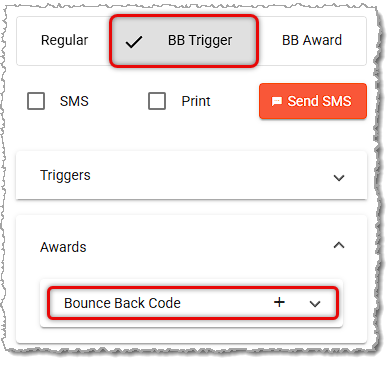
When creating your Trigger Coupon, the Triggers will be identical to the ones described above, but in the Awards area, you'll click to create a Bounce Back Code. The system will give you a unique code every time, and in the near future we will add tracking for codes into your reporting.
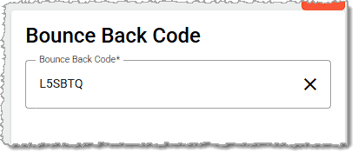
Once you have the code, if you want to just send it to the customer immediately, you can click the Send SMS button and the system will send it to your customers, as in the example below from the SMS Report.
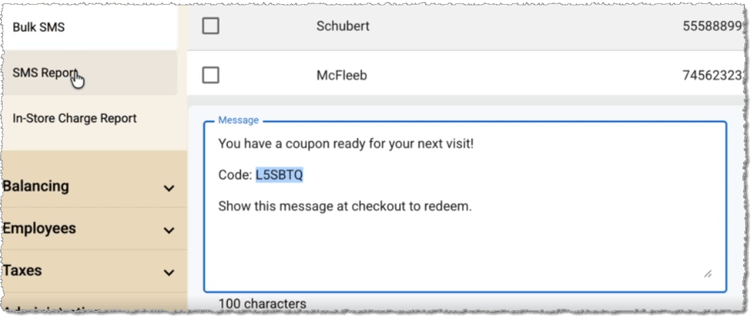
If you are not sending it out immediately, you will need to continue to the next step and create the Award Coupon.
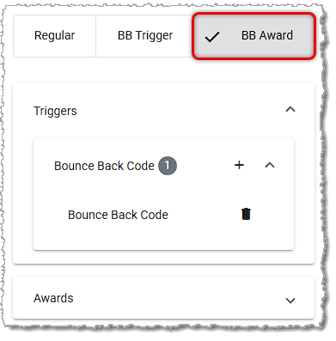
When you create the Award Coupon , the trigger will be the Bounce Back Code you created for the Trigger Coupon (there are no other Trigger options, as pictured below). The Award can be any of the standard Awards used for Regular Electronic Coupons.
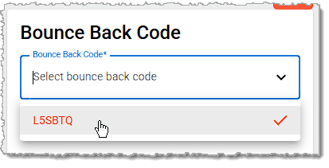
When you click to create the Bounce Back Code trigger, clicking in the empty field will give you a drop-list of previously created codes, and you can click on the one you need.
When the customer comes in with their Bounce Back Code, in the Front End you will click on Manager Functions and in the lower right, click Bounce Back Coupons.
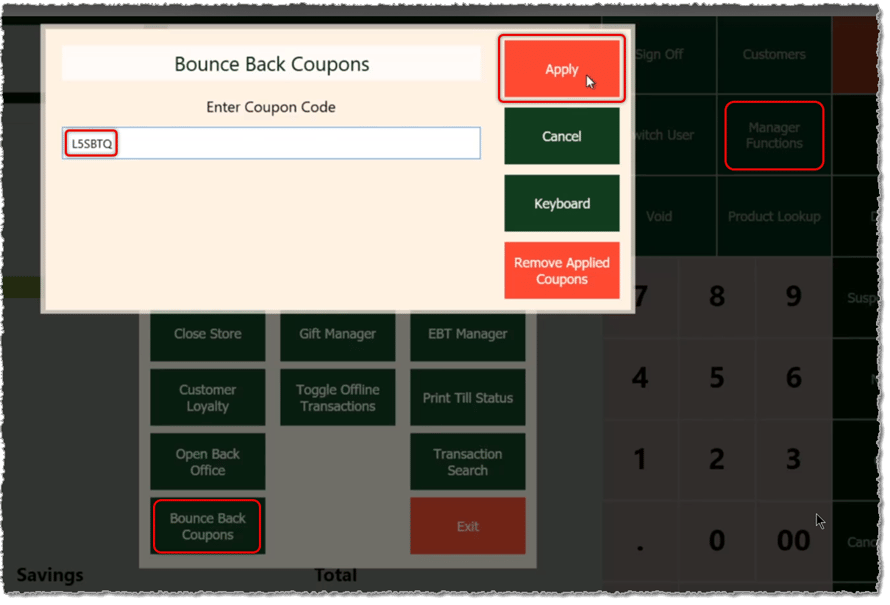
Enter the Bounce Back Coupon Code into the field and click the Apply button to apply it to the Register.
That's it, you're all set!
Coupons by Vendor or Department
Mix & Match Coupons with Product Groups
Q: I have a question, but I can't find my answer here. How do I get more assistance?
A: If you need immediate assistance, the IT Retail team is available 24/7. Feel free to contact our support team at 877-752-0625. You can also email us at support@marktpos.com, and we will respond within 24 hours.
Is this page helpful?
×Help us improve our articles