







Cashier Training
Welcome to IT Retail, we’re so glad you’ve chosen our POS for your store! This article will guide yo
 November 20, 2025
For businesses that charge for annual customer memberships, you can set expiration dates so you don’t have to manually disable them every year. Read on to see how you can set that up in the front end. Here’s what you’ll learn:
When you add a new customer from Manager Functions, you can set an expiration date to their membership, if desired.
Click or tap on Manager Functions to open another window.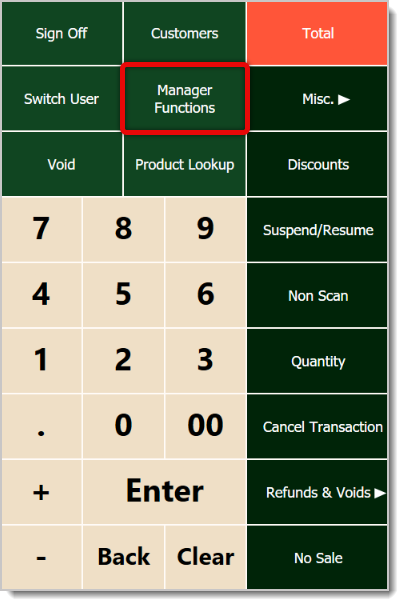
From this window, click or tap on Add a Customer.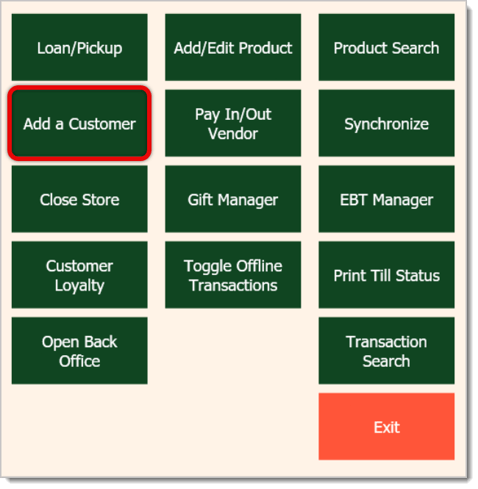
While you add the customer’s information, you can also set their membership’s expiration date. If the customer receives a Discount Percent off of their purchases, you can also add that.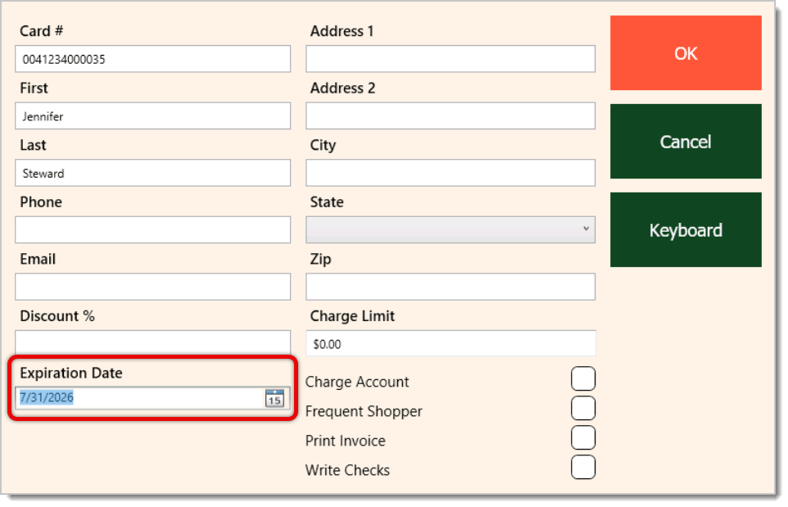
When an existing customer membership expires, you’ll receive a prompt asking to renew it. If the customer would like to renew, click or tap on Yes.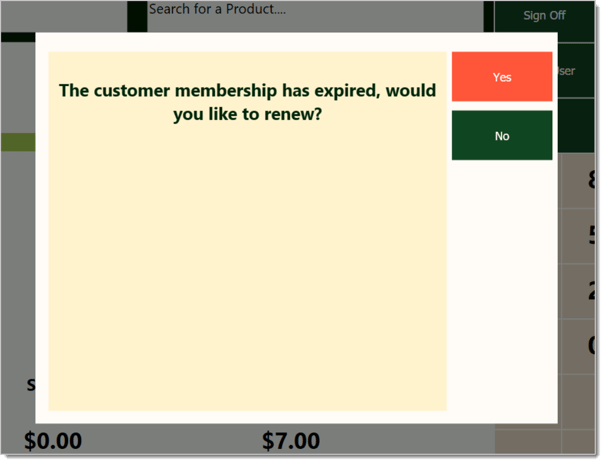
You’ll see a different window where you can enter a new expiration date for the next expiration. Click or tap on OK after you’ve set it.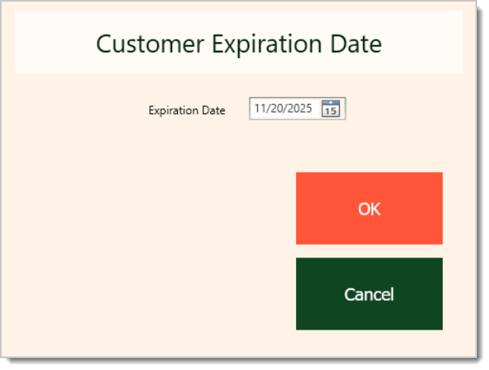
You’ll see a confirmation stating that the customer’s information was successfully saved.
How to Create Customers in the Front End
Customer Membership Expirations in the Back End
Giving Customer Reward Coupons in the Front End
Q: I have a question, but I can't find my answer here. How do I get more assistance?
A: If you need immediate assistance, the IT Retail team is available 24/7. Feel free to contact our support team at 877-752-0625. You can also email us at support@marktpos.com, and we will respond within 24 hours.
Is this page helpful?
×Help us improve our articles