







How to Create Customers in the Front End
If a customer wants to sign up for your store’s membership program, you can add them in the Front En
 December 23, 2025
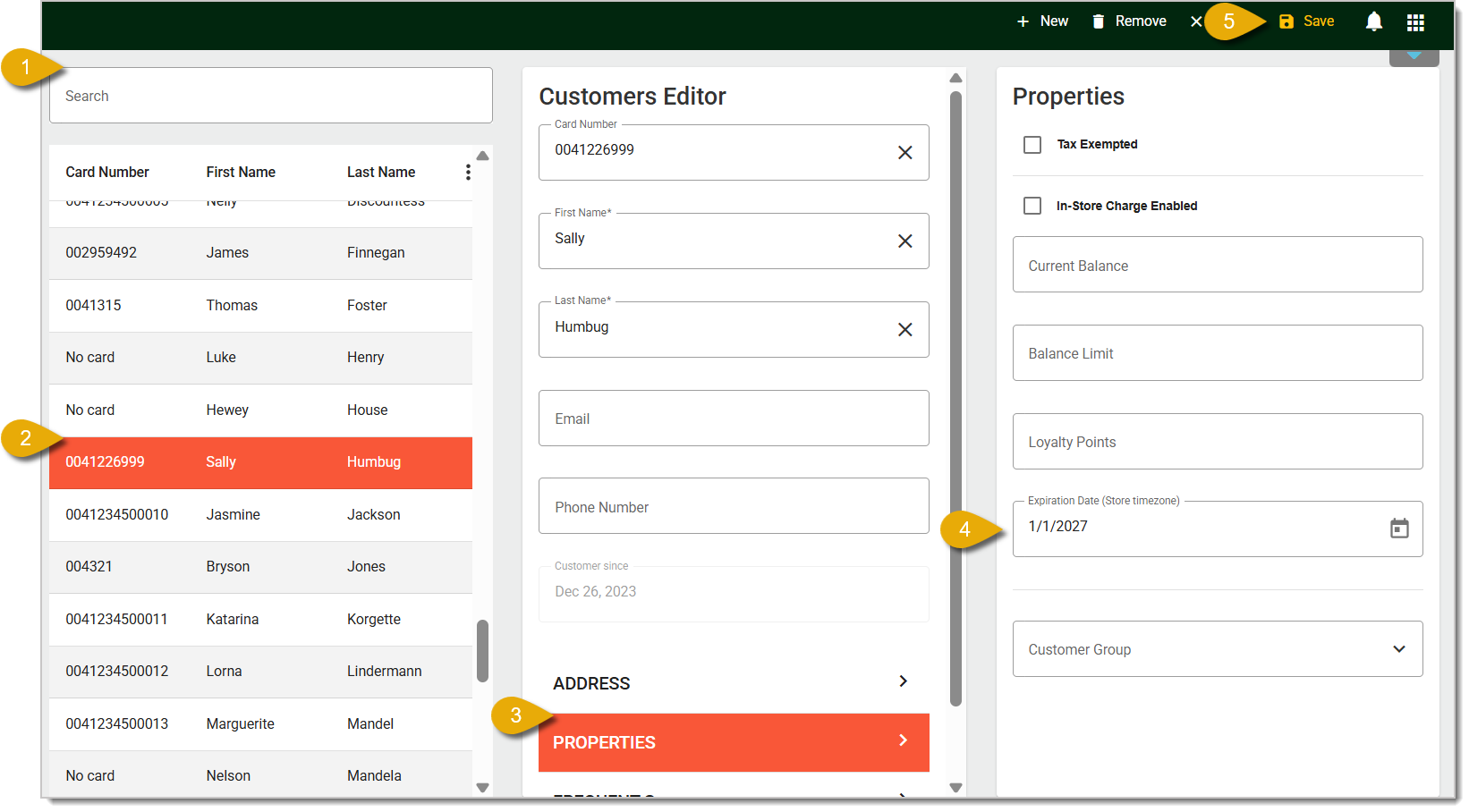
If you charge customers for yearly memberships, you can set expiration dates so customers have to renew them. This article will show you how to set these dates in the IT Retail Back End. To learn how to do so in the Front End, take a look at our article about that linked at the bottom of this page in the Related Articles section.
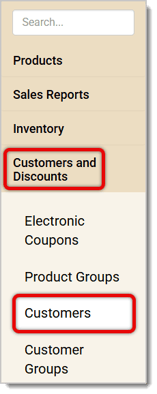
To start, go to the Customers page through Customers and Discounts > Customers.
Here is how to set membership expiration:
Customer Membership Expirations in the Front End
Q: I have a question, but I can't find my answer here. How do I get more assistance?
A: If you need immediate assistance, the IT Retail team is available 24/7. Feel free to contact our support team at 877-752-0625. You can also email us at support@marktpos.com, and we will respond within 24 hours.
Is this page helpful?
×Help us improve our articles