The Bulk SMS feature allows you to send targeted text messages to a selected group of customers. To select your group you can filter customers by visit date, search by name or email. You can then compose a custom message, test it before sending, and review past campaigns from the SMS Report page. Text message marketing has the highest response rate of all types of marketing, take a look at what you can do!
Working With the Bulk SMS Page
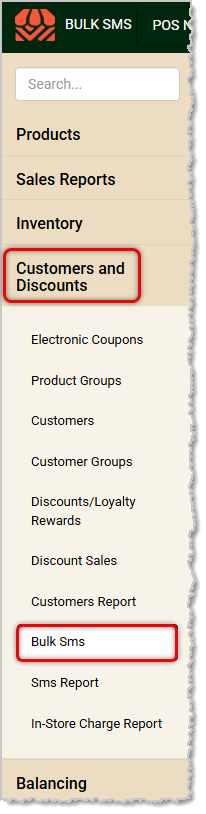
To begin working with your Bulk SMS page, log into the Back End and go to Customers and Discounts > Bulk SMS.
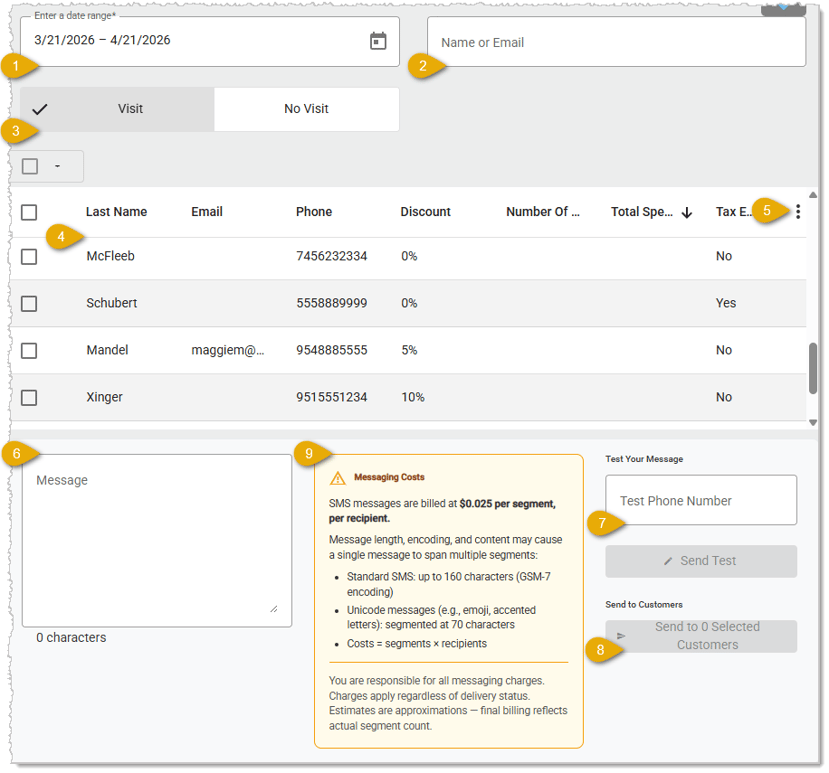
Here are the features of your Bulk SMS page:
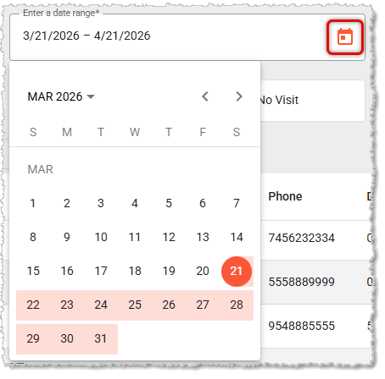
- Date Range — By default this area will load customer data for the past thirty days, but you can click in the field or on the Calendar Icon to change the date range using the Date Picker, pictured below.
- Search — Enter a customer's Name or Email here to search for the one you want.
- Visit Filters — Depending on who you want to message, you can either use the default Visit filter button to see customers that visited your store in the Date Range, or you can click the No Visit filter to see customers who did not visit.
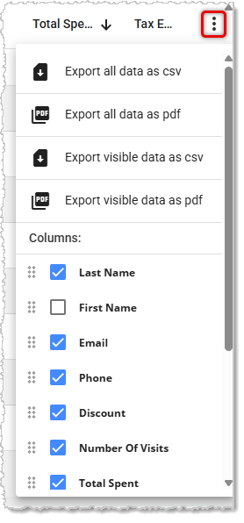
- Customer Data Table — The Data Table will list Customers who fit your Date, Search, and/or Visit filter selections. By default the table shows columns for Last Name, Email, Phone, the customer's default Discount, if any, the Number of Visits in the date range, Total Spent in the date range, and if the customer is Tax Exempted or not. You also have the option using the Action Menu described in #5 below to display columns for the First Name, membership Expiration Date, if any, the date of the First Visit and Last Visit during the date range, and the customer current number of Loyalty Points.
- Action Menu — You can click the Three-Dot Stack icon on the far right to open the Action Menu. The menu offers options to Export the data as either CSV or PDF, and for either you can choose to export only the Visible Data or All of the Data. You can also choose which columns display using the checkboxes in the lower part of the menu. In that area, you can also drag-and-drop the columns into whatever order works best for you.
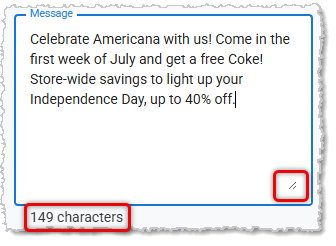
- Message — You can compose your SMS text messages in this area. The text field will keep a running count of the number of characters you enter. The count includes spaces and punctuation. A standard SMS message can contain up to 160 characters within a single 'segment.' Messages longer than that will start a second segment. If the message includes special characters such as accented letters or emoji, the segment length is 70 characters. There is an Enlarge Icon in the lower right of the Message field you can click and drag to enlarge the window, if needed.
- Test Phone Number — You can enter a mobile phone number here and click the Send Test button to see what your message will look like. In the upper right of the page, a Success message will pop up in green if the message sends. If it fails, the message will be in red.
- Send to Customers — Once you have selected one or more customers, click this button to send your message to them. The button will display the total count of selected customers.
- Messaging Costs — Details about the cost calculations for sending Bulk SMS messages to your customers are provided for your reference in this area. Here is the cost information:
SMS messages are billed at $0.025 per segment, per recipient.
Message length, encoding, and content may cause a single message to span multiple segments:
- Standard SMS: up to 160 characters (GSM-7 encoding)
- Unicode Messages (e.g., emoji, accented letters): segmented at up to 70 characters
- Costs = segments × recipients
You are responsible for all messaging charges. Charges apply regardless of message delivery status. Estimates are approximations — final billing will reflect your actual segment count for the billing period.
Compose and Send a Bulk SMS Message
Here are the steps to compose and send a Bulk SMS message to customers:
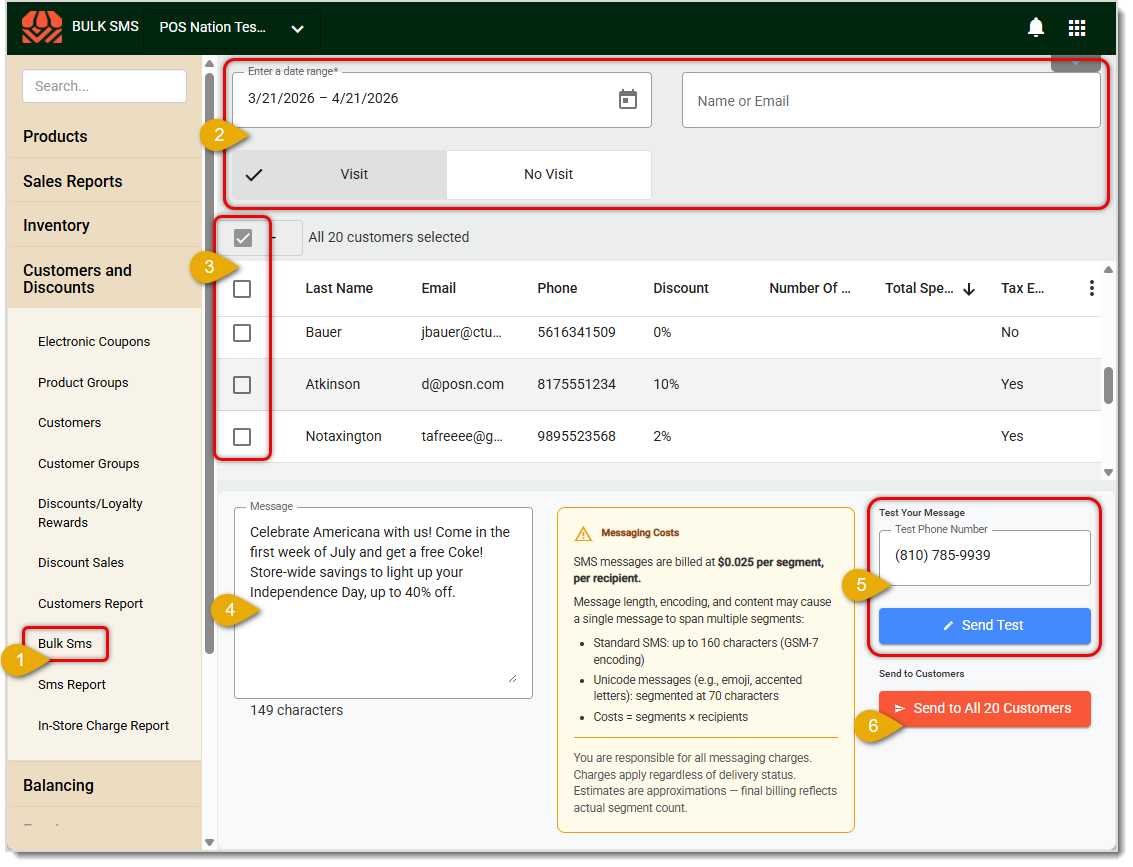
- In the Back End, click to open the Customers & Discounts menu and go to Bulk SMS.
- For your target customers, filter for the Date Range you want, choose if you want to message customers that had a Visit or that had No Visit in that date range, or Search for customers by Name or Email. Once your filters are applied, the customer list will update.
💡Pro Tip: Reaching out to both active and inactive customers is essential for maximizing revenue and customer retention. Engaging inactive customers is often more cost-effective than acquiring new ones, as they already have familiarity with your brand, making them easier to win back.
- Check the boxes for each customer you want to include in your SMS campaign. You can click the box at the top to Select All or click again to Deselect All. The table header shows how many customers are currently selected (e.g. "All 20 customers selected").
💡Please Note: You can select multiple customers at once by checking their individual checkboxes. The selected rows will be highlighted in orange.
- Enter your message text in the Compose Message area. We recommend you keep the following in mind:
- Keep messages concise and relevant to your customers.
- Include a clear call to action (e.g., "Come in today and get a free coke!").
- The character count is displayed below the message box to help you keep your message to as few segments as possible.
- Before you send your message to customers, we recommend you send yourself a test message to verify how it looks. Enter your mobile phone number in the Test Phone Number field, then click the Send Test button. Review the message and make any edits needed before sending the campaign to your customers.
💡Please Note: The test message is sent only to the number you enter and will not be logged as a customer campaign.
- Double-check your customer selection and message before sending. Once you are satisfied with your message, click the orange Send to [X] Selected Customers button in the lower right of the page. The Bulk SMS system will not send messages during 'Quiet Hours' of 9am to 11am in your time zone. If you click to send during these hours, the message will be queued and sent out automatically as soon as that time has passed. When you hover over the Send button, you'll see a popup notice about this restricted time.
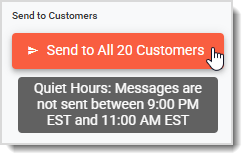
💡Please Note: The Send action cannot be undone once it is initiated.
Review Bulk SMS Campaigns in the SMS Report
To review all Bulk SMS campaigns you have sent, in the Back End click to open the Customers & Discounts menu and go to SMS Report.
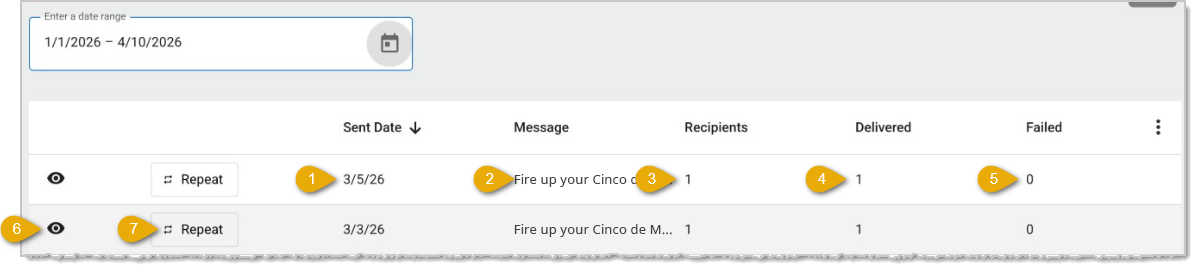
Here are the major features of the SMS Report:
- Sent Date — This column shows the date the Bulk SMS campaign was sent.
- Message — This column displays a short preview of the SMS message text.
- Recipients — This column lists the total number of customers who were sent the message.
- Delivered — This column displays the number of customers who successfully received the message.
- Failed — This column shows the number of customers who did not receive the message.
- View Campaign Details — You can click the Eye Icon (👁️🗨️) on any row to view the full details of that campaign. The details include the customers for whom the delivery of the message was successful or unsuccessful.
- Repeat Campaign — To re-send a previous campaign or use the same customer list again, click the Repeat button on any row. This will return you to the Bulk SMS page with the same customer selection pre-loaded from that campaign, allowing you to send the same or an updated message without re-filtering your customers.
Related Articles
SMS Report
Automatic Coupons
Coupons by Vendor or Department
Product Group Coupons
Mix & Match Coupons with Product Groups
Frequently Asked Questions
Q: I have a question, but I can't find my answer here. How do I get more assistance?
A: If you need immediate assistance, the IT Retail team is available 24/7. Feel free to contact our support team at 877-752-0625. You can also email us at support@marktpos.com, and we will respond within 24 hours.








 April 21, 2026
Is this page helpful?
×Help us improve our articles