







Setting Up Receipt Texting
The IT Retail system lets you send customers copies of their receipts via text message, which saves
 January 23, 2026
The IT Retail system can read up to 13 digits in UPCs, meaning it can handle EAN-8, UPC-E and UPC-A barcodes (UPC-E is a shorter version of UPC-A). For whatever reason, you may find yourself wanting to use only UPC-As at your store. In that case, it can be helpful to have both UPC kinds stored in your product Excel file. You can convert your UPC-Es to UPC-As in Microsoft Excel. Keep reading this article to see how you can convert your UPCs all at once!
After you've opened Microsoft Excel, you'll need to open the Visual Basic for Applications (VBA) Editor. You'll first have to enable the Developer tab and add it to the Ribbon at the top of Excel. Here's how to do that:
Click on File from the Excel menu.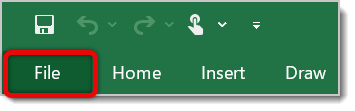
At the bottom of the File menu, click on Options. A window will pop up showing Excel Options.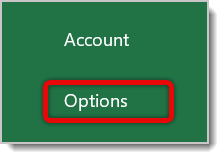
Click on Customize Ribbon. 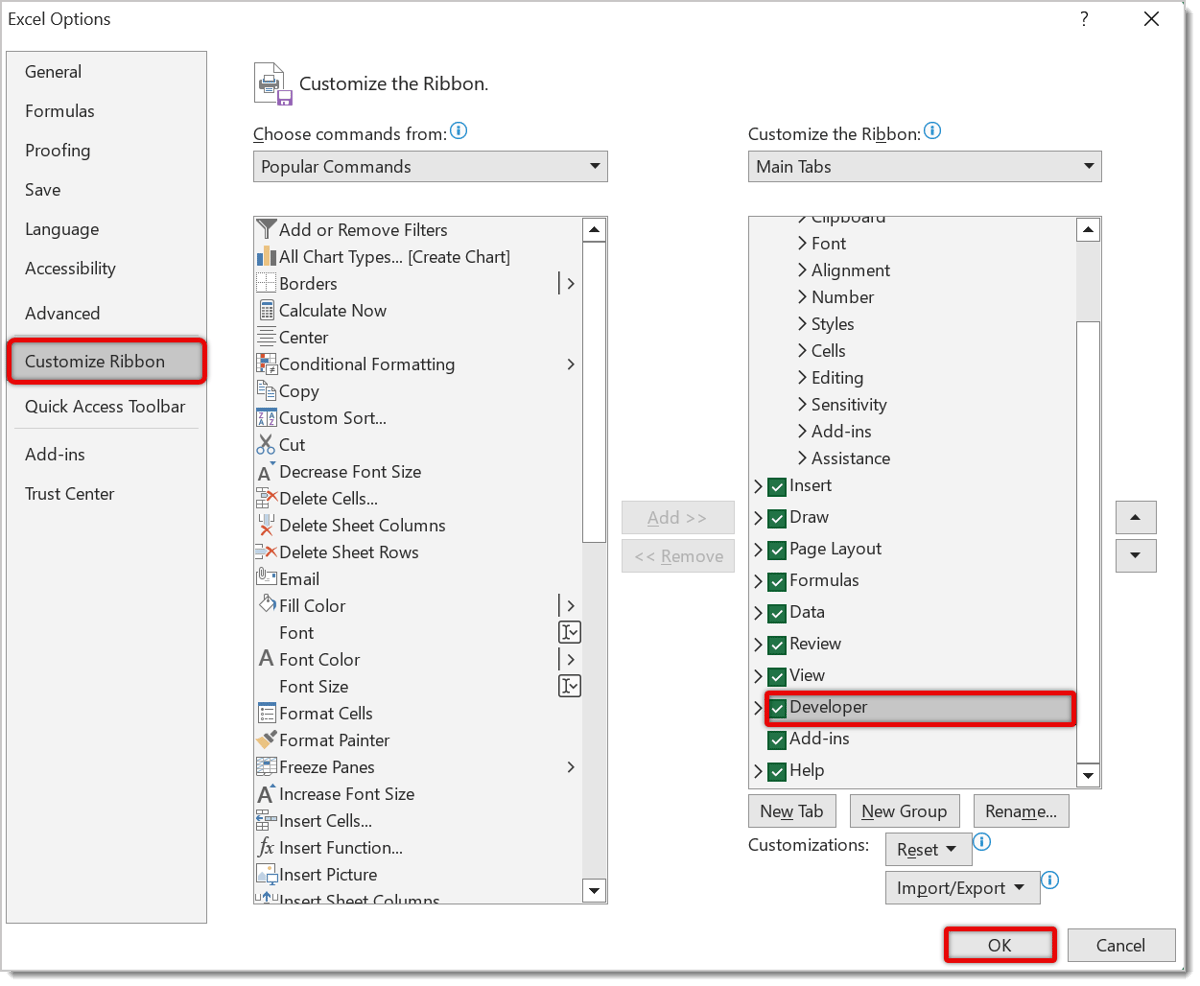
On the right-hand side, under Customize the Ribbon, scroll down to find and check the box for Developer.
Click on OK at the bottom.
Now that you've enabled Developer, you can go back to the top taskbar / Ribbon and click on the Developer tab.

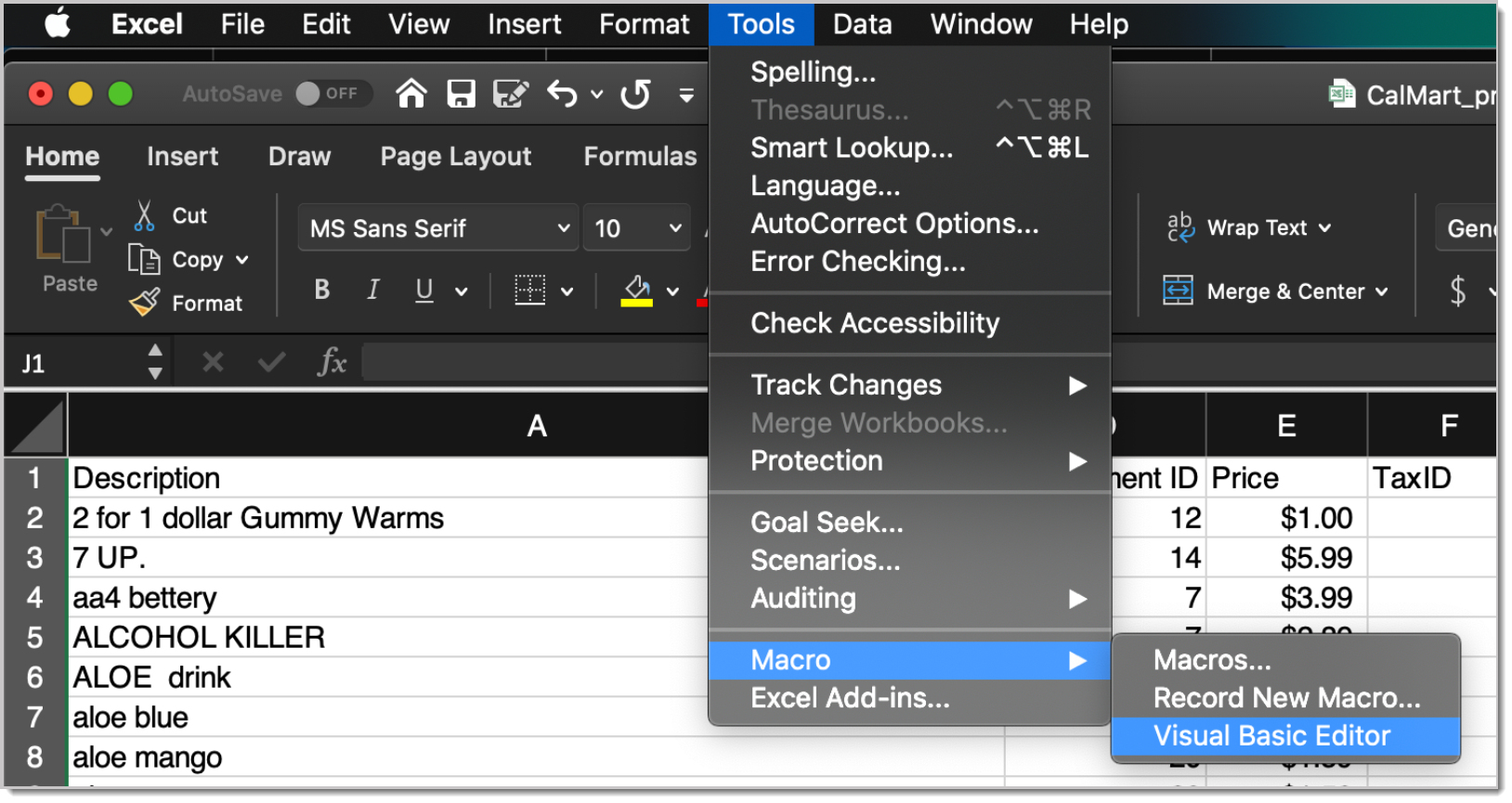
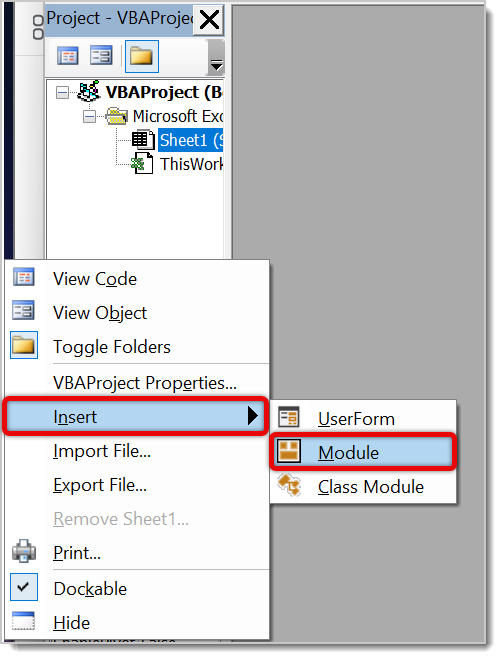
A new Module window will open. Paste the following code in the window:
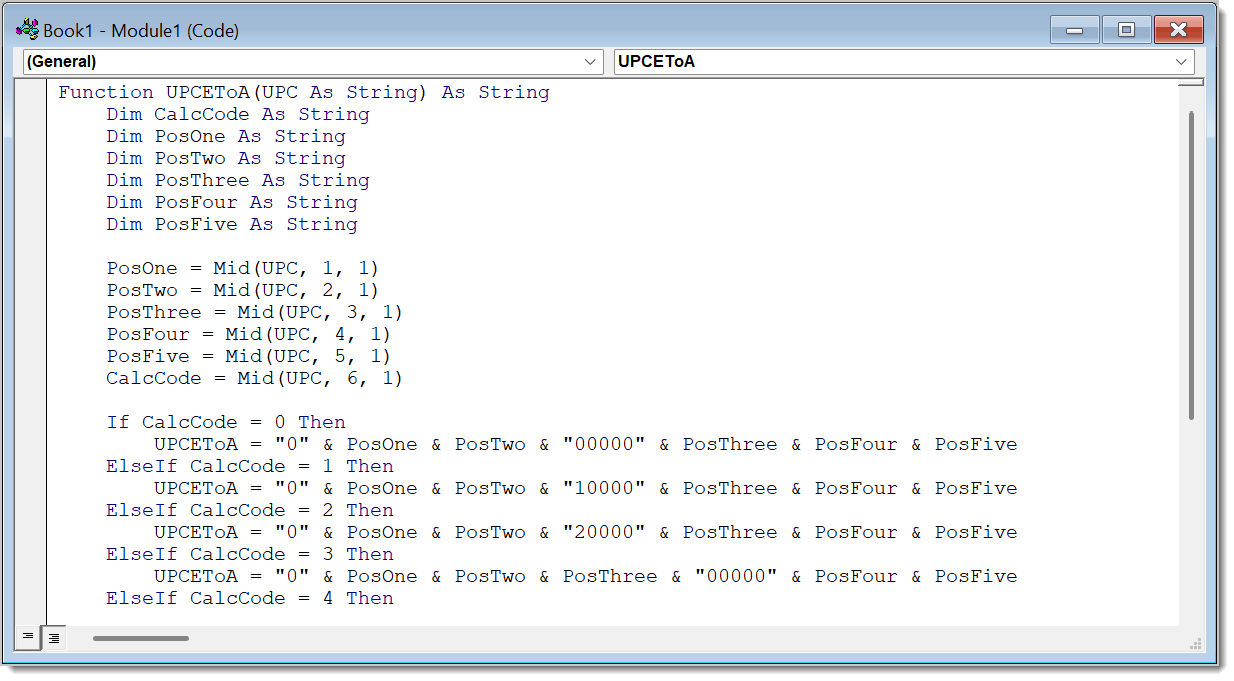
Function UPCEToA(UPC As String) As String
    Dim CalcCode As String
    Dim PosOne As String
    Dim PosTwo As String
    Dim PosThree As String
    Dim PosFour As String
    Dim PosFive As String

    PosOne = Mid(UPC, 1, 1)
    PosTwo = Mid(UPC, 2, 1)
    PosThree = Mid(UPC, 3, 1)
    PosFour = Mid(UPC, 4, 1)
    PosFive = Mid(UPC, 5, 1)
    CalcCode = Mid(UPC, 6, 1)

    If CalcCode = 0 Then
        UPCEToA = "0" & PosOne & PosTwo & "00000" & PosThree & PosFour & PosFive
    ElseIf CalcCode = 1 Then
        UPCEToA = "0" & PosOne & PosTwo & "10000" & PosThree & PosFour & PosFive
    ElseIf CalcCode = 2 Then
        UPCEToA = "0" & PosOne & PosTwo & "20000" & PosThree & PosFour & PosFive
    ElseIf CalcCode = 3 Then
        UPCEToA = "0" & PosOne & PosTwo & PosThree & "00000" & PosFour & PosFive
    ElseIf CalcCode = 4 Then
        UPCEToA = "0" & PosOne & PosTwo & PosThree & PosFour & "00000" & PosFive
    ElseIf CalcCode = 5 Then
        UPCEToA = "0" & PosOne & PosTwo & PosThree & PosFour & PosFive & "00005"
    ElseIf CalcCode = 6 Then
        UPCEToA = "0" & PosOne & PosTwo & PosThree & PosFour & PosFive & "00006"
    ElseIf CalcCode = 7 Then
        UPCEToA = "0" & PosOne & PosTwo & PosThree & PosFour & PosFive & "00007"
    ElseIf CalcCode = 8 Then
        UPCEToA = "0" & PosOne & PosTwo & PosThree & PosFour & PosFive & "00008"
    ElseIf CalcCode = 9 Then
        UPCEToA = "0" & PosOne & PosTwo & PosThree & PosFour & PosFive & "00009"
    End If
End Function
It should look like the image below.
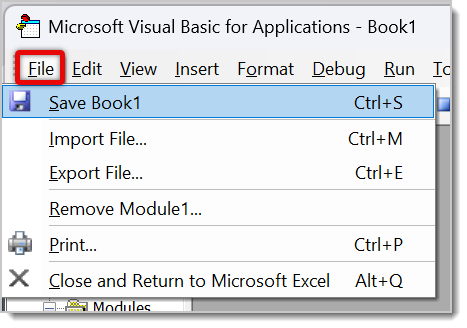
Exit the Module window, and make sure to save your work in the VBA Editor. Do so by clicking on File in the top taskbar, then clicking on Save. Alternatively, you can also use the Save shortcut of Ctrl + S on Windows devices or Cmd + S on Mac devices.
In your Excel sheet, you can then enter the following formula in a different column, so your UPC-As will be stored there:
=UPCEToA(A1)
Q: I have a question, but I can't find my answer here. How do I get more assistance?
A: If you need immediate assistance, the IT Retail team is available 24/7. Feel free to contact our support team at 877-752-0625. You can also email us at support@marktpos.com, and we will respond within 24 hours.
Is this page helpful?
×Help us improve our articles