







Scanner Setup
When you want to connect your barcode scanners to IT Retail, you'll first have to set up the scanner
 January 15, 2026
The IT Retail system lets you send customers copies of their receipts via text message, which saves paper for your store and makes receipt-tracking easier for the customer. Read on to find out how to set up receipt texting!
From the Back End, go to Administration in the main menu and click on POS Manager in the Administration menu. Follow the steps below:
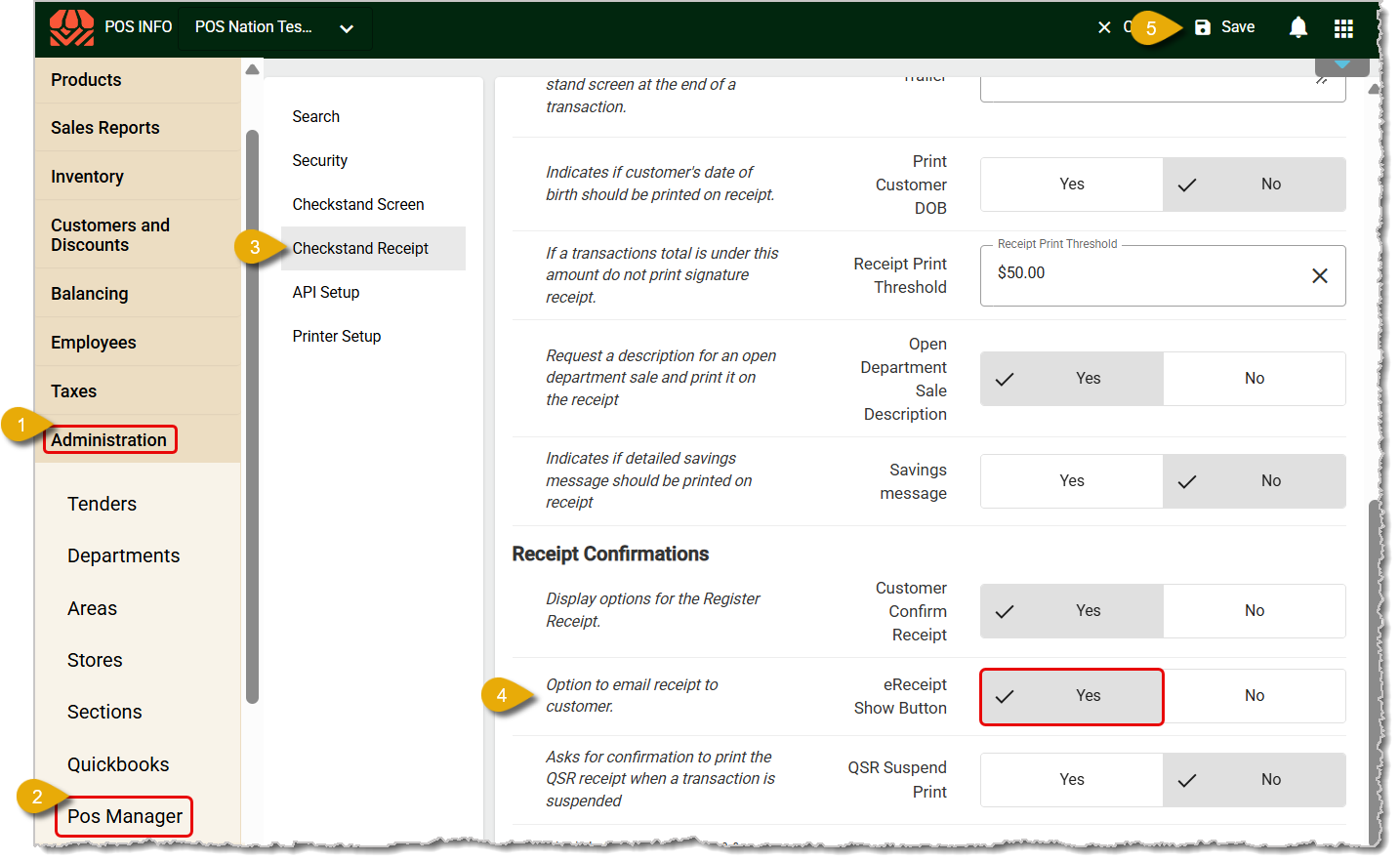
In the POS Manager, click on the Checkstand Receipt tab.
Scroll down the page until you find eReceipt Show Button located in the Receipt Confirmations section.
Click on Yes next to eReceipt Show Button.
Remember to Save once you're finished editing.
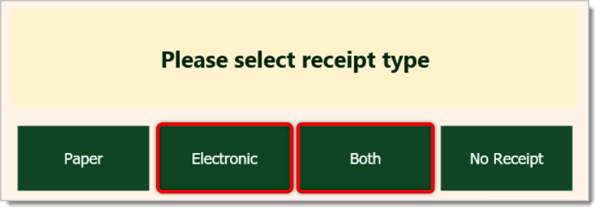
After the setting change has synced to the Front End, whenever a cashier completes a transaction, the screen will display Paper, Electronic, or Both as receipt options. You can click or tap on either, or on No Receipt, depending on what the customer wants.
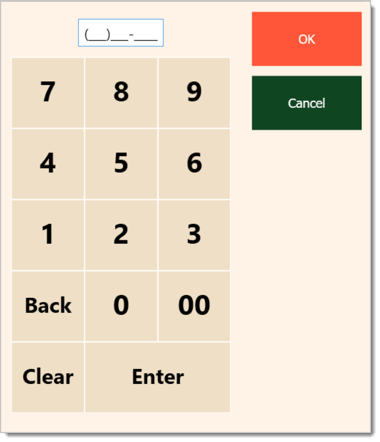
After that, a keypad will pop up so you can enter the customer's mobile phone number. After clicking or tapping on OK, the customer will receive a text with a link to their receipt.
POS Manager Checkstand Receipt
POS Manager Overview: Your System Settings
Q: I have a question, but I can't find my answer here. How do I get more assistance?
A: If you need immediate assistance, the IT Retail team is available 24/7. Feel free to contact our support team at 877-752-0625. You can also email us at support@marktpos.com, and we will respond within 24 hours.
Is this page helpful?
×Help us improve our articles