







Mix & Match With Product Groups
 December 18, 2025
You can give customers the ability to mix and match items using the same coupon, rather than create a separate coupon for each possible item. For example, a coupon that gives three cases of soda for $15 could apply to multiple soda brands, so customers aren’t limited to just one. Read on to see exactly how you can do this for your store!
Please Note: Before you can make this coupon, you will first need to create Product Groups from the Back End. To learn how, read our Product Groups article linked on the bottom of this article. Also note that this coupon only works on items in a Product Group that are priced the same.
Mix & Match Coupons with Product Groups
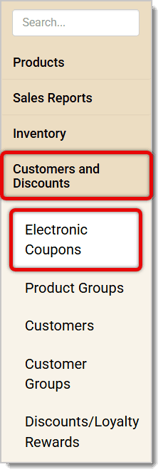
From the Back End, navigate to Customers and Discounts > Electronic Coupons.
For every coupon you create, you'll begin by filling out basic details in Electronic Coupons Editor.
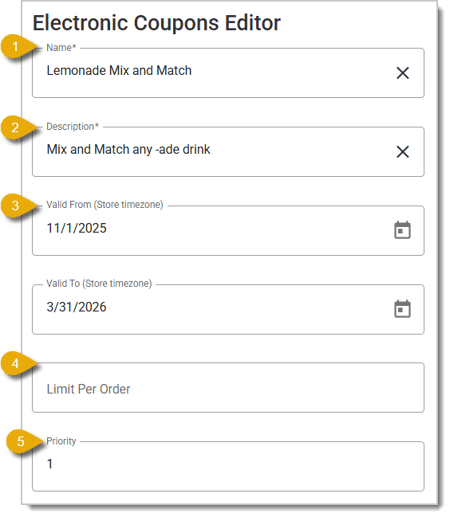
- Name* — Enter a Name for your coupon that will be easy to understand at a glance.
- Description* — Enter the Description and include any important information about the coupon.
- Valid From / Valid To — Enter the starting and ending dates this coupon can be used.
- Limit Per Order — Type in the maximum amount of times the coupon can be used in a transaction.
- Priority — Note where in the order this coupon should apply to a transaction if the customer is using multiple coupons. 1 would mean this coupon should be prioritized first, 2 would mean second, 3 would mean third, and so on.
*Required Field
Below the Coupon Editor, you'll see the Triggers and Awards. We'll start by setting Triggers.
Trigger and Award
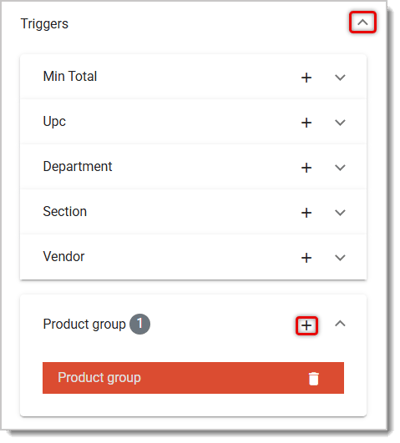
Click on the Chevron next to Triggers, then click on the Plus Sign next to Product Group to add the trigger.
To the right of the Coupon Editor, you'll see a panel where you can enter the Product Group Trigger details. Here's what you should enter in each field:
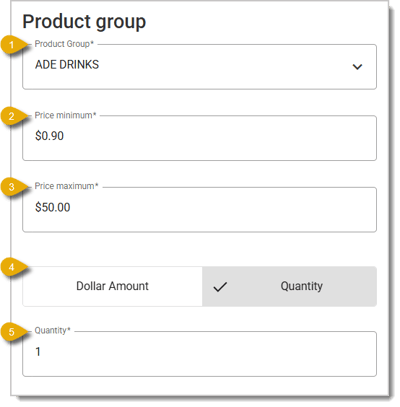
- Select the existing Product Group from the drop-list. If you need to make a new one, you can do so by going to Customers and Discounts > Product Groups.
- Under Price Minimum, type in the lowest price in the group. For example, if lemonade is the cheapest in the group, type in lemonade's price.
- Under Price Maximum, type in the highest price in the group.
- Make sure to select Quantity instead of Dollar Amount.
- Type in the minimum Quantity of items from this product group. That means a customer has to buy at least that number to get the coupon.
Now move down to Awards and click on it. Then click on the Plus Sign next to Product Group.
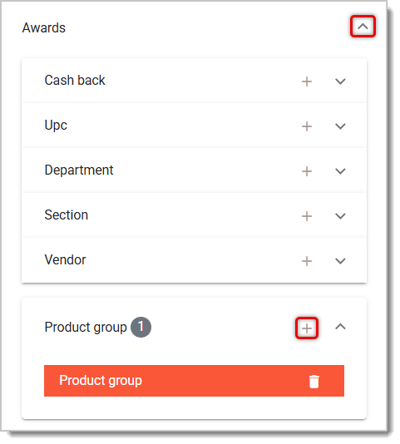
On the right, fill out the Award information for this Product Group coupon. We'll explain each field and the steps below:
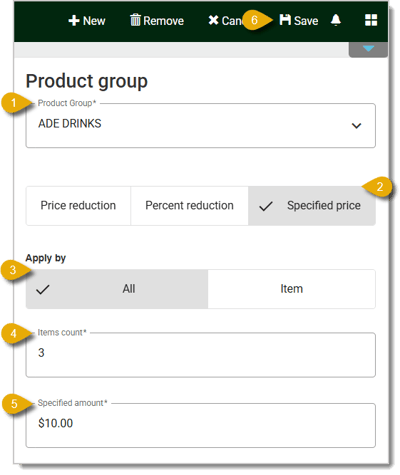
- Select the Product Group from the drop-list.
- Select what type of Award the customer will get from the coupon. In this example, we'll be using Specified Price for a coupon that lets you buy 3 lemonade (or similar beverage) items for $10 total.
- Under Apply By, we'll be selecting All so the coupon applies to the whole transaction. Clicking on Item instead would have the coupon apply to individual items. For example, we could use Item if we instead made a coupon where each item gets discounted to $4.
- For the Items Count, type in the minimum number of Product Group items the customer has to purchase to get the award.
- For the Specified Amount, enter the total price that the items would come out to if the transaction meets the coupon requirements.
- Click on the Save button to save your work and finalize the coupon.
Now, when 3 items from the same group are rung up, the customer can buy them for a total of $10.
Mix & Match Coupons in the Front End
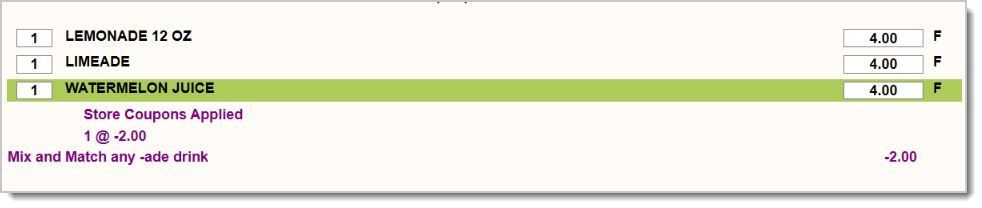
When a customer buys items that are in the same Product Group and meet the Trigger that you've configured, the coupon will automatically apply. As you can see below, the mix and match coupon for drinks took $2 off the transaction after 3 items from the "ade" group were scanned. This makes the total price of the three $10.
Related Articles
Coupons by Vendor or Department
Frequently Asked Questions
Q: I have a question, but I can't find my answer here. How do I get more assistance?
A: If you need immediate assistance, the IT Retail team is available 24/7. Feel free to contact our support team at 877-752-0625. You can also email us at support@marktpos.com, and we will respond within 24 hours.
Is this page helpful?
×Help us improve our articles