







How to Create Customers in the Front End
If a customer wants to sign up for your store’s membership program, you can add them in the Front En
 December 17, 2025
You can make a coupon that will take a dollar amount off of the price of a certain item, or one that will take a dollar amount off of the whole transaction, if the customer reaches a minimum purchase amount. For example, you can set up a coupon that would take $5 off for almond milk, or another that takes $10 off of every $60 purchase. Read on to see how you can make these for yourself!
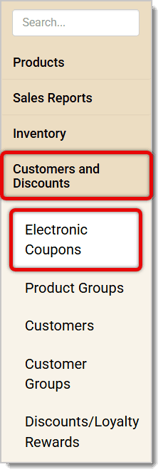
To make this coupon, go to Customers and Discounts > Electronic Coupons.
For every coupon you create, start by filling out basic details directly in the Electronic Coupons Editor.
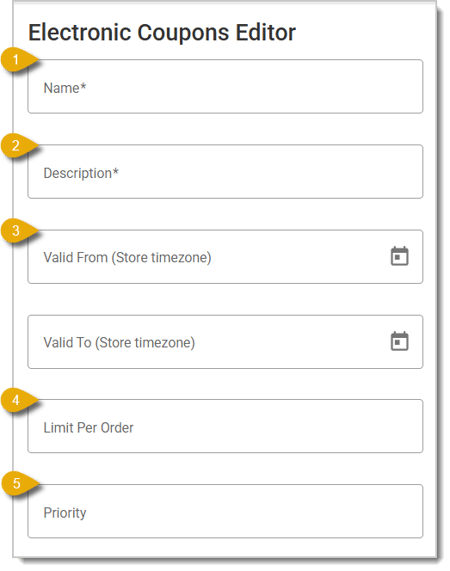
*Required Field
Below the Coupon Editor fields, click on the Chevron next to Triggers to open the menu.
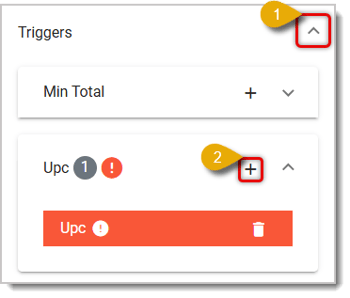
Click on the Plus Sign next to UPC to add the trigger. You'll see a set of fields to the right.
Load the item the coupon applies to by entering its UPC or Description, then select it from the drop-list.
Make sure you've selected Quantity for the trigger type.
Enter the Quantity of items the customer has to purchase for the coupon to apply. For example, entering 2 means the customer needs to buy at least 2 of the item to get the coupon.
Click on the Save button in the upper right to save your work.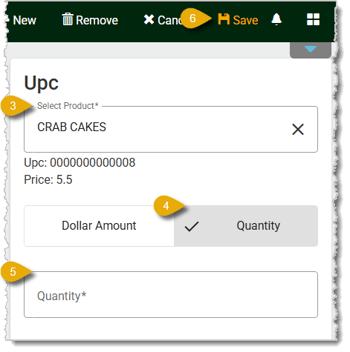
Scroll down to Awards.
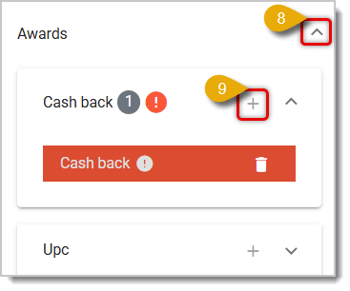
Click on the Plus Sign button next to Cash Back.
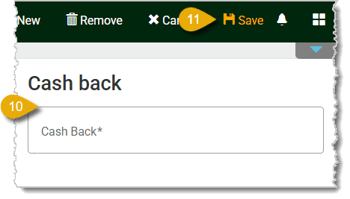
A Minimum Total Coupon gives the customer a discount for reaching a minimum purchase. For example, you could offer a coupon for $10 off for every $60 purchase. Again, you will not be handing the customer cash if they meet the requirements for this coupon, it will be a discount off the transaction total. Here's how to set one up:
Click on the Chevron next to Triggers to open the Triggers menu.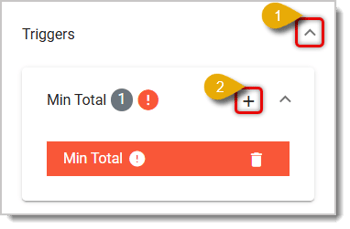
Then click on the Plus Sign button next to Minimum Total.
To the right, you'll see a field for the Minimum Total. Enter the minimum total dollar amount the customer must have in the transaction to earn the award.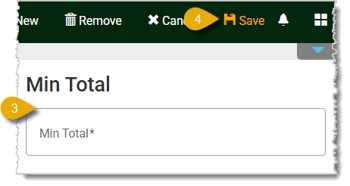
Click on the Save button in the upper right.
Click on the Chevron next to Awards, which is right below Triggers.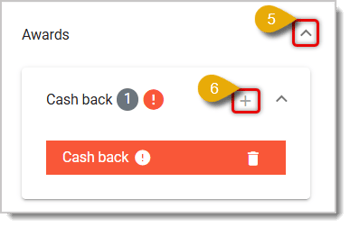
Click on the Plus Sign next to Cash Back.
In the right panel, enter the amount of Cash Back this coupon would give the customer.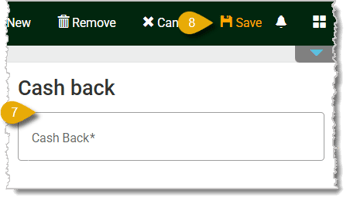
Click on Save to save your work.
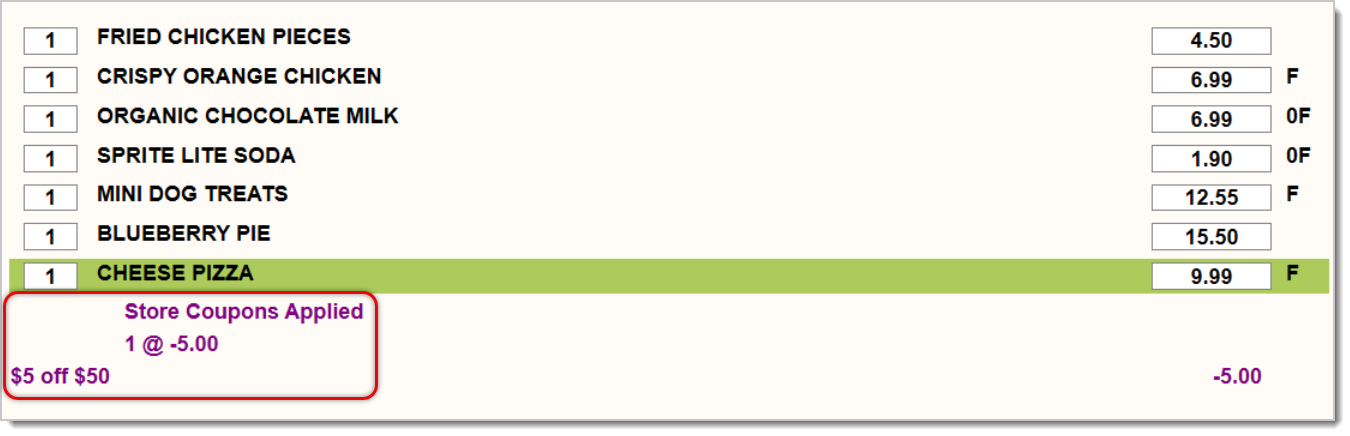
Once you’ve configured your Cash Back coupon, it will automatically apply once the customer’s transaction meets the Trigger condition in the Front End. An example could be a Minimum Total coupon that does $5 cash back for $50 purchases. This coupon will apply once a customer’s transaction meets $50 total, and the coupon will display below the list of items.
Coupons by Vendor or Department
Mix & Match Coupons With Product Groups
Q: I have a question, but I can't find my answer here. How do I get more assistance?
A: If you need immediate assistance, the IT Retail team is available 24/7. Feel free to contact our support team at 877-752-0625. You can also email us at support@marktpos.com, and we will respond within 24 hours.
Is this page helpful?
×Help us improve our articles