IT Retail

Product Modifiers

December 15, 2025December 15, 2025

If you sell fresh items such as deli sandwiches that have optional ingredients, you can create Product Modifiers so your customers can order the item the way they want. This article will show you how to create product modifiers and add them to a product. Take a look at what you can do!


Create Your Product Modifiers

To get to this page, log into the Back End and click to open the Products menu, then click Product Modifiers.
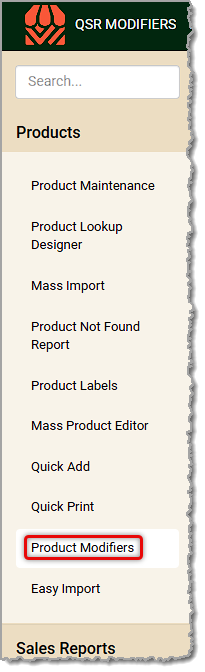
Image showing the Product Modifiers link in the Products menu of the Markt POS Back End.

Once the page loads, you'll see a list of any saved Product Modifiers you've created. You can click on one if you need to edit it, and its details will appear on the right. Be sure to click Save at the top after you make any changes. To create a new Product Modifier, do the following:
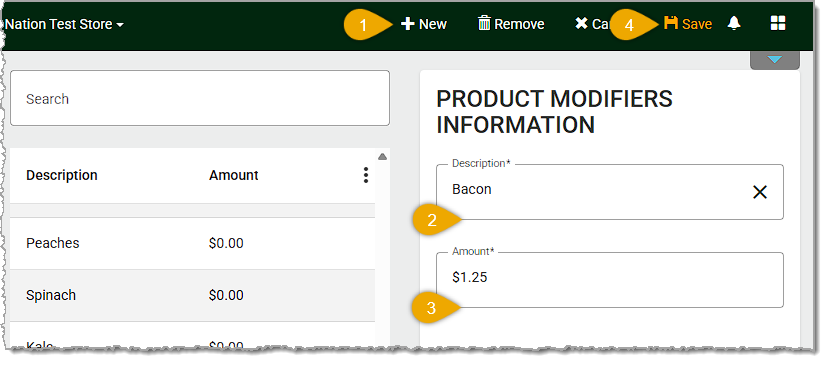
Image showing the steps to create a new Product Modifier in the Markt POS Back End.

  1. Click the +New button at the top of the page.
  2. Enter the Name or Description of the item with enough information for Cashiers to use it in the Front End and for customers to understand it on their receipts.
  3. Enter the Dollar Amount you charge if the it's added to a product in the Front End. If the item is free, enter $0.
  4. When you have finished entering the product modifier's details, click the Save button in the upper right.

Repeat the above steps for any other product modifiers you need to create. 


Set the Modifiers for a Product

To make sure a product offers the proper Product Modifier options in the Front End, you need to configure the product. Here is what you need to do:

While logged into the Back End, click to open the Products menu and click on the Product Maintenance tool.
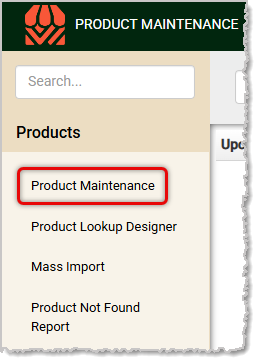
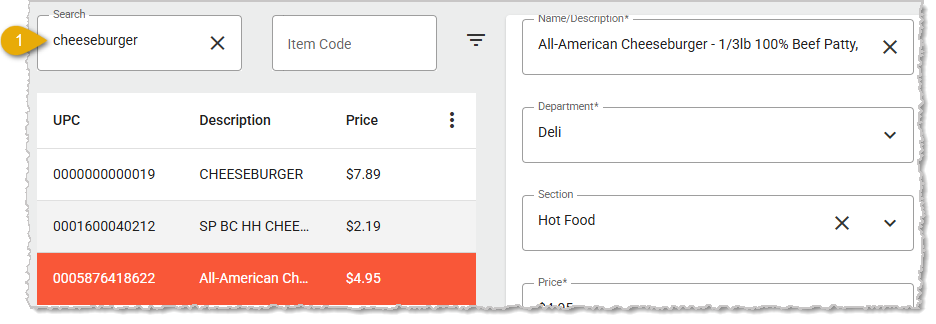
Image showing the Product Maintenance area of the Products menu in the Markt POS Back End.
  1. Either Search for the item you want by scanning in its UPC barcode or by entering its name or description. To create a new one, click the +New button at the top of the page. If you're creating a new product, enter all required information for the item as described in the article on Product Maintenance linked below, and pay special attention to the settings detailed next.
    Image showing the Search area of the Product Maintenance page of the  Back End.
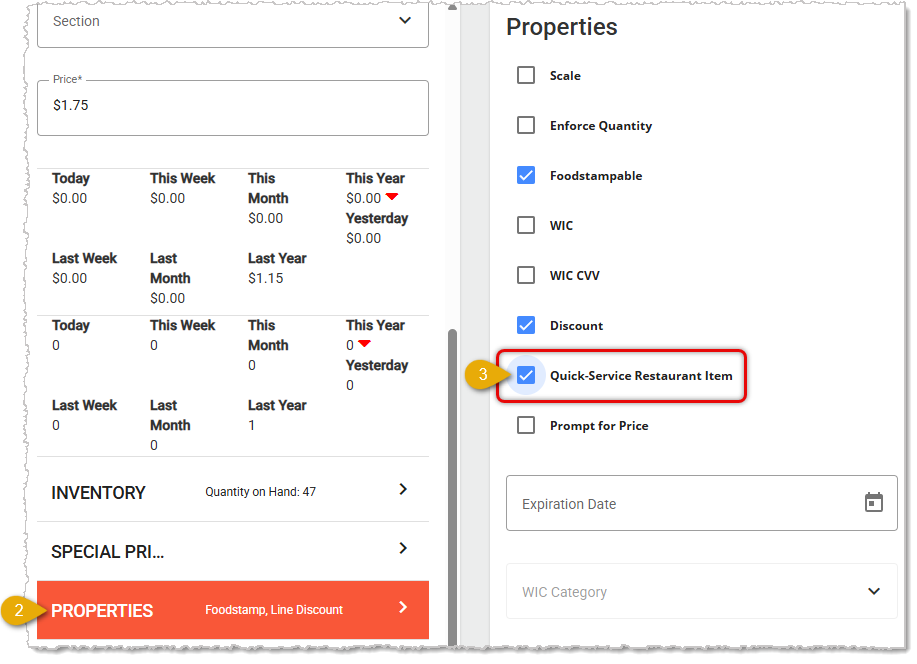
  2. Click on the Properties tab.
    Image showing the Properties tab and the upper functions on the Product Maintenance page of the  Back End.
  3. Check the box for Quick-Service Restaurant Item. Whenever the product is added to a transaction on the Front End, a new window will allow the cashier to add optional ingredients to the item. These ingredients are pulled from the list of Product Modifiers you've created. An additional small receipt will also be printed to give to the kitchen showing the order number and any extra items.
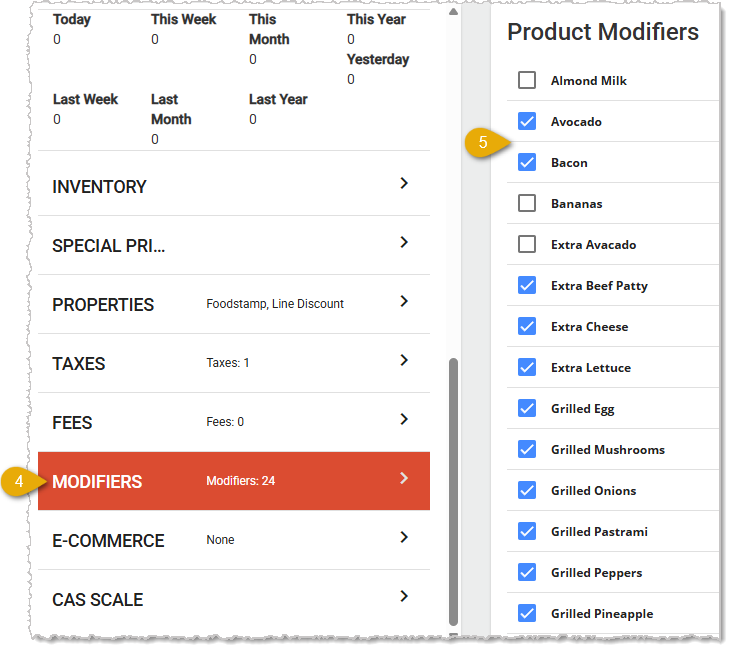
  4. Scroll down and click on the Modifiers Tab. If there are any Modifiers already selected for the item, you'll see how many on the tab, as pictured below.
    Image showing the Product Modifiers tab of the Product Maintenance page of the  Back End.
  5. On the left you'll see all product Modifiers you have created. Check the boxes for all modifiers you want to offer for the product.
  6. Click the Save button at the top of the page once you're finished entering your product information.


Use Modifiers in the Front End

Once you have configured your products with Modifiers as described above, here is how it works in a transaction. In the Front End, whenever a cashier adds an item with Modifiers to a transaction, a window will open that will let them Add Modifier options the customer wants, as pictured below. The Cashier also has the option of adding custom modifiers in the upper left if needed.
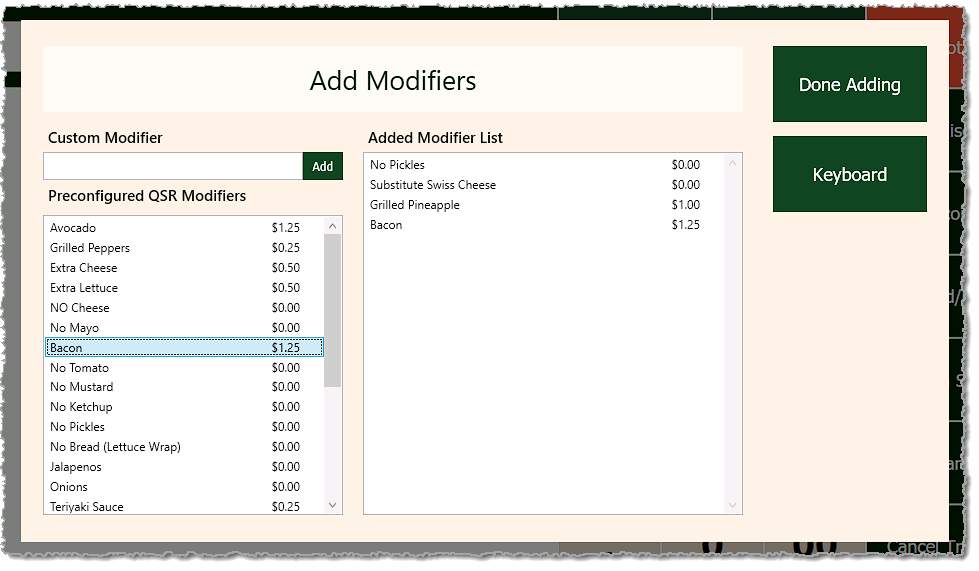
Image showing the Add Modifiers window of the Markt POS Front End.

In the Register, the Product Modifiers and their respective prices will be itemized under the product, as pictured here:
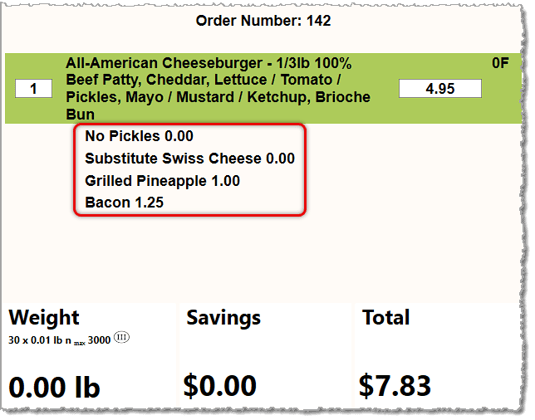
Image showing product modifiers on an item in the Markt POS Front End register.


Related Topics

Cashier Training

Product Maintenance


Frequently Asked Questions

Q: I have a question, but I can't find my answer here. How do I get more assistance?

A: If you need immediate assistance, the team is available 24/7. Feel free to contact our support team at: 877-752-0625. You can also email us at support@marktpos.com and we will respond within 24-hours.

Need Help?

Can't quite find the answer you're looking for? Our support team is just a call away.