







Working With Products in Transactions
Adding products to a customer’s transaction is straightforward. Below is a step-by-step guide on how
 December 12, 2025
Need to see products that slipped between the cracks and are out on your sales floor but didn't get added properly into your database? This article will show you how to use the Product Not Found report to see what you're missing. Take a look at what it can do for you!
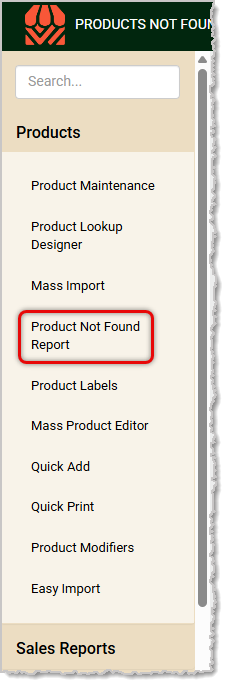
To get to this report, log into the Back End and click to open the Products menu, then click Product Not Found Report.
Once the page loads, you'll see a list of UPC codes that were entered into the Front End but did not have a matching saved product. To work with the report you can do the following:
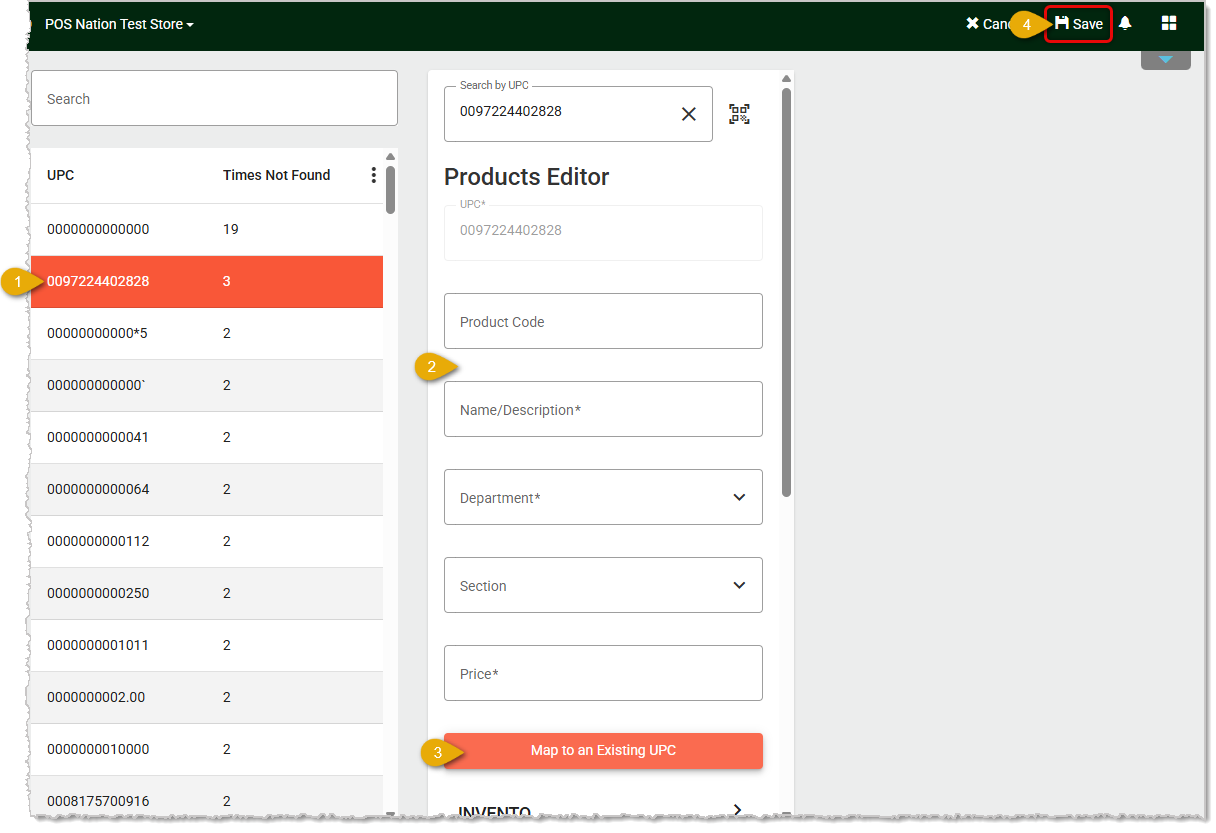
Repeat the above steps for any other products you need to update.
Q: I have a question, but I can't find my answer here. How do I get more assistance?
A: If you need immediate assistance, the IT Retail team is available 24/7. Feel free to contact our support team at: 877-752-0625. You can also email us at support@marktpos.com and we will respond within 24-hours.
Is this page helpful?
×Help us improve our articles