Import Products 2: Easy Import

December 15, 2025
If you need to import a large number of products that are in the same Department, this helpful tool will guide you through the process. This article will show you how to use the Easy Import tool and download the data. See how simple it can be!
The Easy Import Assistant
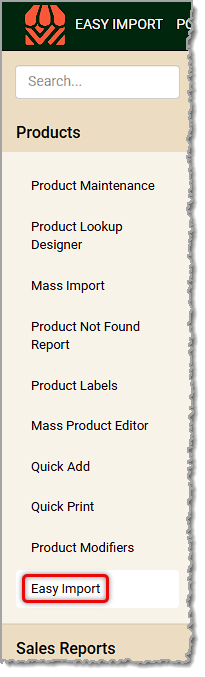
To get to this area, log into the Back End and click to open the Products menu, then click Easy Import.
The Easy Import tool offers you a guided process for importing products to a single Department. Here are the steps:
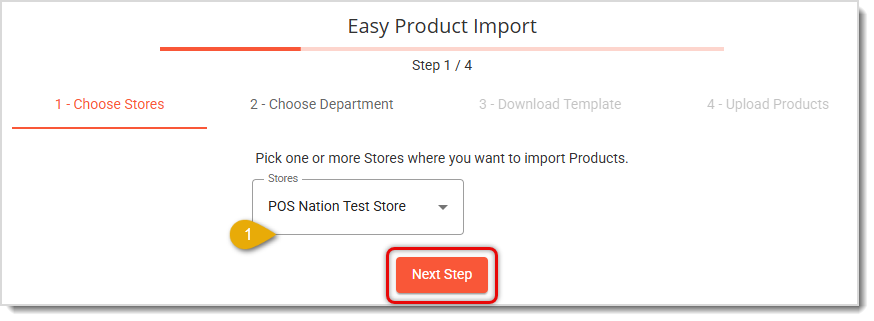
- Choose Stores — If you are importing products for the databases of multiple stores, or if the store you need isn't the one that automatically displays, open the drop-list and select the one(s) you need, and then click outside the drop-list to close it. Click Next Step to proceed.
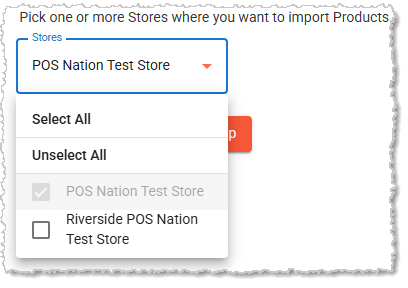
- Choose Department — Click to open the drop-list and select the Department with which you want to work, then click Next.
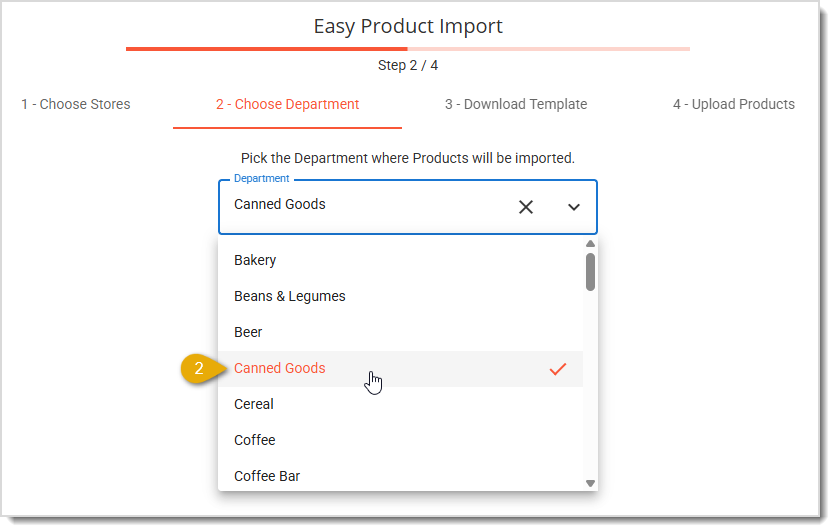
- Download Template — Click the Download Template button. Your browser will download the template CSV file for you.
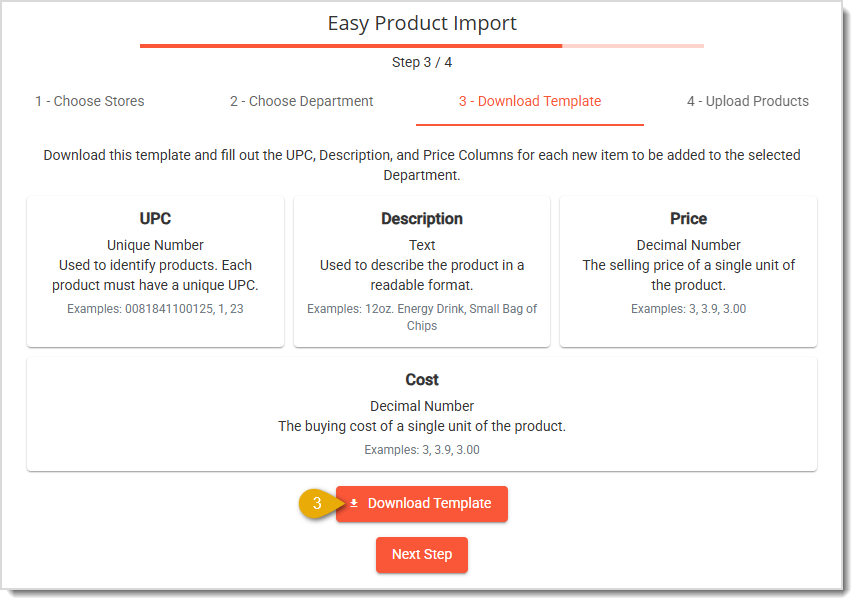
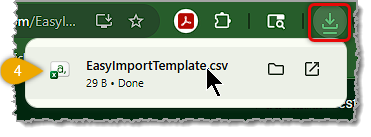
- Open the File — In your browser's Downloads area, click the downloaded file to open it in your default spreadsheet program (the Downloads area for Chrome is pictured below). Click Next Step to proceed to the next window. You'll come back to it after you're done working with your product data in the spreadsheet.
- Select Column A — Excel doesn't like numbers with zeroes in front, in general, so we'll need to reformat the type of data for Column A. In a spreadsheet program (we recommend Excel) with the template file open, click A in the first column to highlight the entire column. Please Note: the instructions below are for Excel.
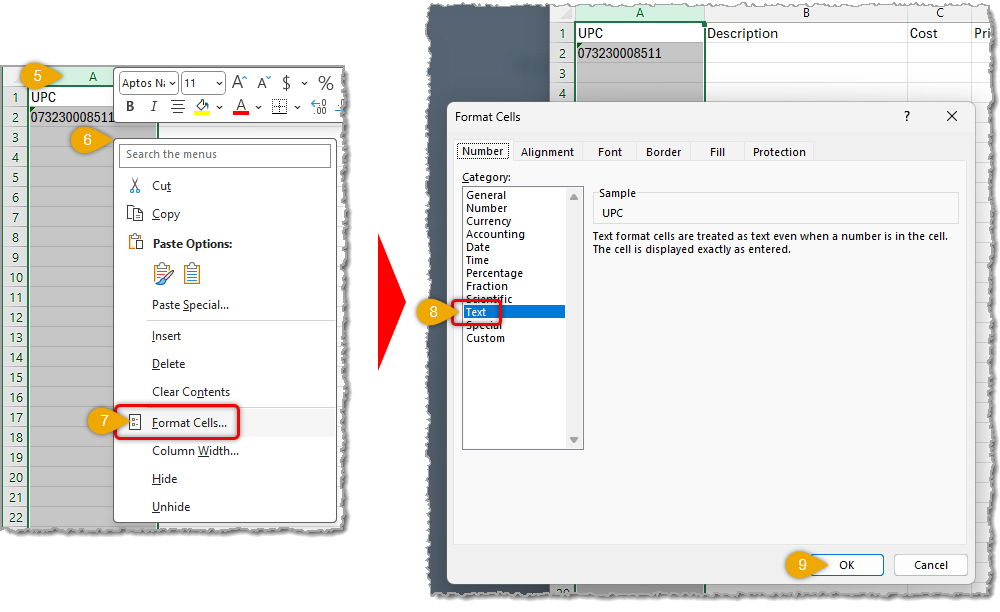
- Open the Context Menu — Right-click anywhere in the selected column to open the context menu.
- Format — Click the Format Cells option. The Format Cells window will open.
- Text — Click on the Text formatting option. This will allow your UPC codes to retain their leading zeroes.
- Save — Save your selection and apply the new formatting by clicking the OK button.
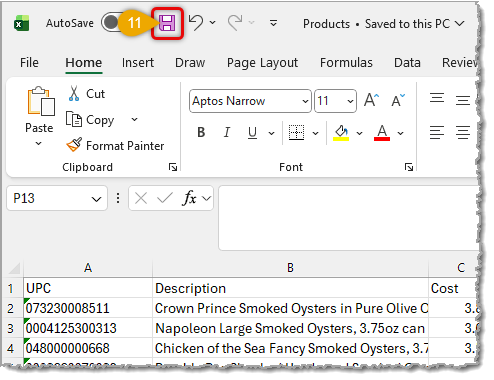
- Data Entry — Enter the UPC, Description (full product name with key details, as in the examples below), Price, and Cost for each item you are importing.
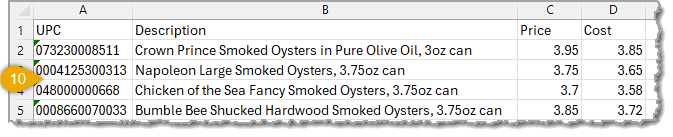
- Save the File — In your spreadsheet program, click to Save the CSV file. Make sure it is not being changed to a different file format (if using Excel, the file will still be in CSV format at this point unless you opted to change it).
- Add CSV File — Go back to Step 4 in the Easy Import tool. You can drag and drop the import file into the target area pictured below, or just click the area to browse your device and find the file.
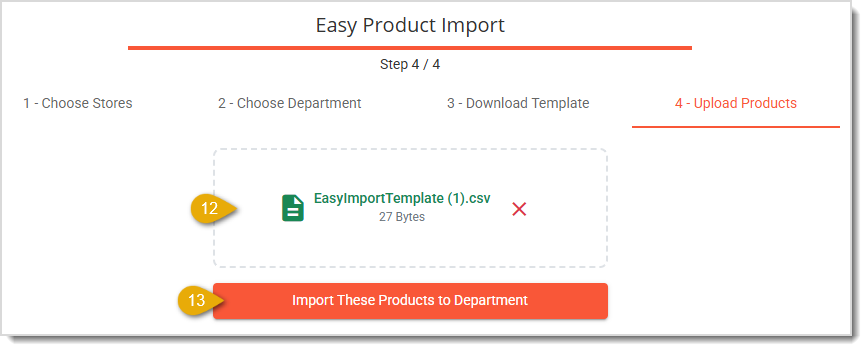
- Import — Click the button to Import These Products to Department. You'll see a thin progress bar at the top of the window. Depending on how large your data file is, it may take a while to import, so please be patient.
- Errors — If there are any errors in your data, you'll see a message like the one below, and you can click to Export Failed Products to see the row(s) in your CSV that had issues. If you cannot figure out why the data was rejected, don't let it frustrate you, we can help! Please call our support team at the contact phone number listed at the bottom of this article. Please note, if you see this error message, only the items that were correctly formatted will have been successfully uploaded. You'll need to fix the data for the products that need correct formatting and upload the file again. You'll see a Return to Import button that you can click to go back to the Easy Import tool.

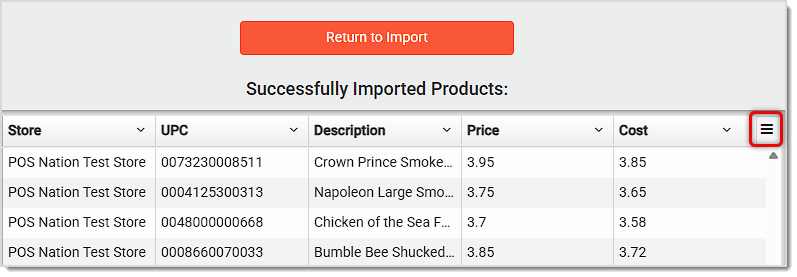
- Imported Data — After a successful upload, you'll see the data for the products you just added, as pictured below. If you need to, you can click the Actions button on the far right side of the data table to export the data as a PDF or CSV, or to change the Columns that are displaying. If you need to import more items to a single department, you can click the Return to Import button to go back to the Easy Import tool.
Need to Import More Data / to Multiple Departments?
Use The Mass Import Tool — This tool offers a way to build a custom product template download that uses only the product attributes you will be editing. This is best if you want a tailored starting point for your data work. The Mass Import tool is detailed in the article Import Products 3: Mass Import.
Related Topics
Product Maintenance
The Import Products article series:
Import Products 1: Data File
Import Products 2: Easy Import (This Article)
Import Products 3: Mass Import
Frequently Asked Questions
Q: I have a question, but I can't find my answer here. How do I get more assistance?
A: If you need immediate assistance, the IT Retail team is available 24/7. Feel free to contact our support team at: 877-752-0625. You can also email us at support@marktpos.com and we will respond within 24-hours.
Adding products to a customer’s transaction is straightforward. Below is a step-by-step guide on how
Processing refunds and returns is a natural part of retail sales. We’ll walk you through the steps o
Going live with EBT (SNAP) is exciting and may not be as daunting as you’d think. We've done a few t








Is this page helpful?
×Help us improve our articles