In-Store Charge Report

December 24, 2025
You can use the In-store Charge Report to view the In-Store Charge Accounts of your customers and print out invoices to send them. Read on to find out how to access the report from the IT Retail Back End and easily export files!
In-Store Charge Report
The In-Store Charge Report will provide you with the following data for these customers with In-Store Charge Accounts:
- First Name
- Last Name
- Email
- Total Due — The total amount left on their account's balance
- Last Paid — The last date a customer submitted a payment for their balance
- Last Charge — The last date a customer was charged
- Number of Transactions
Here is how you can work with the In-Store Charge Report:
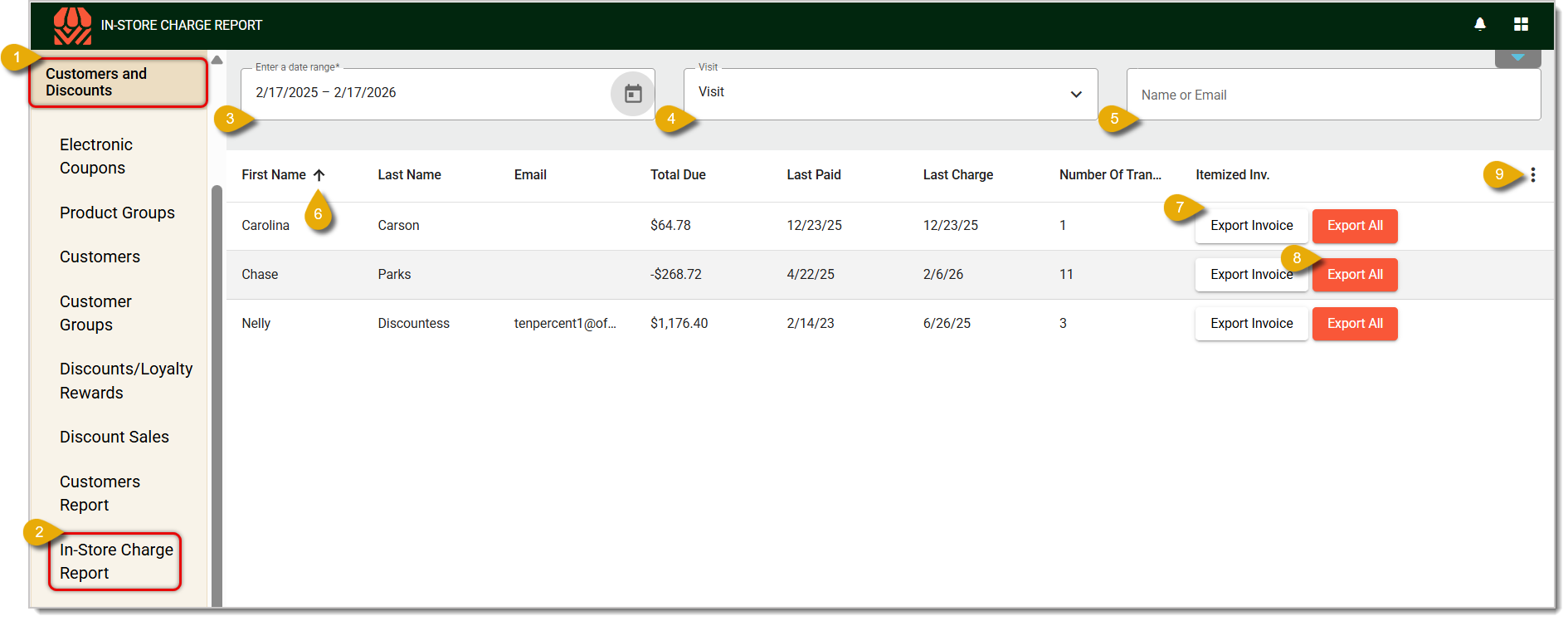
- Go to Customers and Discounts and click on it.
- In the Customers and Discounts menu, click on In-Store Charge Report.
- By default, you will first see data from the last 30 days. To change that, click on the Date Range calendar icon and select your starting and ending dates.
- You will see data for customers in the Visit (default). These are customers who visited your store and used their In-Store Charge Account in the date range you've set. The No Visit view will show customers who didn't visit in that time period, and All will show data on every customer who has an In-Store Charge Account with your store.
- To search for a specific customer, you can use the field that reads Name or Email. Enter their name or email address, and you'll see matching results in the table below.
- Click on a Column Header to sort your data according to that column by alphanumeric order. Click again to sort in reverse order.
- Click on Export Invoice in a customer's entry to download a PDF file for only their data. The file will contain only that customer's in-store charge account activity within your selected date range.
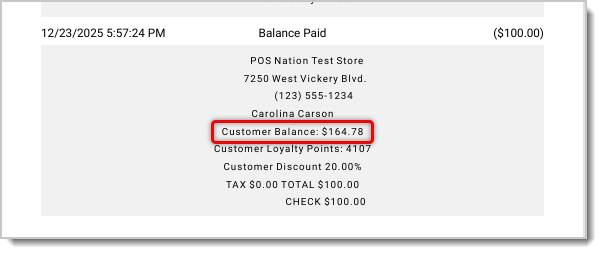
- Click on Export All to get a file containing the entire invoice history of the customer’s account. You'll see the total balance left at the bottom of the invoice.
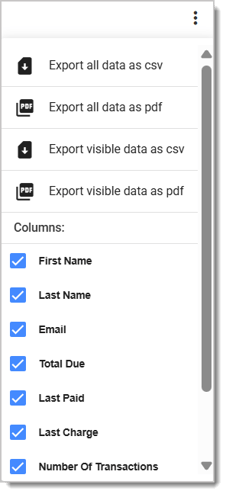
- Click on the Action Menu, the three-dot stack, to export all of the data as a CSV file or PDF file. You can also select which columns will be hidden or visible.
Related Articles
In-Store Charge Accounts
Customers
Customer Report
Customer Loyalty
Discounts / Loyalty Rewards
Frequently Asked Questions
Q: I have a question, but I can't find my answer here. How do I get more assistance?
A: If you need immediate assistance, the IT Retail team is available 24/7. Feel free to contact our support team at 877-752-0625. You can also email us at support@marktpos.com, and we will respond within 24 hours.
If a customer wants to sign up for your store’s membership program, you can add them in the Front En
For businesses that charge for annual customer memberships, you can set expiration dates so you don’
You can set your customers to be able to charge items to an in-store account if you like. This artic








Is this page helpful?
×Help us improve our articles