Purchase Order Import Templates

July 01, 2026
With the Purchase Orders Import tool you are able to save templates of import configurations you create. This will save you time in not having to do the same configuration steps over and over again on recurring orders. This article will show you how to create and use your PO Import Templates. Take a look!
Working With Purchase Order Import Templates
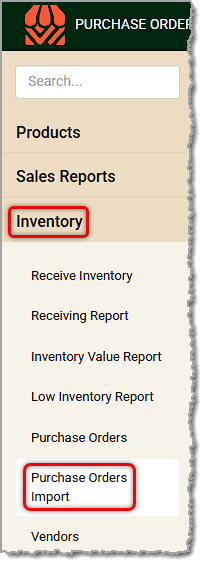
From the Back End open the Inventory menu and click on Purchase Orders Import.
When you go to import your Purchase Order CSV file, whether created from scratch or from an image upload, you'll be able to work with Import Templates once you're viewing the Map Import window in step 3 and after, below.
💡Please Note: For full details on working in this area, find the link in the Related Topics section below for the Purchase Orders Import article.
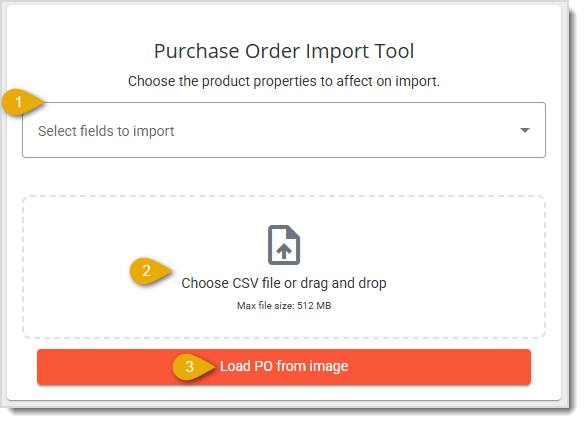
- Select Fields to Import — Click the Select button to see the list of product attributes you can have in your custom import template. Select the ones you want, then click the button again to collapse the drop-list.
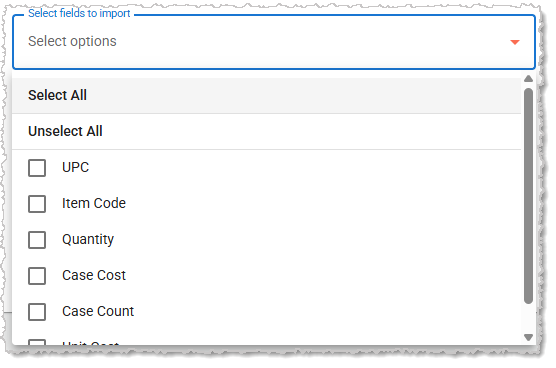
With your attributes selected, you'll see a button to Get Custom Import Template. Click that button to download your CSV spreadsheet file.
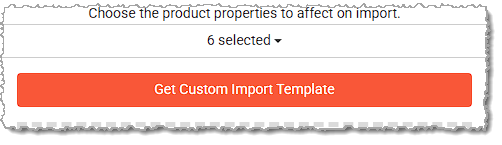
- Import Data File — If you already have a CSV with the data you need, you can drag and drop it into this area or click in this area to browse your device for the file. If you have built a custom template, open the CSV file you downloaded and add your data for the products that will be in your purchase order, then add the file to this area as described. Once your file is added, you'll see the file name and size, as pictured below.

- Import Purchase Order — Click the Import Purchase Order button once you've provided the file in step #2 and the system will open the Map Import window.
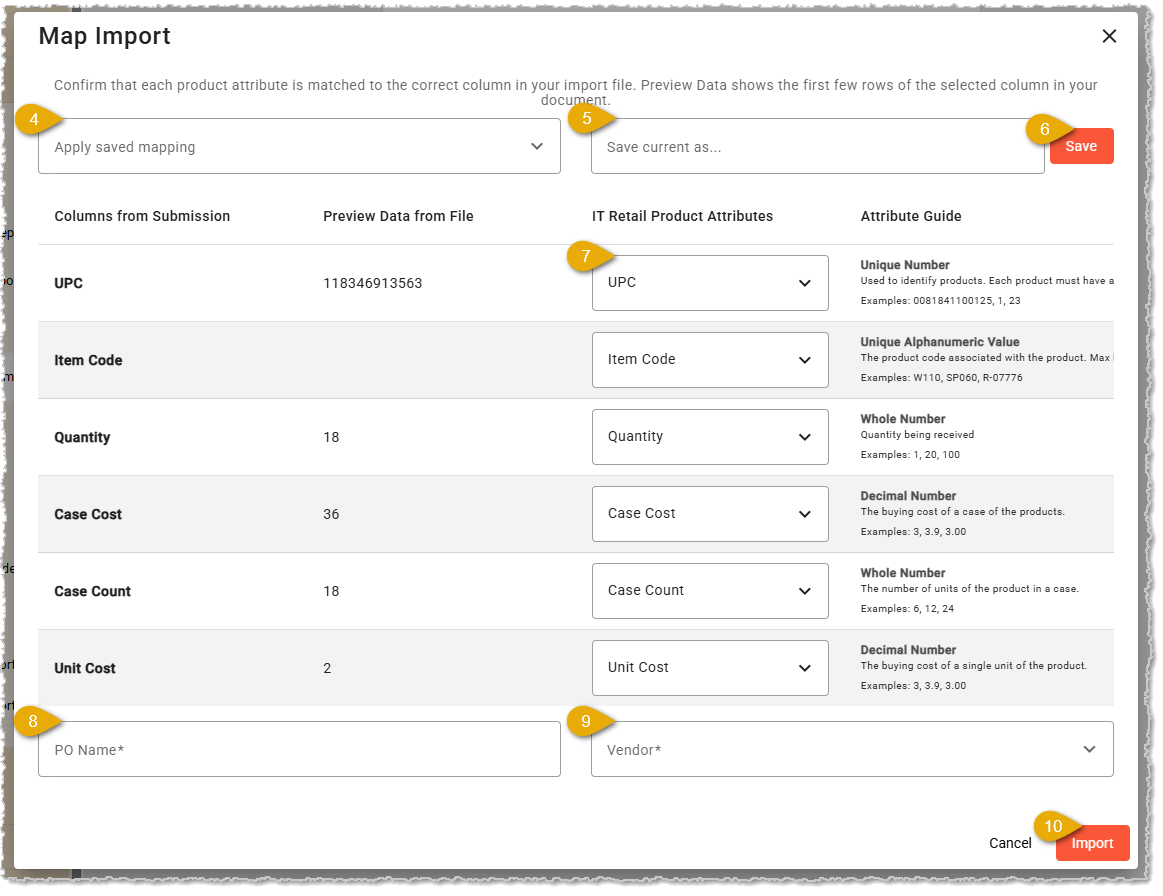
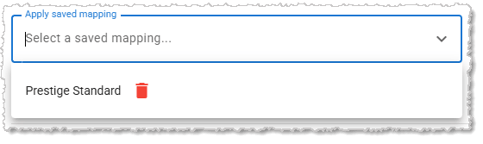
- Apply Saved Mapping — In the Map Import window, if the format for the Purchase Order Import is one you've saved already as a template, you can click this area to choose the one you want from the list and click on its name. The mappings below will automatically populate, saving you time in manually configuring them.
- Create Import Mapping Template — If you will re-use the mapping configuration for future PO imports, you can enter a name for a reusable Template here.
- Save Template — Click this button to save your template for future use.
- Map Data Columns — Make sure that the columns from your file (left column) match up with product properties (right column). For example, in the image above, UPC was automatically mapped to the UPC product attribute. However, Description is not one of the six available attributes for Purchase Order uploads, so you would choose IGNORE COLUMN.
- Purchase Order Name — At the bottom of the window, you will want to enter the PO Name you want if it's not already populated.
- Vendor — If it's not already populated, select the Vendor(s) for the order.
- Complete the Import — Click the Import button to save the mapping and complete the upload. If there are any errors in the data, you'll be informed and can download a list of the items that failed to upload. If any one item fails, the system will not import the others and you will need to fix the data before you can upload it again. If you need help with this process, please call our support team using the information at the bottom of this article and we'll be delighted to assist you!
Related Articles
Purchase Orders
Purchase Orders Import
Receive Inventory
Receiving Report
Inventory Value Report
Low Inventory Report
Quick Inventory
Frequently Asked Questions
Q: I have a question, but I can't find my answer here. How do I get more assistance?
A: If you need immediate assistance, the IT Retail team is available 24/7. Feel free to contact our support team at 877-752-0625. You can also email us at support@marktpos.com, and we will respond within 24 hours.
The Receive Inventory page allows you to easily receive product deliveries and to update quantities.
The IT Retail system makes it easy to add or update your products in the Back End. This article deta
The Inventory Value Report will show you the Quantity On Hand and dollar value of your products. Kee








Is this page helpful?
×Help us improve our articles