Product Creation Methods

December 16, 2025
There are several ways to enter new products as needed in the IT Retail system. This article details how to get to all such areas and provides links to articles with full details on each of them. Explore product creation in the system!
Product Creation Methods
There are seven areas you can use to create new products:
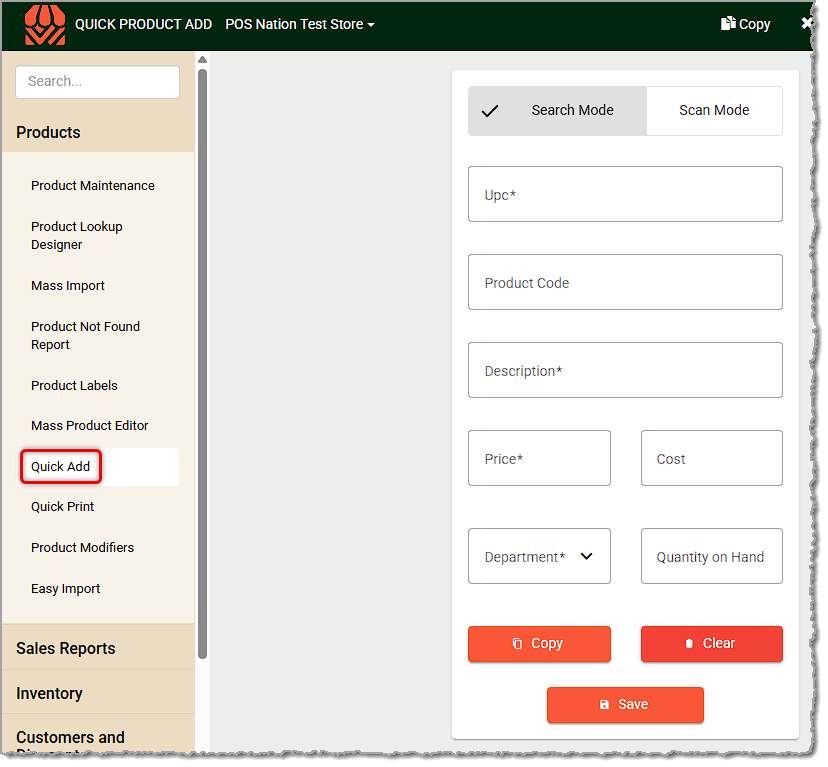
- Quick Add — This area is in the Back End in the Products menu. Quickly add products from a mobile device such as a smartphone or a handheld inventory device such as the Zebra TC21, or you can use a desktop scanner. This is the fastest way to add smaller groups of products.
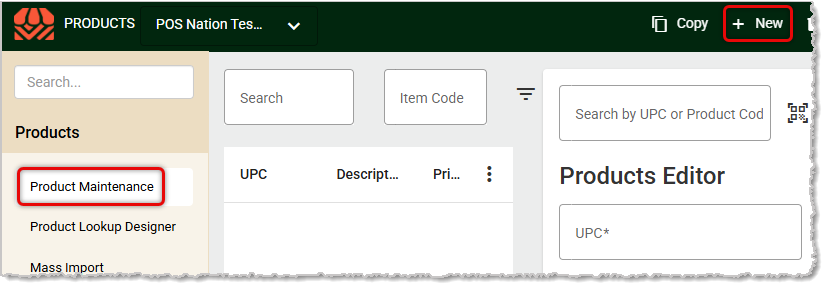
- Product Maintenance — This area is in the Back End under the Products menu and it offers a comprehensive list of data options for creating your products. Some of the other methods use only key information, so you may want to use this page to fill out full details after you've used another method for the basics.
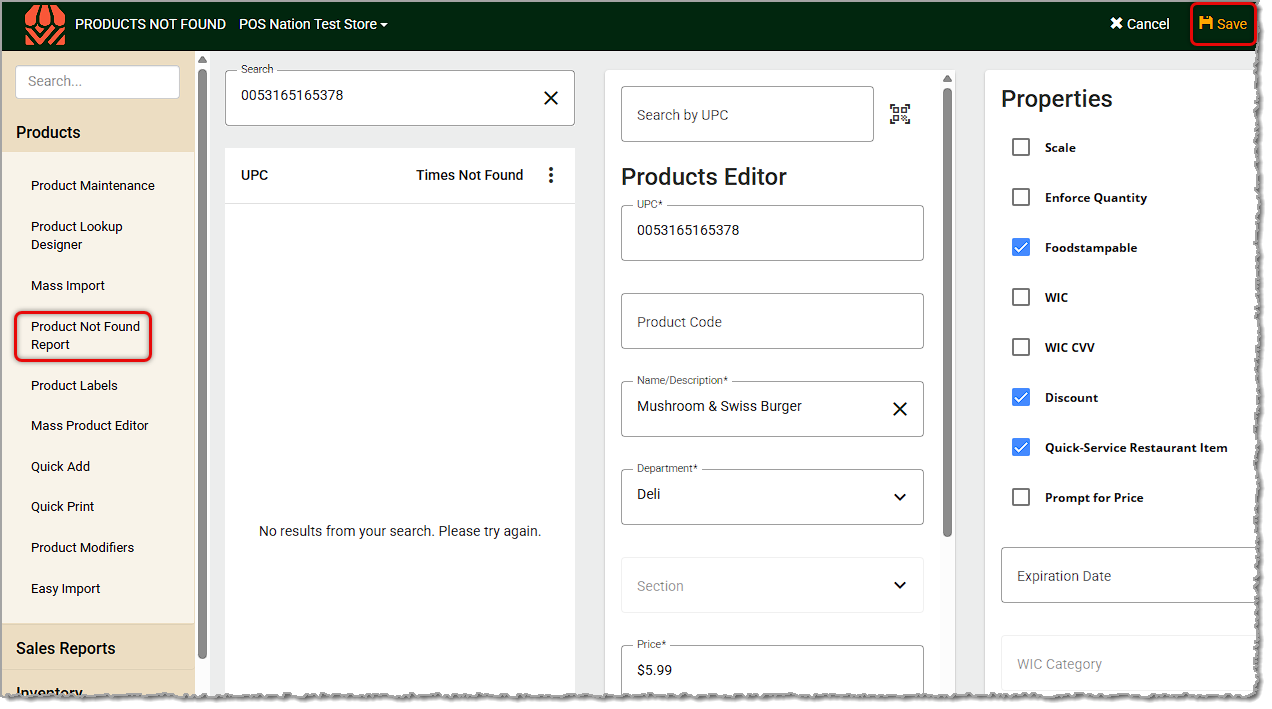
- Product Not Found Report — This area is also in the Back End under the Products menu. If cashiers have been searching for an item in the Front End but fail to find it, it means they have the inventory but it hasn't been saved in the system. When this is the case, the Product Not Found Report allows you to identify and create such products. This area offers the full functionality of the Product Maintenance tool above, so it's an excellent way to add a product with all data options.
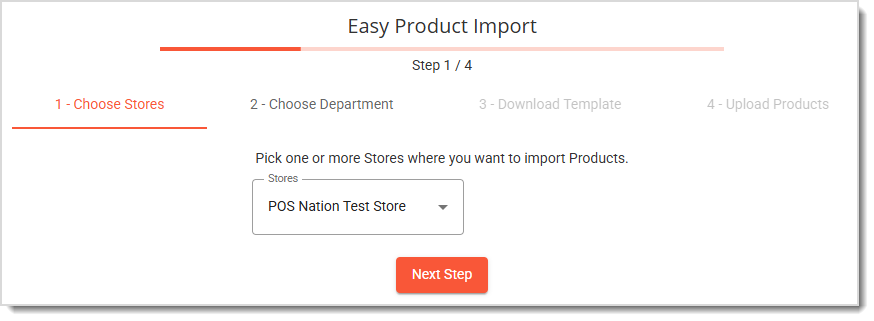
- Easy Import — If you're importing products for a single Department, this is the fastest method for bulk product creation. You can work with this in the Back End under the Products menu. The data this imports is very limited, allowing you to enter only UPC, Name, Price, and Cost information. For data such as Quantity and Tax rate, you'll need use other tools, such as the Mass Product Editor and Mass Import tools in the Products menu, which can be used in conjunction for this need.
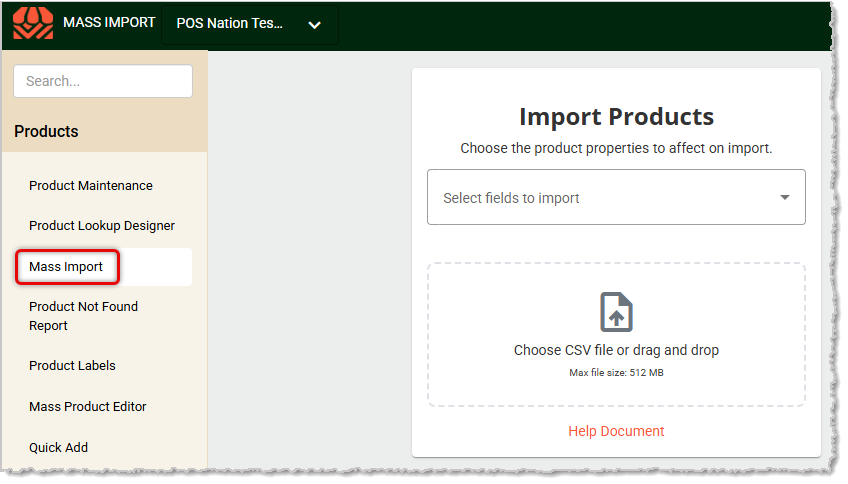
- Mass Import — If you are not familiar with spreadsheets, we recommend working with our support team for this area. If you want to quickly build an Excel spreadsheet you can do so using this tool. Then you can import it into our database with the major product settings.
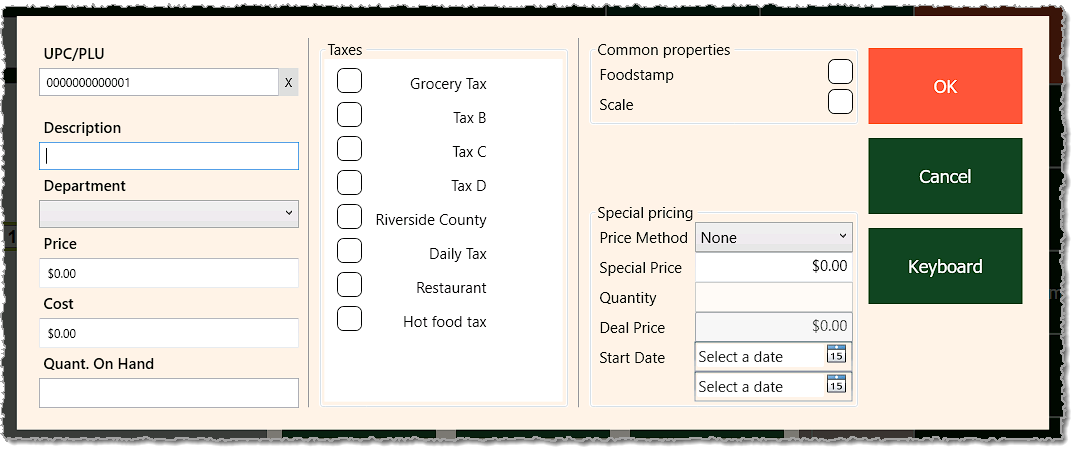
- Add/ Edit Products on the Front End — If you need to add a product on the spot, the Manager Functions menu in the Front End has an Add/Edit Product function you can use to add essential data for a new product in a transaction. The product won't sync to all lanes right away, however, it will take at least a day, so creating it in the Back End and doing a fresh login in the Front End is best, if possible.
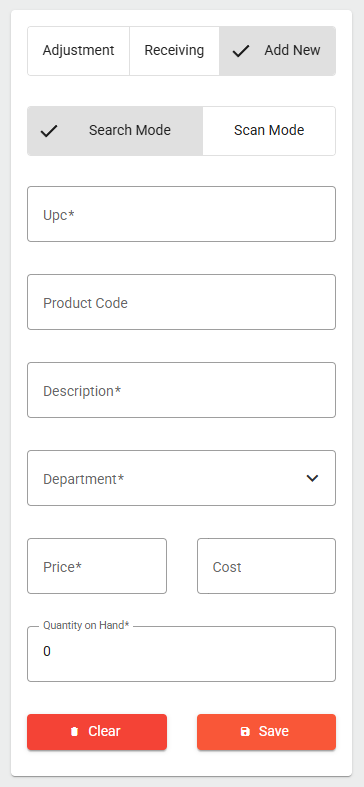
- Quick Inventory — If you just need to quickly add a new product with basic details to the system, the Quick Inventory tool in the Inventory menu in the Back End is a great option. Start by clicking the Add New tab. You can either manually enter the UPC using the Search Mode or use the Scan Mode to scan in the UPC from the barcode. With this method you are limited to the UPC*, Product Code, Description*, Department*, Price*, Cost, and Quantity on Hand* (*required fields) product data points. You can always go into Product Maintenance to edit the item and add more details at a later time.
Related Topics
Quick Add
Product Maintenance
Import Products 1: Data File
Import Products 2: Easy Import
Import Products 3: Mass Import
Quick Inventory
Product Not Found Report
Manager Functions in the Front End
Frequently Asked Questions
Q: I have a question, but I can't find my answer here. How do I get more assistance?
A: If you need immediate assistance, the IT Retail team is available 24/7. Feel free to contact our support team at: 877-752-0625. You can also email us at support@marktpos.com and we will respond within 24-hours.
Welcome to IT Retail, we’re so glad you’ve chosen our POS for your store! This article will guide yo
Adding products to a customer’s transaction is straightforward. Below is a step-by-step guide on how
You can ring up a product as a Non-Scan item if it doesn’t have a UPC / PLU code or it's not yet reg








Is this page helpful?
×Help us improve our articles